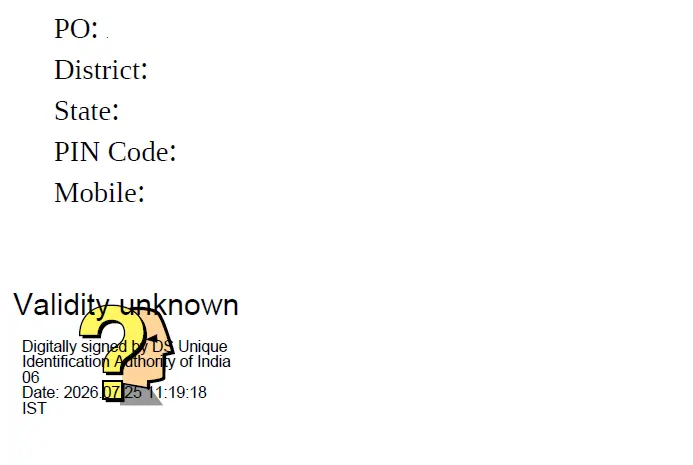
Once you download your e-Aadhaar, which is the digital version of your Aadhaar card, from the UIDAI website or the mAadhaar mobile app, you may notice a yellow question mark displayed on the document. Along with the question mark, you may see the message “Signature Not Verified” or “Validity Unknown.”
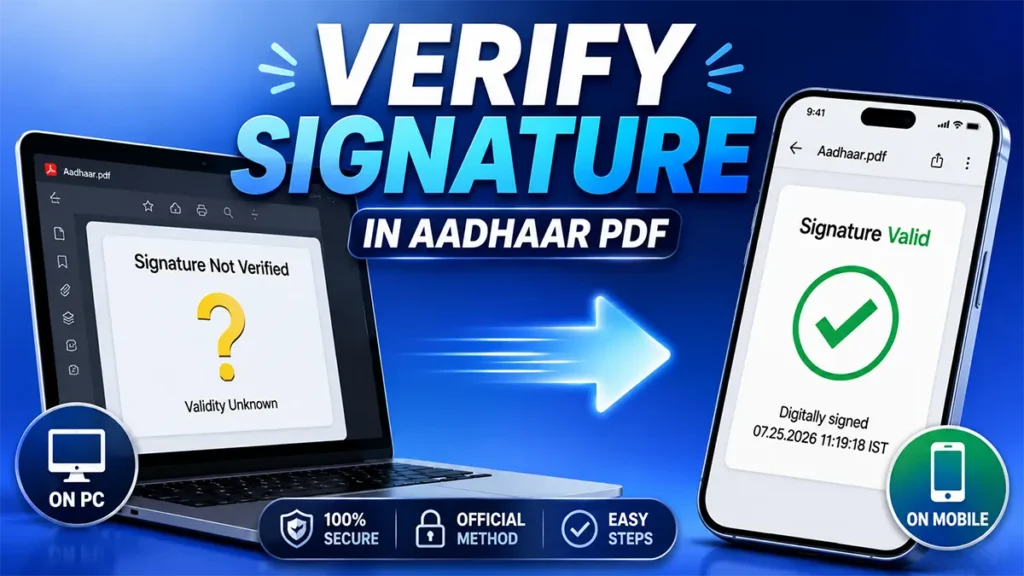
This does not mean that your Aadhaar has been downloaded incorrectly or is invalid. It simply means that the digital signature included in the PDF has not yet been verified on your computer.
By following a few simple steps, you can validate the digital signature and replace the yellow question mark with a green “Signature Valid” check mark.
In this guide, you’ll learn how to verify the Aadhaar digital signature on a PC and how to get the Signature Valid green tick on your mobile phone.
Table of Contents
How to Verify Aadhaar Signature on PC
To verify the digital signature in your Aadhaar PDF, open the file using Adobe Acrobat Reader. If you don’t already have Adobe Acrobat Reader installed, you can download it from the official Adobe website.
Once you’ve opened your Aadhaar PDF in Adobe Acrobat Reader, click the yellow question mark or the message “Signature Not Verified” or “Validity Unknown.”
A Signature Validation pop-up window will appear.
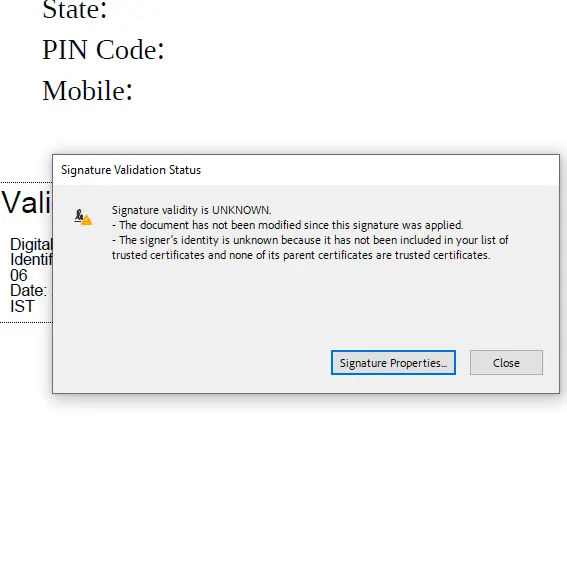
Click Signature Properties.
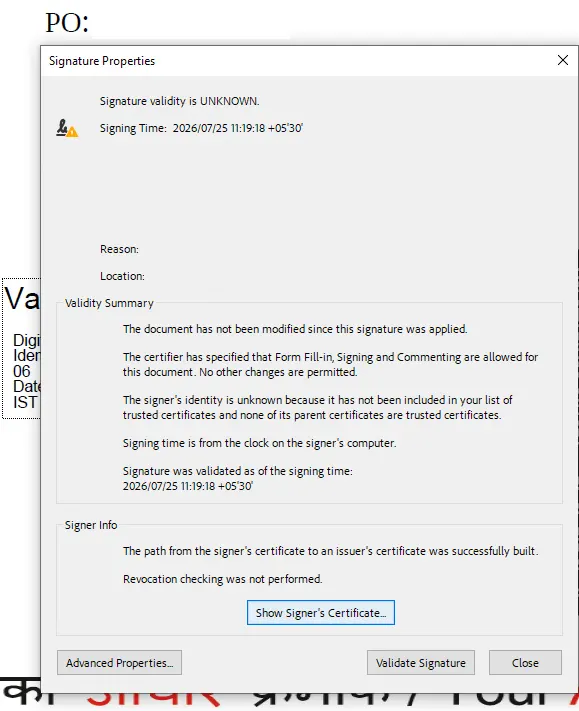
In the Signature Properties window, click Show Signer’s Certificate.
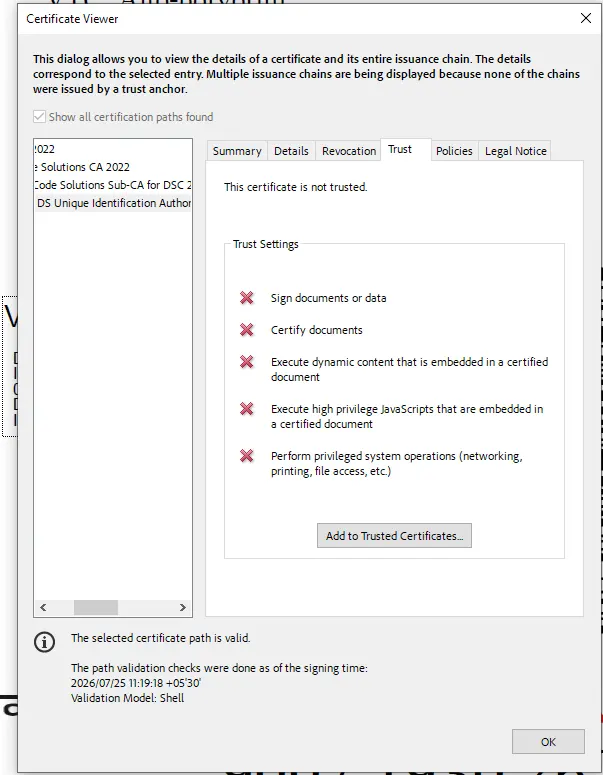
Next, open the Trust tab and click Add to Trusted Certificates.
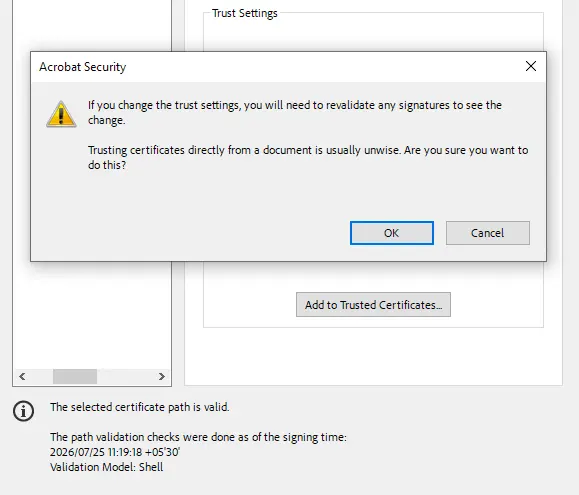
An Adobe Security Warning will appear.
Click OK to continue.
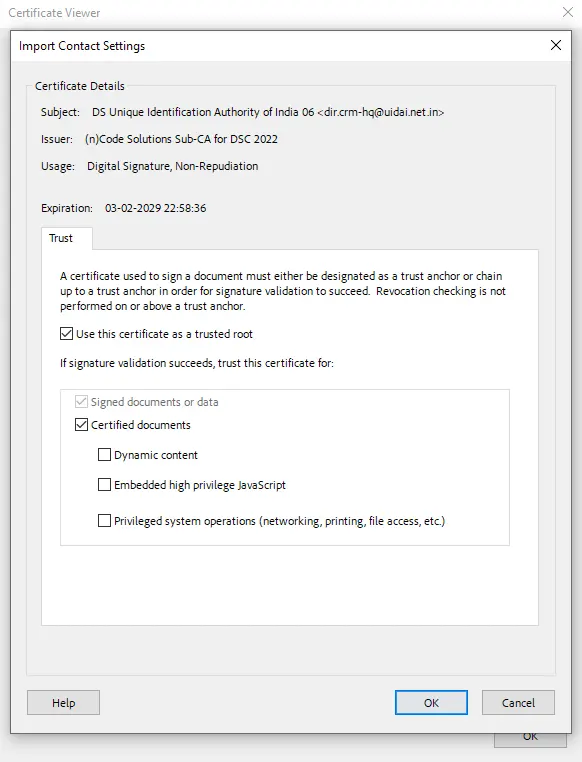
In the Import Contact Settings window, select the following options:
- Use this certificate as a trusted root
- Certified documents
After selecting both options, click OK.
Now close the Certificate Viewer window.
Back in the Signature Properties window, click Validate Signature.
Within a few seconds, Adobe Acrobat Reader will validate the digital signature.
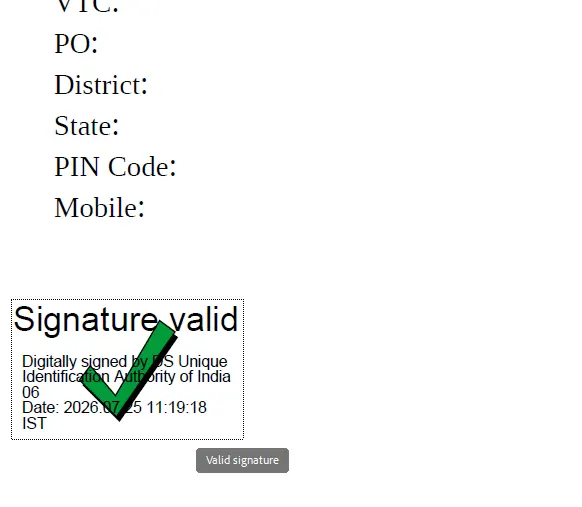
You will now see Signature Valid with a green check mark on your Aadhaar PDF.
Close the Signature Properties window, and your Aadhaar PDF will continue displaying the green Signature Valid status whenever you open it on the same computer.
Why Does the Signature Show “Not Verified” Again on Mobile?
Although you’ve successfully validated the Aadhaar signature on your computer, you may notice that after copying the same PDF to your Android phone or iPhone, it once again displays “Signature Not Verified” or “Validity Unknown” with a yellow question mark.
This happens because most mobile PDF viewer apps do not recognize or preserve the digital signature validation performed on your computer.
If you want your Aadhaar PDF to display the green Signature Valid check mark on your mobile phone, follow the steps below.
How to Get the Green Tick (Signature Valid) on Mobile
Unfortunately, you cannot validate the Aadhaar digital signature directly on your mobile phone, as most PDF reader apps do not support digital signature verification.
Instead, you’ll first need to validate the signature on your Windows PC by following the steps explained above.
After the signature has been successfully validated, keep the Aadhaar PDF open in Adobe Acrobat Reader.
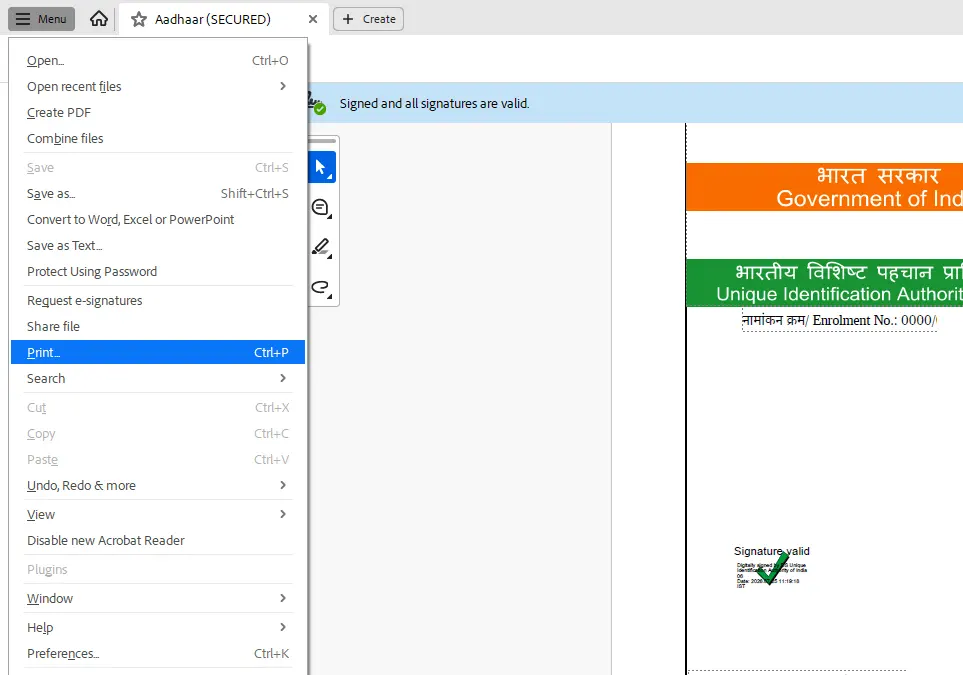
Click File or Menu and then select Print.
In the Print window, choose Microsoft Print to PDF as your printer.
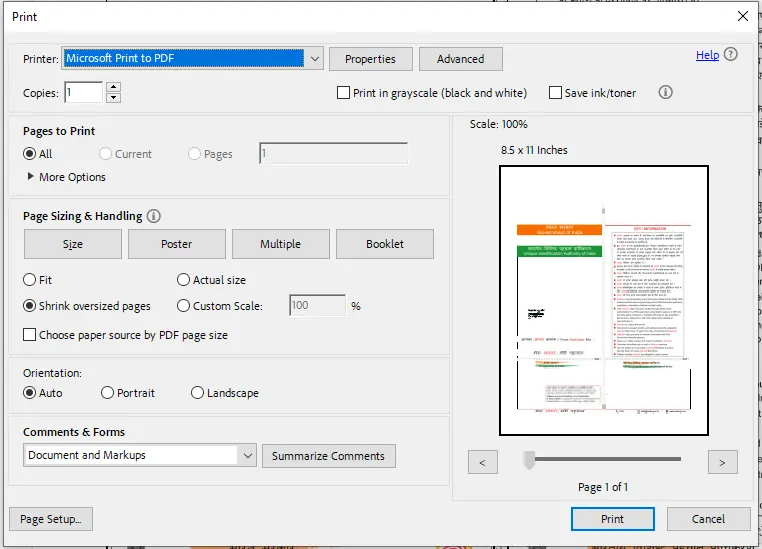
Click Print.
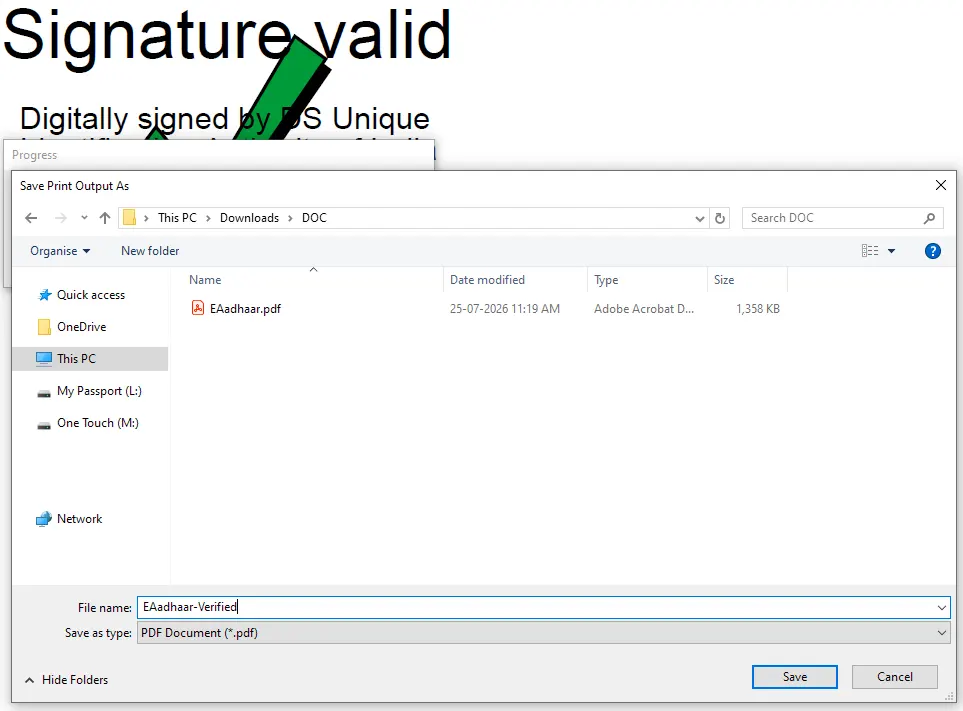
Select the location where you want to save the new PDF file, enter a file name if required, and click Save.
Now transfer this newly saved Aadhaar PDF to your mobile phone.
Open the file on your phone.
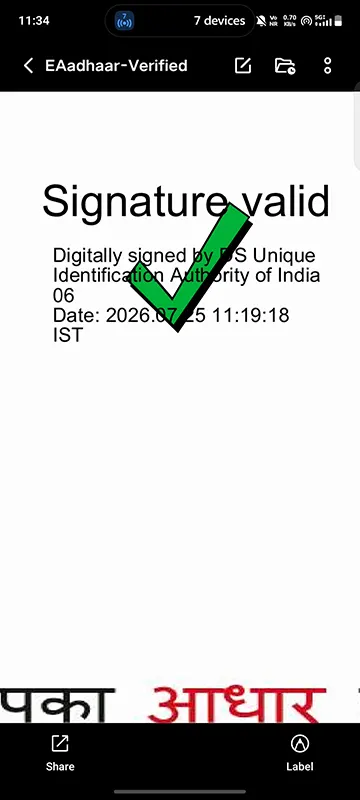
You should now see Signature Valid with a green check mark instead of Signature Not Verified or Validity Unknown.
That’s it! This is the easiest way to get the Aadhaar Signature Valid green tick on your mobile phone.

Leave a Reply