Linking your mobile number with Aadhaar enables you to access various Aadhaar services online, receive OTP for verification, and ensure better security for your Aadhaar details. At the time of enrolment, if you have filled in a mobile number in the form, it will be linked with your Aadhaar. However, sometimes even if you provide your mobile number, the operator may skip entering it into the Aadhaar system. In such situations, when your mobile number is not linked with Aadhaar or when your mobile number has changed, you may need to update your mobile number in Aadhaar.
UIDAI allows you to update or change your mobile number either by visiting an Aadhaar Enrolment Center or through the official Aadhaar mobile app.
Table of Contents
Documents required
To update your mobile number in Aadhaar, no documents are required. You can update your Aadhaar mobile number online without submitting any documents by completing face authentication. Similarly, if you visit an Aadhaar Enrolment Center for an offline update, no documents are required to update your mobile number.
So, let’s understand both the methods to update the mobile number in Aadhaar.
Update Mobile Number in Aadhaar Online
The much-needed feature of updating the mobile number in Aadhaar online has now been officially introduced by the UIDAI in its latest release of the app. Earlier, to update the mobile number in Aadhaar, the Aadhaar holders had to visit the nearest Aadhaar Seva Kendra, which caused inconvenience as they had to take out time from their daily schedule to complete this task.
But now, this issue has been finally resolved by introducing a feature in the official app that allows updating the mobile number online without requiring the Aadhaar holder to visit the Seva Kendra.
UIDAI has officially released a new app that allows users to view their Aadhaar as well as complete various important Aadhaar-related tasks online. So let’s get started with the procedure on how to update the mobile number in Aadhaar online through the Aadhaar app.
To update the mobile number in Aadhaar, open the App Store and search for ‘Aadhaar’.
On searching for ‘Aadhaar’ in the App Store, you will get many results. From the list, tap on the app that mentions Aadhaar ‘Unique Identification Authority of India’.
Open the result and tap on the Install button.

Launch the app and it will prompt you to enable permissions such as: ‘Allow Aadhaar to take pictures and record video’, ‘Allow Aadhaar to make and manage phone calls’, and ‘Allow Aadhaar to send and view SMS messages’. You need to allow all these permissions so that the app can function properly.

Once the permissions are allowed, a banner will be displayed welcoming you to the app. Tap on the ‘Skip Instruction and Register’ button that appears at the bottom.
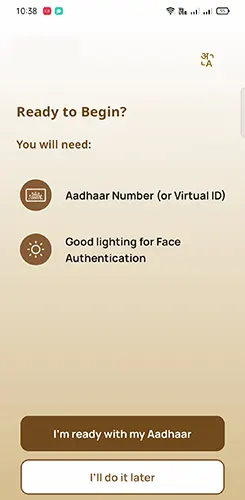
On the next screen, you will be asked to keep your Aadhaar number or Virtual ID ready, along with good lighting for face authentication.
Tap on the ‘I’m ready with my Aadhaar’ button appearing at the bottom of the screen.
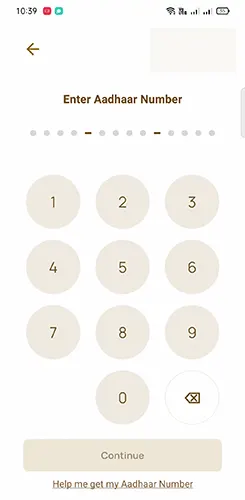
You will need to enter your 12 digits Aadhaar Number or Virtual ID and tap on the Continue button
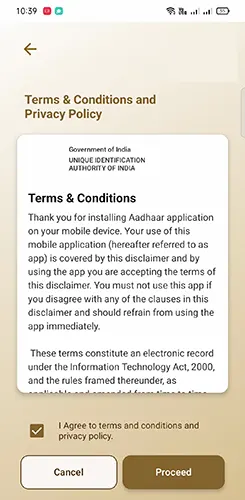
On next page, terms and conditions would appear. You may refer to the terms and condition, tick mark on I agree and tap on the Proceed button

Next you will need to make selection of the SIM from your phone and click on Send SMS button
Verification SMS will be sent from your selected SIM to verify your mobile number
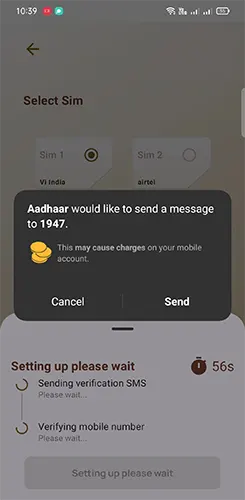
Tap on the Send button to send the SMS from the popup appearing
Once SMS has been sent successfully your mobile number will be verified and on the next page the app will prompt you to get ready for face authentication
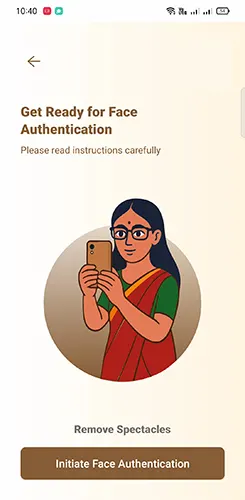
Tap on the Initiate Face Authentication, while performing face authentication make sure you remove your spectacles

The app will start capturing your face, position your face in the center of the circle and blink once you are ready

This will successfully capture your face, and authentication with the data and the message will be displayed as Face Autehnticated
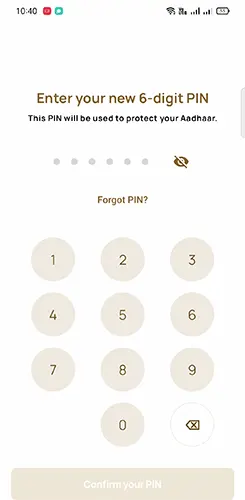
Next you will need to enter your new 6 digit PIN to protect your Aadhaar, set a six digit pin and tap on Confirm your PIN. For confirmation you will again need to enter the same 6 digit pin which you have entered and tap on the Confirm your PIN
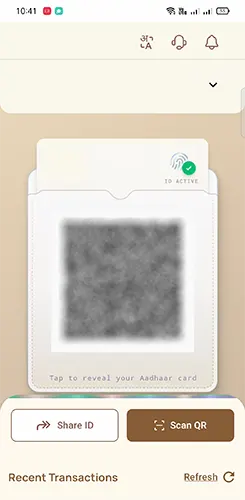
Your Aadhaar will be displayed in the app, to reveal your complete Aadhaar Card tap on the QR Code and this will display your all details of Aadhaar card.
Now we have successfully set up the app, so now lets proceed with mobile update
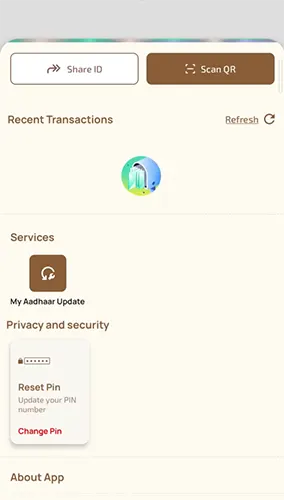
To update the Mobile tap scroll down the app and under Services tap on the My Aadhaar Updates
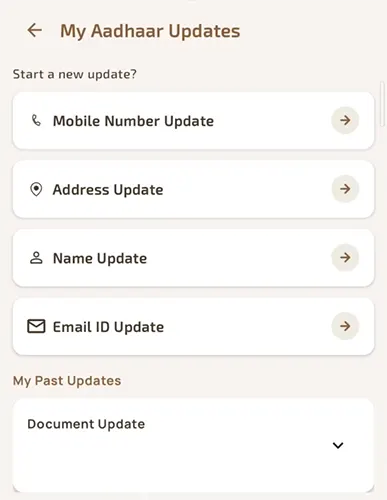
From the options displayed tap on the Mobile Number Update
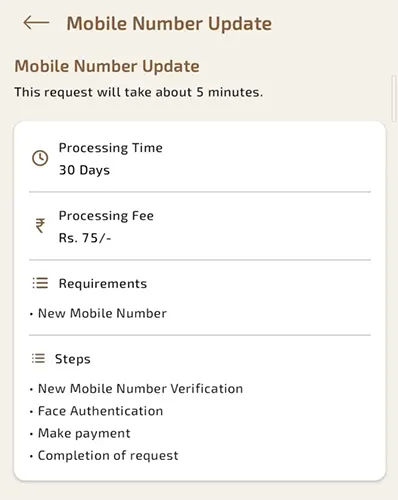
On next screen you will be displayed with the Mobile Number Update Service details such as processing time which takes 30 days, Processing Fee which is 75 rupees, and the steps required for mobile number which is New Mobile Number verification, Face Authentication, Make Payment and Completion of Request.
To proceed with mobile update tap on the Continue button.
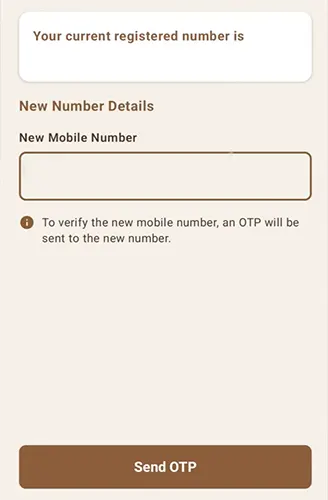
Enter your new mobile number which you wish to update in Aadhaar and tap on the Send OTP button
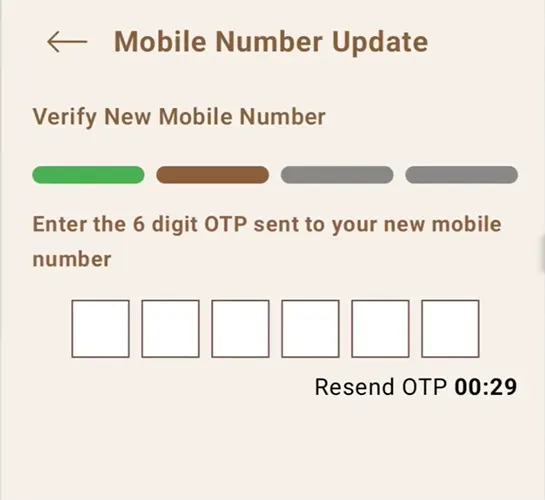
A one time password will be sent on your new mobile number, enter the received OTP and tap on the verify button

To further verify your authenticity of request you will need to complete the face verification
Tap on face authentication and this will display advisories for face authentication like you need to keep your face centered within the circle and stay still for capture, ensure good lighting on your face and avoid backlight, remove tinted glasses and keep your face fully visible, blink when prompted: you may need to blink several times.
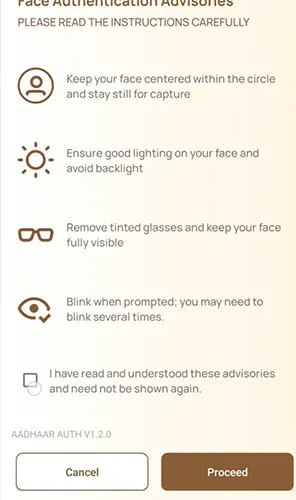
Tap on the Proceed button to start face authentication process
You need to keep your face in the center of the circle and when ready blink to capture until the circle turns green

Your face will be captured and it will be authenticated and you will be able to see face authenticated message on the screen
Next you will get an option to make payment
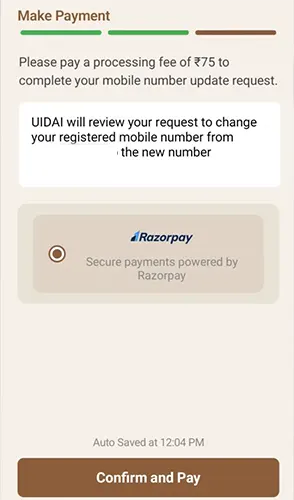
Tap on the Confirm and Pay and complete the payment using any online mode which is for 75 rupees
Once payment has been made successfully a message will be displayed Your Mobile Number Update Request has been submitted successfully. Below you will get an option to download the acknowledgement of your request.
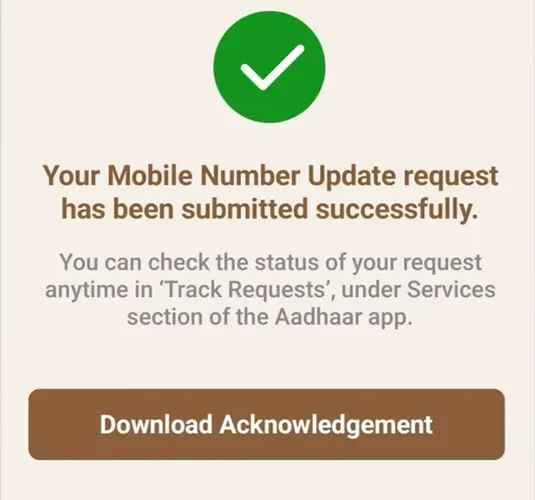
You may download the acknowledgement for future reference purpose.
Now you will need to wait for the approval of the mobile number update request which may take 30 working day. Alternatively you may also check status of your request online through the app as well as through the website.
Once your request is approved you will receive a SMS on your new registered mobile number that your mobile number update in Aadhaar has been successfully approved.
If you are not comfortable with the above online method, the offline mode of updating Aadhaar is still available. You can update your mobile number in Aadhaar by following the process explained below.
Update Mobile Number in Aadhaar from Aadhaar Enrolment Center
To update your mobile number in Aadhaar through an Aadhaar Enrolment Center, visit the nearest Aadhaar Enrolment Center with a copy of your Aadhaar card.
At the Aadhaar Enrolment Center, request the Aadhaar Update Form.
Fill out the form and tick the option for Mobile Number Update. Enter the new mobile number that you want to update in your Aadhaar.
Submit the filled form to the Aadhaar operator at the center.
The operator will process your request and verify your identity using face authentication, fingerprint (thumb impression), or iris scan.
Once the request is submitted, you will receive an acknowledgement receipt containing your Update Request Number (URN).
You may need to pay a nominal fee for updating your mobile number in Aadhaar.
After verification, your mobile number will be updated in Aadhaar, usually within 30 working days, and you will be notified on your registered mobile number.
Using the details mentioned on the acknowledgement slip, you can track the status of your mobile number update online on the UIDAI website.

Leave a Reply