When you click photos on your iPhone, each photo also stores additional information in the background. This information is called metadata, and it includes details such as the exact location where the photo was taken, the date, time, and other technical information.
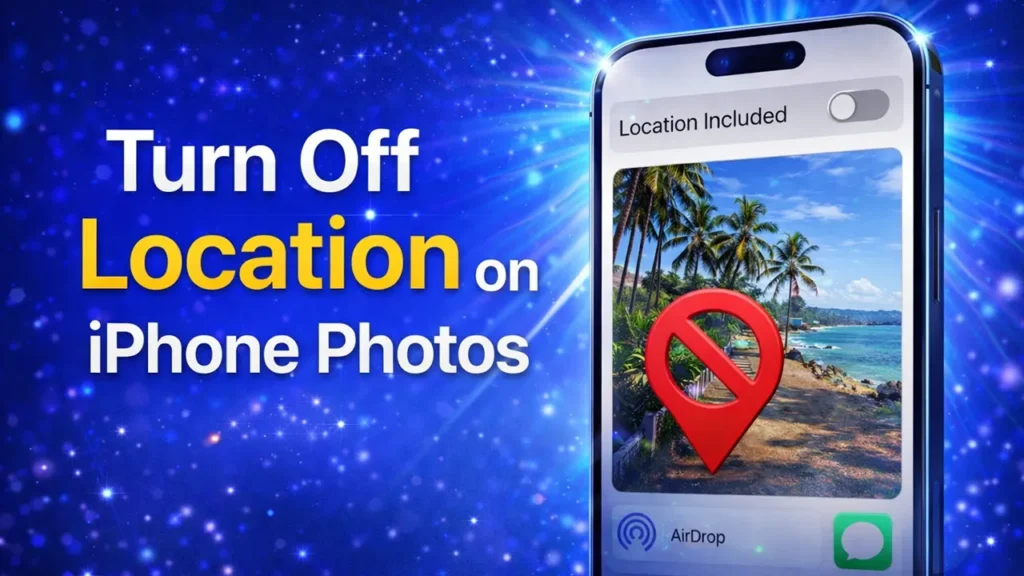
This feature can be very useful. For example, it helps you remember where a photo was taken or allows apps to organize photos by location. However, when you share photos with others, this same feature can become a privacy concern, because the person receiving the photo may also be able to see where exactly the photo was clicked.
Not everyone needs to know your location, especially when sharing photos on social media, messaging apps, or email. So, if you are someone who does not want to share location metadata along with the photos you send, there are simple ways to control this.
There are two main ways to fix this privacy issue, depending on your requirement.
Table of Contents
Permanently Turn Off Location on iPhone Photos
One common method is to completely stop your iPhone camera from capturing location data when taking photos. If you do this, any photo you click in the future will not have location information attached to it.
This is useful if you never want location data to be saved with your photos at all.

Open the Settings app on your iPhone.
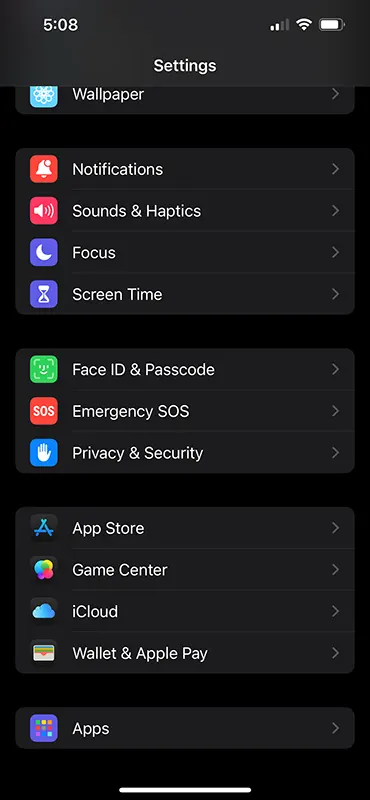
Scroll down and tap on Privacy & Security.
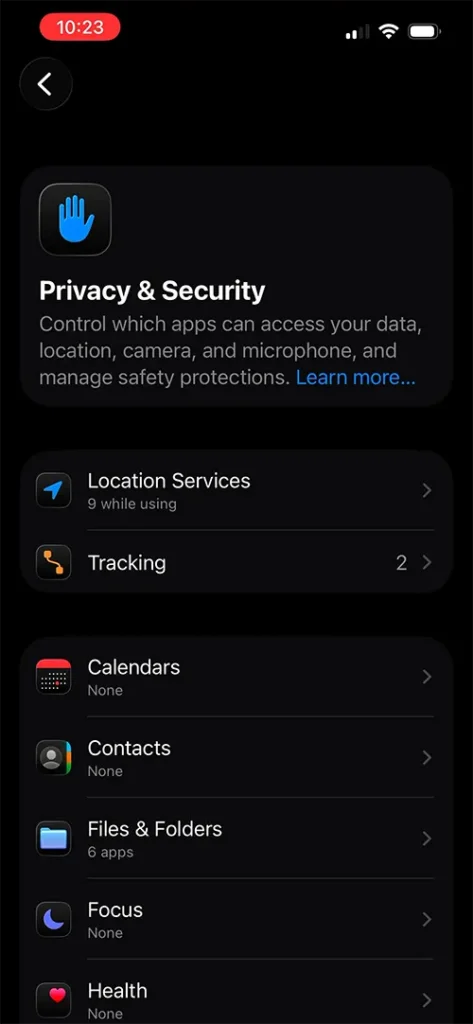
On the Privacy & Security page, tap on Location Services.
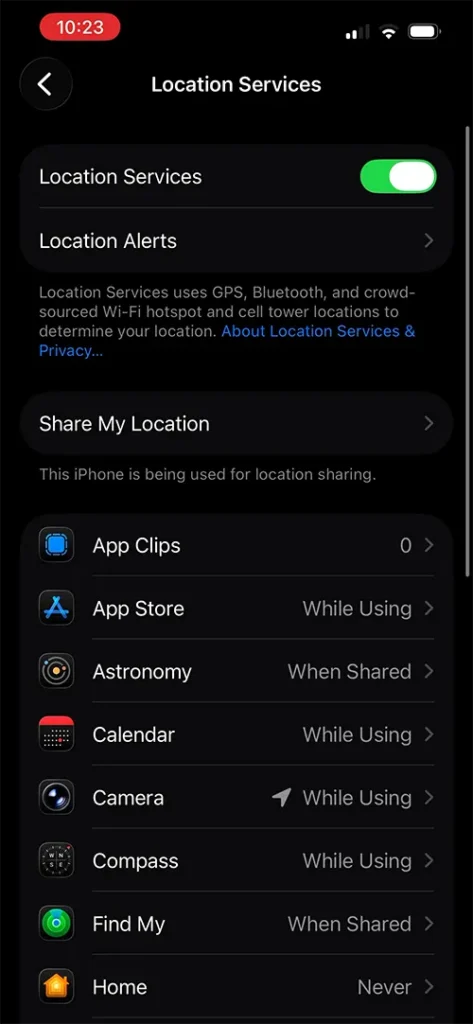
Scroll down until you find Camera and tap on it.
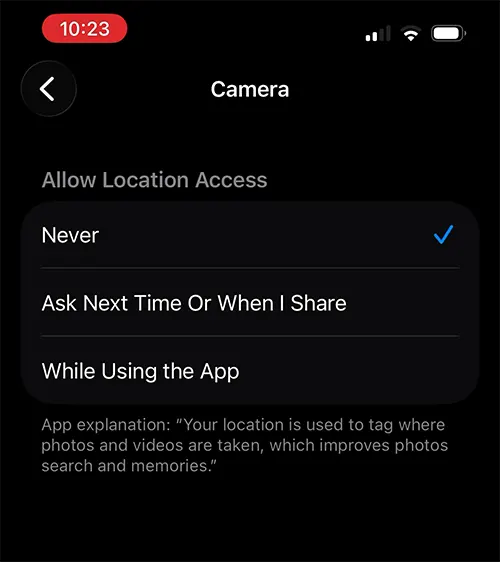
Under Allow Location Access, select Never.
Once this setting is applied, any photo you take using the Camera app will no longer be tagged with location data.
Disabling location access for the camera only affects future photos. If you already have photos in your library that contain location data, you can remove that information manually by following the steps below.
Remove Location Metadata from Already Clicked Photos on iPhone
If you want to remove location data from photos that are already saved in your photo library, you can do this individually for each photo.
Open the Photos app on your iPhone.
Go to the Library and select the photo whose location data you want to remove.
Once the photo is open, tap on the three dots (⋯) icon.
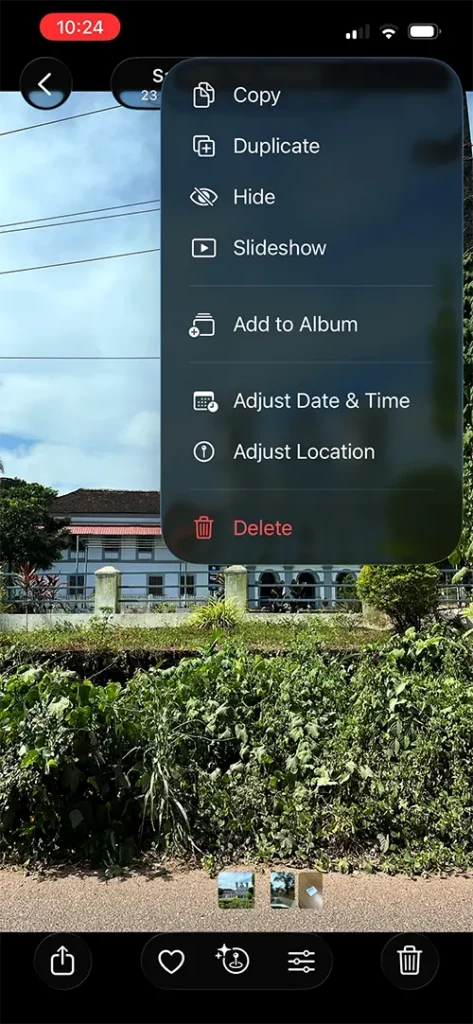
From the options that appear, tap on Adjust Location.
On the Adjust Location screen, you will see the location where the photo was taken.

Just below the location, tap on No Location.
After doing this:
- Tap on the (i) information icon for that photo.
- You will see that no location is displayed, which confirms that the location data has been removed successfully.
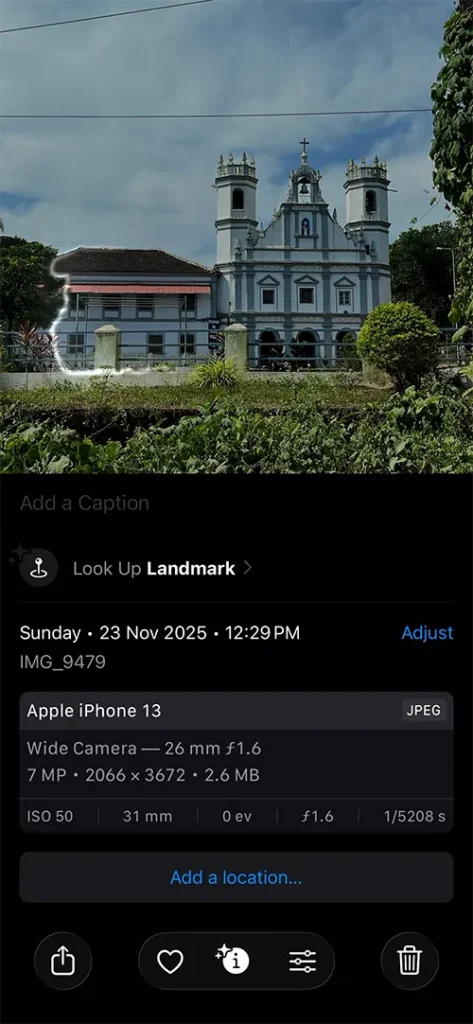
This method works well if you want to clean up location data from photos that are already stored on your device.
However, some users still want the location feature enabled for personal use, but do not want the location to be shared when sending photos to others. For such cases, there is another solution.
Turn Off Location on Photos Only When Sharing on iPhone
If you want your photos to retain location data on your iPhone, but not include it when sharing, this method is the best option. It allows you to remove location metadata only at the time of sharing, without permanently disabling location capture.
Open the Photos app.
Go to Library and open the photo you want to share.
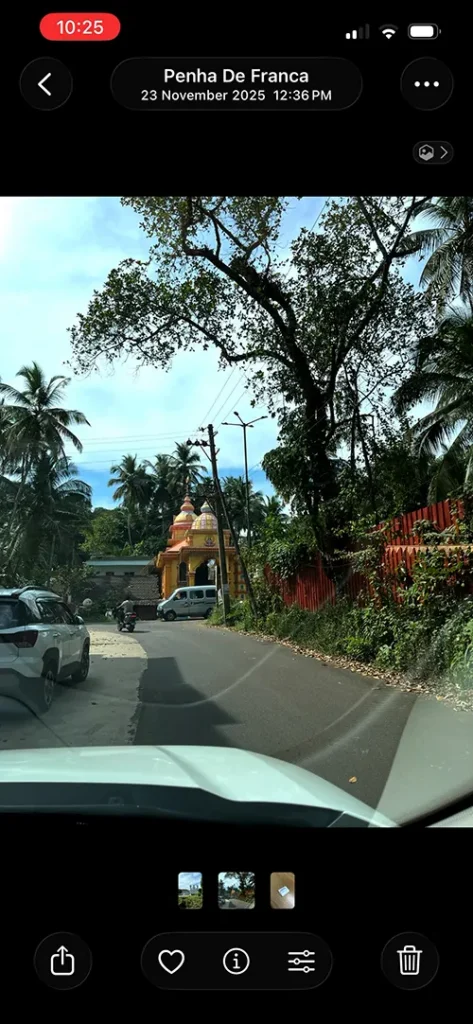
Tap on the Share icon.
On the Share screen, tap on Options at the top.
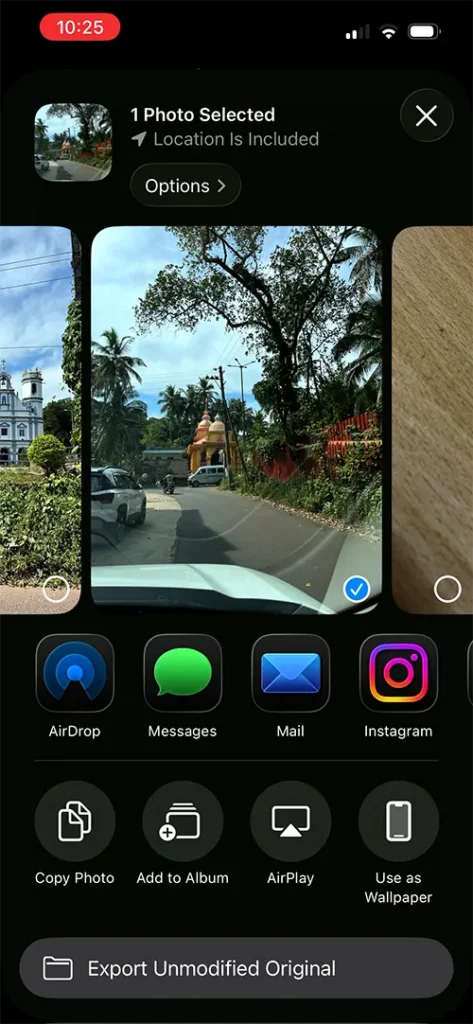
You will see a Location toggle that is green (enabled).
Tap on the toggle to turn it off. It will turn grey, indicating that the location will not be shared.
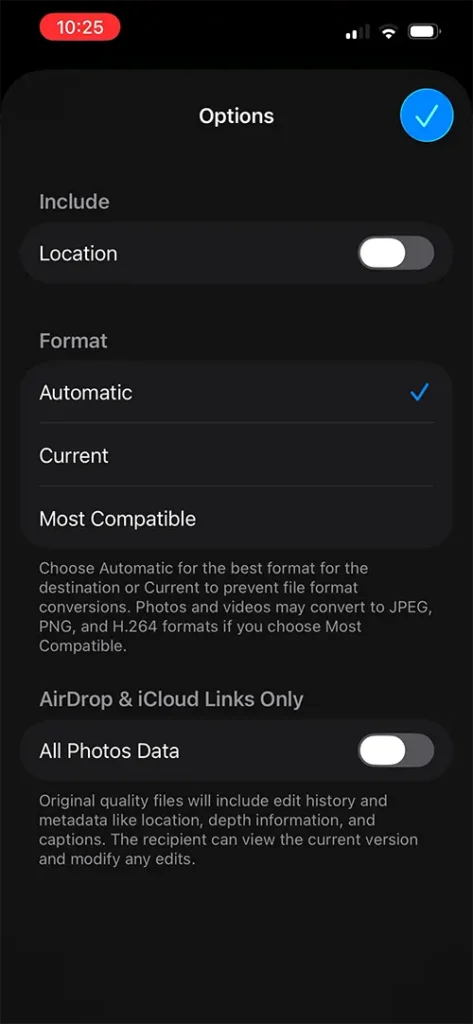
Tap on the Done / Tick icon to confirm.
Now choose the app through which you want to share the photo, such as Messages, AirDrop, Mail, Instagram, or any other app.
The photo will be shared without any location metadata.
You need to repeat this process every time you share a photo if you do not want to include location data.
This method does not remove the location from your original photo, it only prevents the location from being shared with others.
By using these methods, you can fully control when and how your photo location data is used, helping you protect your privacy without losing important features.

Leave a Reply