Nowadays, Android phones are allowed to constantly track users and collect various types of data about how they use their devices. This includes monitoring which apps you use, what you search for on the internet, what you type on the keyboard, and in some cases even listening to conversations through microphone related services. By default, many of these tracking features are enabled on Android phones to provide personalized services such as targeted advertisements, smart suggestions, and usage analytics.
While these features may be useful for some users, many people are uncomfortable with this level of data collection. The good news is that Android allows you to disable most of these tracking and listening features manually. Once disabled, your phone becomes more private, performs faster, and consumes less battery, as fewer background services are running continuously.
Below are detailed step-by-step instructions to stop Android from tracking and listening to you.
Table of Contents
Stop Android Phone from Tracking and Listening to You
Disable “Personalize Using Shared Data”
This setting allows apps and system services to collect and share your activity data to personalize content and advertisements.
To Disable Personalize Using Shared Data:
Open Settings on your Android phone.
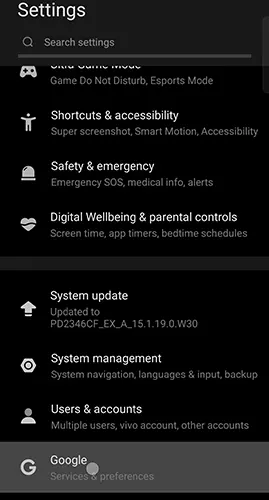
Scroll down and tap on Google.
On the Google Services page, tap on the All Services tab.
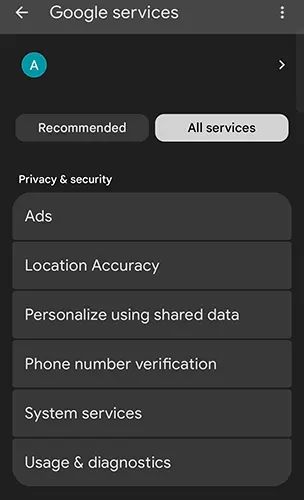
Scroll down and locate the Privacy and Security section.
Tap on Personalize using shared data.
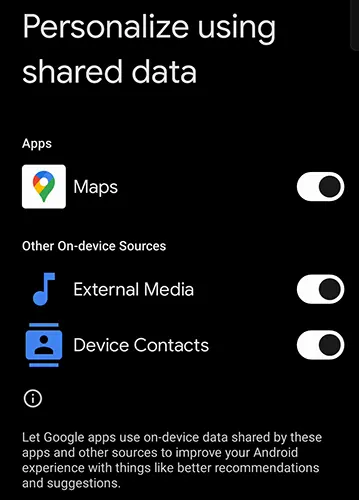
On this page, you will see a list of apps installed on your phone that are allowed to use shared data for personalization purposes. Any app that has this option enabled is monitoring your activity within the app and sharing the collected data with Google or other companies for research, analytics, and advertising purposes.
This continuous monitoring not only affects your privacy but also consumes battery power and can slow down your phone.
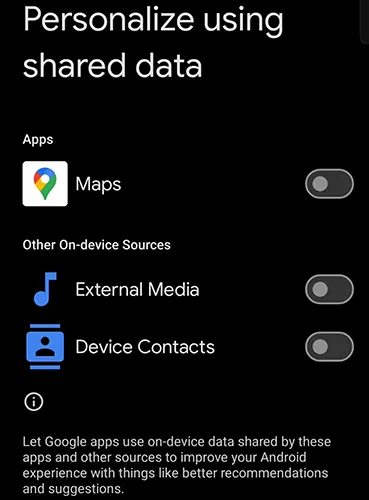
Disable Personalize using shared data for all apps by tapping on the toggle button next to each app.
Also disable Other on-device sources, such as:
- External media
- Device contacts
Disabling these options ensures that your personal data is no longer shared unnecessarily.
Turn Off Usage and Diagnostics Data Collection
Usage and Diagnostics is another feature that collects detailed information about how you use your phone.
To Disable Usage and Diagnostics:
Open Settings.
Scroll down and tap on Google.
Tap on the All Services tab.
Scroll down to the Privacy and Security section.
Tap on Usage and Diagnostics.
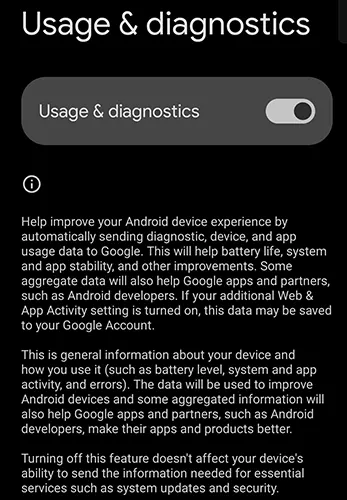
When this feature is enabled, it collects information such as:
- Which apps you use
- How frequently you use them
- Which websites you access
- How you interact with system features
This data is sent to Google to improve services, but it can also cause battery drain and slow system performance.
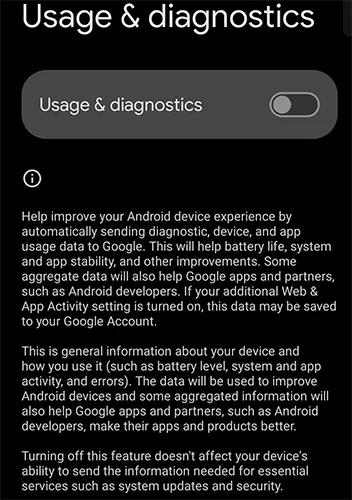
Tap on the toggle button next to Usage and Diagnostics to disable it completely.
Reset and Delete Advertising ID (Stops Personalized Ads)
The Advertising ID is one of the main reasons users feel their phone is “listening” to them.
To Reset and Delete Advertising ID:
Open Settings.
Scroll down and tap on Google.
Tap on the All Services tab.
Under Privacy and Security, tap on Ads.
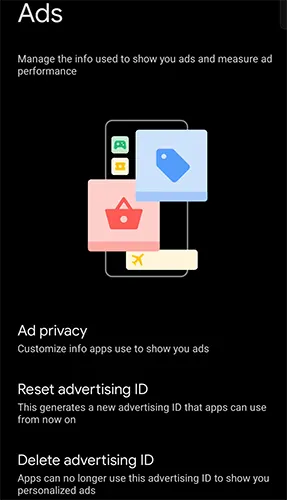
This feature collects information about:
- What you type in apps and browsers
- What you search for online
- App usage patterns
In some cases, it may also use microphone-related data indirectly to personalize advertisements. This is why many users notice ads related to products they recently talked about, even without searching for them.
Scroll down and tap on Reset Advertising ID, then tap Confirm.
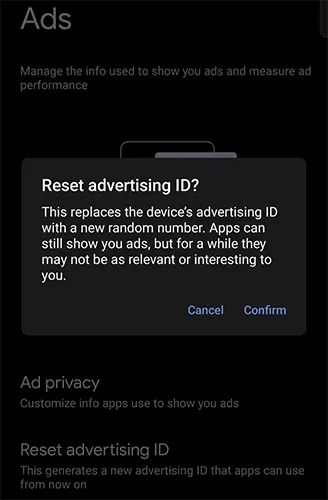
This deletes all previously collected advertising data.
After that, tap on Delete Advertising ID.
On the next screen, again tap on Delete Advertising ID to confirm.
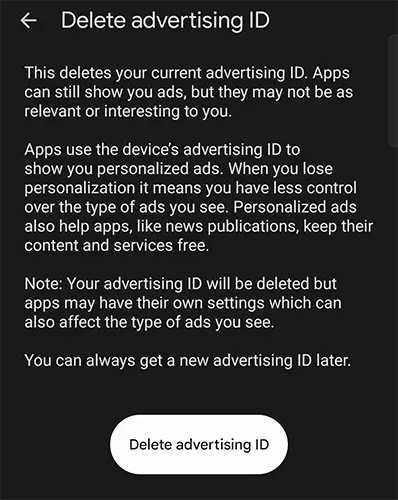
Once deleted, advertisers can no longer track you using a unique advertising profile.
Result After Disabling These Settings
- Your Android phone will run faster
- Battery life will improve
- Background tracking will be significantly reduced
- Your conversations and activity will no longer be used for ad personalization
Most importantly, your privacy will be much better protected.
Optional Privacy Settings (Available on Some Android Brands)
Some Android manufacturers add additional privacy-related features. These settings may not be available on all devices, but if you find them, it is recommended to disable them for maximum privacy.
Additional Privacy Hardening Steps
Open Settings.
Scroll down and search for Security and Privacy.
Tap on Security and Privacy.
Scroll down and tap on More Privacy Settings.
On this page, you will find several advanced privacy options.
Personal Data Intelligence
Tap on Personal Data Intelligence.
By default, this feature is turned ON.
Tap on the toggle button to turn it OFF.
From the confirmation popup, tap Turn Off.
This feature reads your messages, tracks your activity, and accesses your location to suggest actions like reminders, calendar events, or message replies based on your behavior.
Send Diagnostics Data
Go back to More Privacy Settings.
Find Send Diagnostics.
Tap on the toggle button to disable it.
From the popup, uncheck I agree to send diagnostic data.
Tap OK.
This feature sends usage and performance data to the phone manufacturer, which is not necessary for most users.
Android Personalization Service
On the same page, tap on Android Personalization Service.
This service provides personalized content based on app usage.
Tap on the toggle button to turn it OFF.
Android System Intelligence
Go back to More Privacy Settings.
Scroll down and tap on Android System Intelligence.
Tap on Clear Data.
From the popup, select All Time.
Tap on Clear Data.
This erases all learned behavior data, including suggestions based on apps, contacts, and content interactions.
Keyboard Smart Suggestions
From the same page, tap on Keyboard.
By default, Show smart text suggestions in the keyboard suggestion strip is enabled.
Tap on the toggle button to disable it.
When enabled, this feature reads your messages and typing behavior to improve suggestions, but it can also be used for advertising and data analysis.
Once all these settings are disabled, your Android phone becomes far more private and secure. It will stop unnecessary monitoring, reduce background data collection, improve performance, and help extend battery life all while giving you better control over your personal data.
Your phone should work for you, not track you.

Leave a Reply