If your father’s name or mother’s name was not present in the electoral roll of the last SIR, and while submitting your SIR you selected the option “Neither my name nor my parents’ name exists in the electoral roll of the last SIR,” then you will be called for an SIR Hearing.
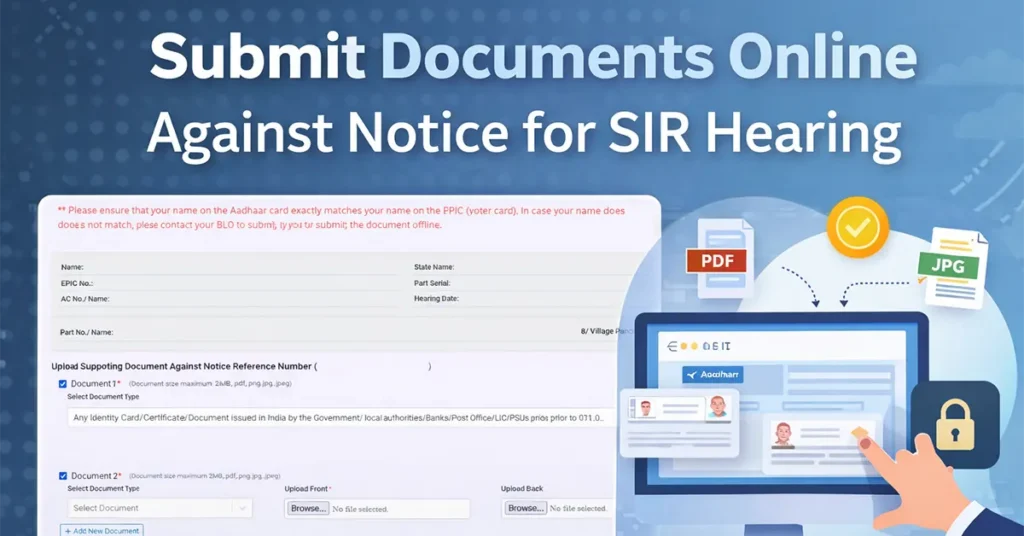
In some cases, SIR Hearing may also be generated for other categories due to discrepancies found during verification.
Regarding the SIR Hearing, you will be notified by the BLO (Booth Level Officer). The BLO will provide you with a hearing form, on which the SIR Hearing date will be clearly mentioned. On the scheduled hearing date, you must be physically present along with the required documents and the form to complete the verification process offline.
However, this SIR Hearing process can also be completed online by submitting the required documents digitally. If you want to complete the process online, the complete step-by-step procedure is explained below.
Submit Documents Against Notice Issued (Online Process)
Visit the Voter ECI Portal: https://voters.eci.gov.in/
Log in to your account using your registered credentials.
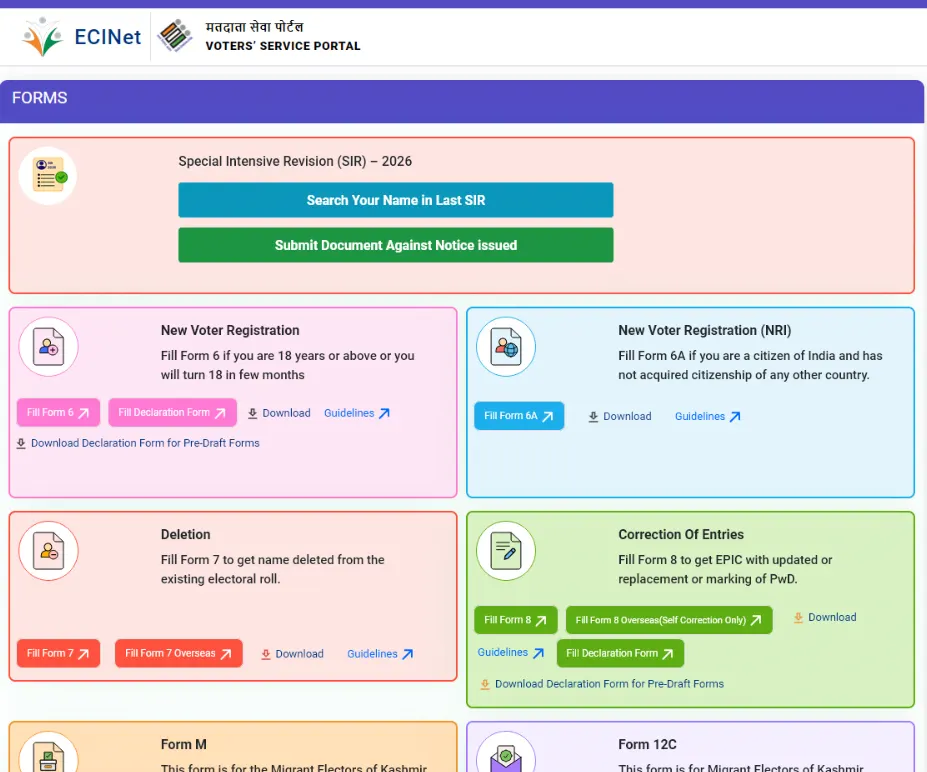
Once logged in, on the homepage, you will see an option called “Submit Document Against Notice Issued.” Click on this option.
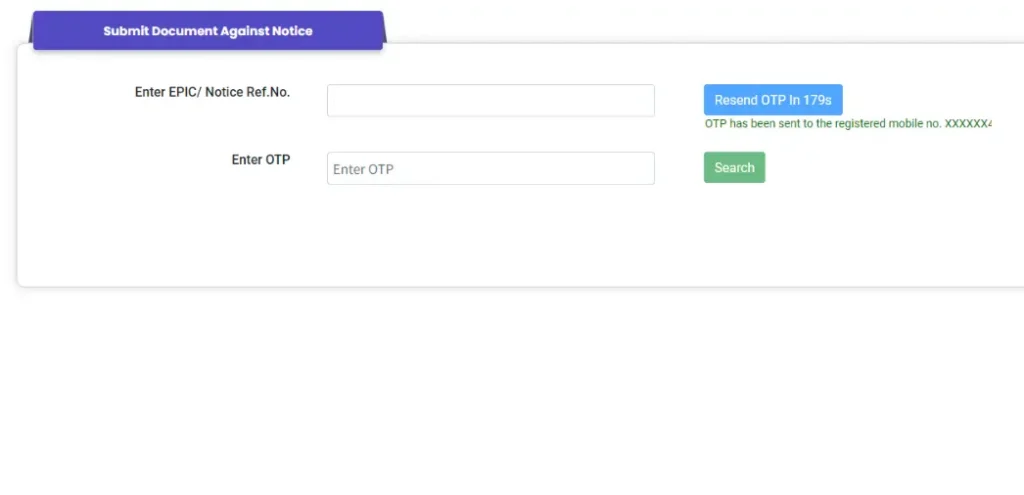
You will be redirected to the Submit Document Against Notice page.
Here, enter your EPIC Number and click on Send OTP. (You can find your EPIC Number on your Voter ID Card.)
A One-Time Password (OTP) will be sent to your registered mobile number.
Enter the received OTP in the Enter OTP field and click on the Search button.
On the next screen, your voter details as per your Voter ID Card will be displayed.
Below your details, you will find an option to upload supporting documents against the notice number.
Under Document 1, select the Document Type from the dropdown list that matches the document you are uploading.
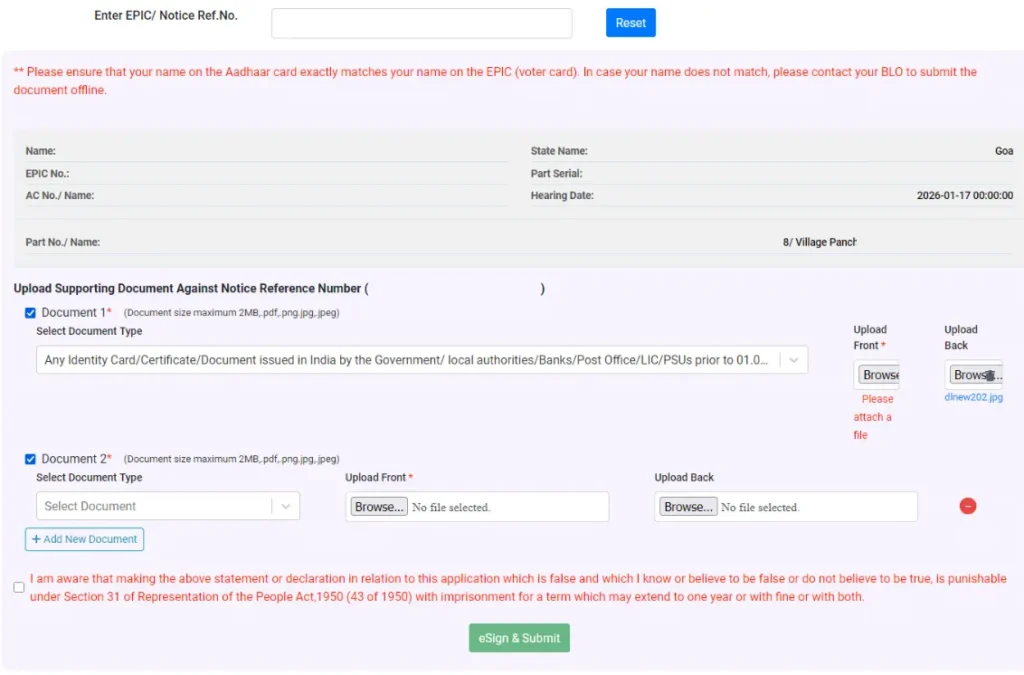
Upload the front side of the document.
Uploading the back side is optional and is required only if the document has relevant information on the back side.
Ensure that each document file size is below 2 MB and that the file format is PDF, PNG, JPG, or JPEG.
Click on the Browse button and upload the selected document.
Repeat the same steps for Document 2.
If you wish to upload additional documents, click on Add New Document appearing below Document 2, then select the document type and upload the file.
Make sure that all uploaded documents are valid and correct, as submitting incorrect or invalid documents may result in rejection of your request.
Once all documents are uploaded, tick the declaration checkbox and click on eSign & Submit.
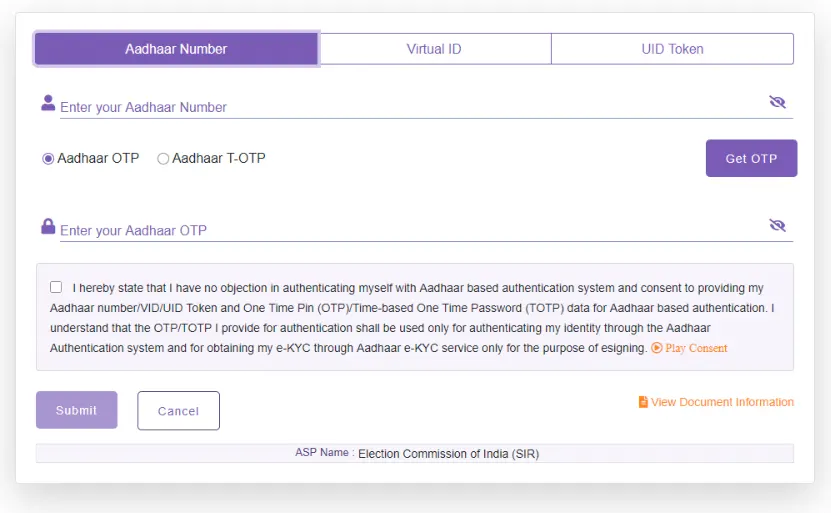
You will now need to eSign using your Aadhaar details.
Enter your Aadhaar Number or VID or UID Token, then click on Get OTP.
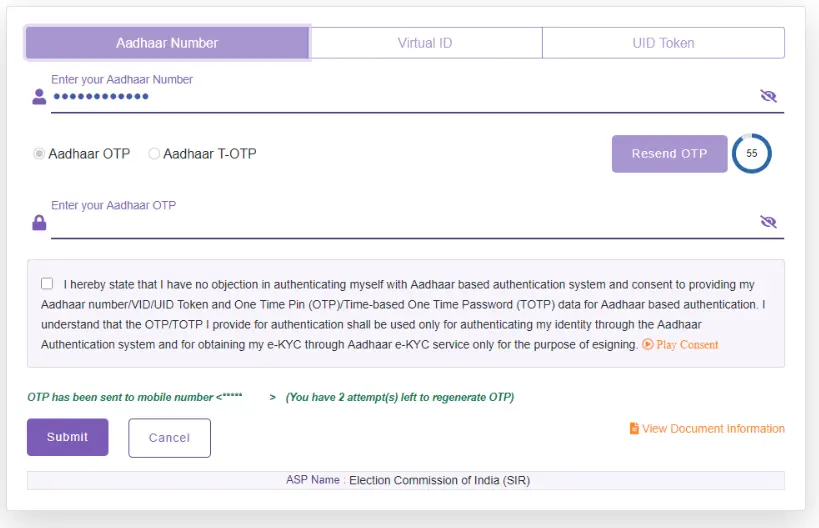
Enter the Aadhaar OTP received on your registered mobile number in the specified field.
Tick the declaration checkbox again and click on the Submit button.
Your request will now be successfully submitted.
If you encounter an error message stating: “The name on your EPIC card does not match the name on your Aadhaar card. If there is a mismatch, please contact your BLO.”
In such cases, you must complete the SIR Hearing process offline, as even a minor mismatch between the Aadhaar Card and Voter ID Card can trigger this error and prevent online submission.

Leave a Reply