Unlocking an Android phone by typing the PIN and then manually pressing the OK button to confirm can be inconvenient for many users. After entering the PIN, having to tap the OK button becomes an additional step in the unlocking process. Some users may be comfortable with this, but others prefer the phone to unlock automatically as soon as the correct PIN is entered.

This feature of requiring users to tap the OK button after entering the PIN usually comes enabled by default, especially if you have set up your phone recently or performed a factory reset. It is also a default setting on several popular Android brands. However, if you do not prefer this extra step, you can disable the OK button confirmation. So, let’s understand how to remove the OK button from the Android lock screen.
Remove OK Button from Lock Screen of Android
Below is a detailed explanation of how you can enable the Auto Confirm Unlock feature so that your phone unlocks immediately after entering the PIN.
Start by unlocking your phone and going to the Settings app. This is where all security and lock-screen related options are located.
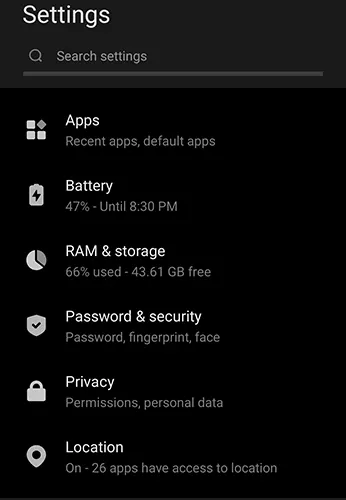
The arrangement of settings may vary depending on your phone’s brand and UI, but most Android phones will have similar navigation paths.
Inside Settings, scroll down or use the search bar to find the option called Password & security, or something similar. Different Android brands name this section differently, but it generally refers to all password, PIN, fingerprint, and lock-screen-related settings.
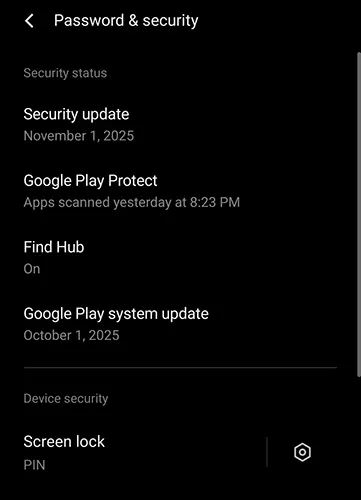
Once you are inside the security section, scroll until you find the Screen Lock option. Tap on it.
This section contains your current screen lock type (PIN, Pattern, Password) and allows you to modify or update it.
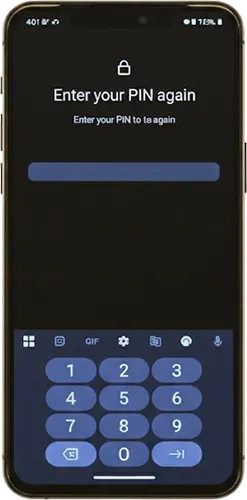
Before making any changes, Android will ask you to confirm your identity for security purposes. Enter your current phone PIN to proceed.
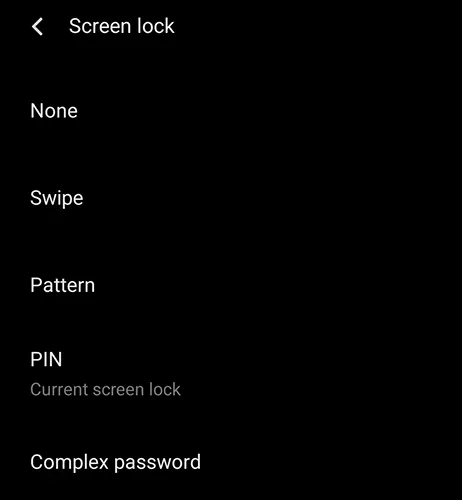
After entering the security section, tap on PIN again. You are not changing your PIN completely this step simply allows access to additional configuration options related to PIN behavior.
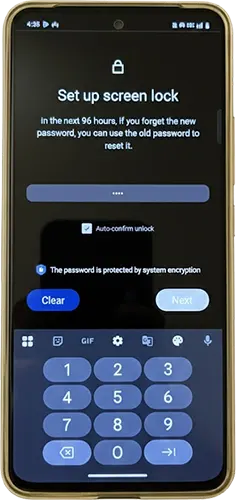
Now, you will be asked to enter a new PIN. You can use the same PIN you were using earlier or set a new one.
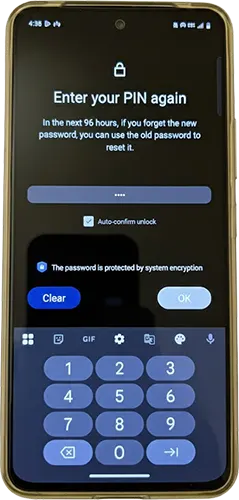
On this screen, look for the checkbox or toggle that says Auto Confirm Unlock. Tick this option.
This setting ensures that your phone will automatically unlock the moment you finish typing the correct PIN without needing to press OK.
Once you have selected Auto Confirm Unlock, tap the Next button to continue.
You will now be asked to enter the PIN again to confirm your selection. Enter the PIN and then tap OK.
Now lock your phone and try unlocking it using the PIN. You will notice that after entering the correct PIN, the phone unlocks instantly without requiring you to press the OK button.
This confirms that the Auto Confirm Unlock feature has been successfully enabled.

Leave a Reply