A virus is generally not an iPhone’s cup of tea, as iOS is designed with strong security features. However, this does not mean that an iPhone is completely immune to threats. In some cases, viruses or malicious scripts can enter an iPhone through internet browsing, especially when visiting unsafe or suspicious websites.
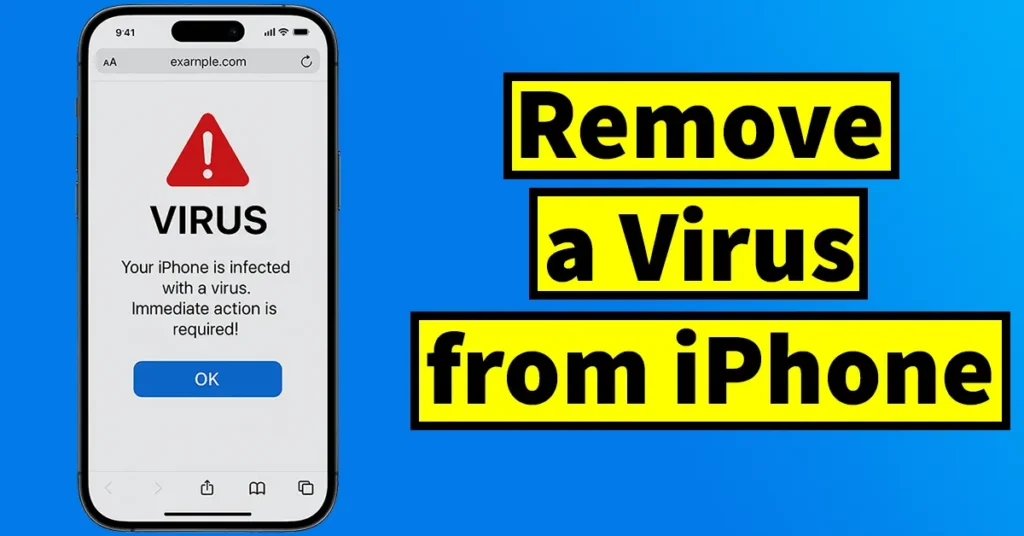
While browsing the internet, you may sometimes encounter fake virus warnings, harmful pop-ups, or malicious redirects. These websites can store unwanted data, cookies, or cache files on your iPhone, which may behave like a virus. When it comes to internet browsing on an iPhone, Safari is usually the primary browser, as it is the default and most commonly used browser on iOS devices.
If you suspect that your iPhone has been affected by such malicious activity, follow the steps below to find and remove the virus from your iPhone.
Table of Contents
Find and Remove Virus from iPhone
Clear Safari Website Data
Open Settings on your iPhone.
Scroll down to the very bottom of the Settings page and tap on Apps.
Again, scroll down the Apps list until you find Safari, then tap on it.
Scroll down to the bottom of the Safari settings page and tap on Advanced.
On the Advanced page, at the very top, you will see Website Data. Tap on it.
The Website Data section will load all the data stored by websites you have visited, including cookies, cache, and local storage.
Some malicious websites may have downloaded harmful data here, which can cause fake virus alerts or unusual behavior.
Tap on Remove All Website Data.
When prompted for confirmation, tap on Remove.
This process will delete all stored website data from Safari, including any potentially harmful or malicious data.
Check for Suspicious Files in the Files App
Open the Files app on your iPhone.
Tap on On My iPhone.
Open the Downloads folder.
Carefully check if there are any suspicious files or files that you do not recognize and do not remember downloading.
If you find any such unknown or suspicious files, delete them immediately.
If there are no unrecognized or suspicious files, you can safely leave the folder as it is.
This step helps ensure that no malicious files have been downloaded onto your device.
Keep iOS Updated for Security Protection
Go back to the Settings page on your iPhone.
Tap on General.
Tap on Software Update.
Tap on Automatic Updates.
Make sure iOS Updates are enabled.
Also ensure that Security Responses and System Files are enabled.
This step is very important, as iOS updates include critical security patches and bug fixes. Keeping your iPhone updated helps Apple detect and fix vulnerabilities, protect your device from threats, and maintain overall system security.
Restart Your iPhone
Once you have completed all the above steps:
Press and hold the Volume Up button and the Side button together.
Slide to Power Off your device.
Wait a few seconds and then turn your iPhone back on.
Restarting your iPhone helps clear temporary processes and ensures that all changes take effect properly.
Check Installed Apps for Suspicious or Unknown Applications
Apart from internet browsing, a virus or malicious behavior on your iPhone may also appear due to unknown, suspicious, or outdated apps installed on your device. Some apps may look genuine but can behave abnormally or cause unwanted pop-ups and issues if they are malicious or no longer updated.
To check for such apps, follow the steps below:
Open Settings on your iPhone.
Tap on General.
Under General, tap on iPhone Storage.
Wait for a few seconds while your iPhone loads the list of installed apps and games.
Scroll down to view all installed applications.
If you want to see the complete list, tap on Show All at the bottom.
Carefully go through the list and look for any apps that:
You do not remember installing
Appear suspicious or unfamiliar
Are no longer needed or seem untrusted
If you find any such suspicious or unrecognized app, tap on it.
Tap on Delete App and confirm the deletion.
If an unknown or suspicious app was installed on your iPhone, it could be a possible source of virus-like behavior. Removing such apps can help eliminate the issue and improve your device’s security and performance.
Visit an Authorized Apple Service Center (If Needed)
If you are still experiencing virus-like issues such as persistent pop-ups, unusual behavior, or performance problems even after following all the steps above, it is recommended to visit your nearest Authorized Apple Service Center. Apple technicians can diagnose the issue properly and ensure your device is safe.

Leave a Reply