Even after setting up Personal Hotspot successfully on your iPhone, you are unable to see it in Wi-Fi networks on other devices like TV, Mobile, PC or Laptop? And in case even though you are able to see it in Wi-Fi networks you are unable to connect to it.
If you are going through these challenges then here is the quick fix for it and without any delay’s you would be able to connect to the iPhone Personal Hotspot Successfully.
Table of Contents
Why iPhone Hotspot Not Showing Up
This is a very common issue which is faced by every iPhone user while setting up the Personal Hotspot. But once you know the step which you are skipping after setting up the Personal Hotspot on your iPhone. You won’t face this problem again. Before that lets understand in which cases will this solution work.
- iPhone Hotspot Not Showing Up even after Allot Other to Join is enabled
- iPhone Hotspot showing but unable to connect
- On some TVs, or devices, even if you’ve previously connected to the iPhone hotspot by entering the password, you may be prompted to enter the password again when you attempt to reconnect to the Wi-Fi.
Below is the solution which you need to follow carefully to be able to successfully connect to the Personal Hotspot of iPhone.
FIX iPhone Hotspot Not Showing Up on PC, TV, Laptop, or Phone
If the iPhone Hotspot which you created isn’t showing up on your TV, PC, Laptop or Phone or you are unable to connect to it then after setting up the Personal Hotspot on iPhone make sure you keep the Personal Hotspot page open.
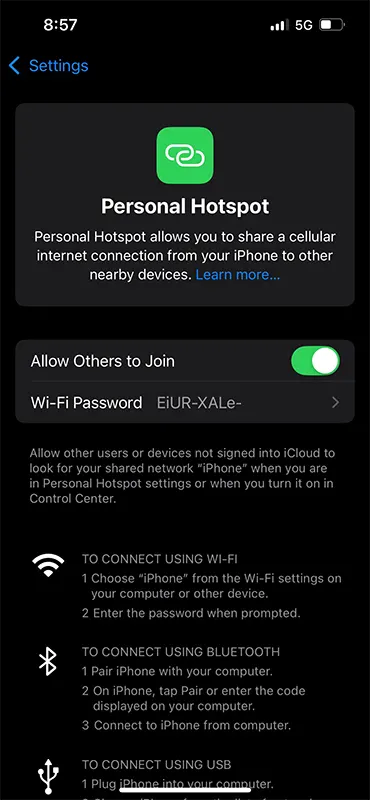
The Personal Hotspot page needs to be kept open until you connect to the iPhone Hotspot on other device.
As soon as you keep the Personal Hotspot page open on your iPhone, you will be able to see the iPhone Hostpot in Wi-Fi Networks on other devices such as TV, Laptop, PC, or Phone. And even they will be able to successfully connect to the iPhone Hotspot.
Once all your devices are connected to the Wi-Fi, you can then close the Personal Hotspot page on iPhone.

Leave a Reply