Do you think that, as an Apple iPhone user, you are fully aware of all the calling features Apple provides? Many users believe they know everything about their iPhone, especially when it comes to basic functions like phone calls. However, even if you consider yourself a pro iPhone user, there are several useful iPhone calling features that often go unnoticed.

In this guide, we are going to reveal some extremely helpful iPhone calling features. And trust me even if you already know a few of them, there are still some features here that you may be completely unaware of.
Table of Contents
iPhone Call Voice Clarity (Voice Isolation)
While you are on a call, have you ever heard the other person say that they are unable to hear you clearly because of background noise or disturbances? This is a very common issue, especially when you are in a noisy environment. Apple has a built-in feature that can significantly improve your voice clarity during calls.
This feature helps isolate your voice and reduce background noise, making your voice much clearer to the person on the other end.
While you are on an active call, swipe down from the top-right corner of the screen to open the Control Center.
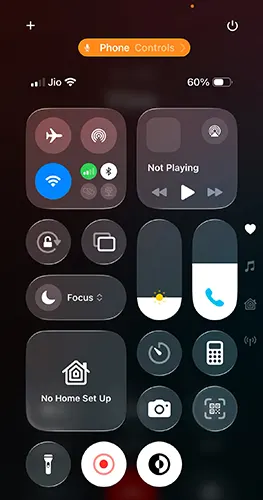
Once the Control Center opens, tap on Phone Controls.
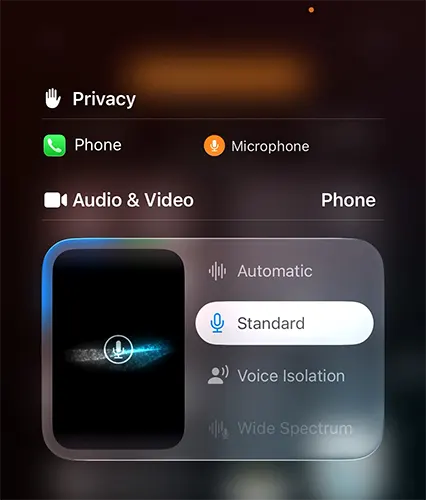
By default, you will notice that the audio mode is set to Standard.
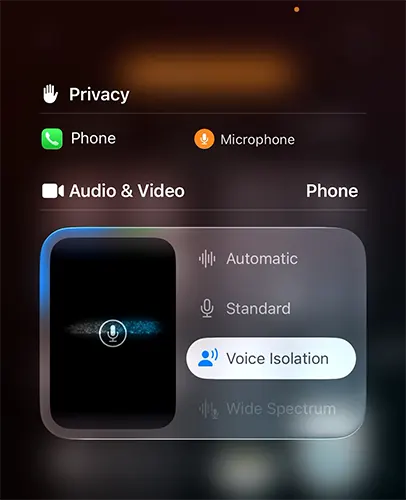
From the available options, select Voice Isolation.
Once enabled, you will immediately experience improved call quality, with reduced background noise and fewer disturbances.
So, whenever the other person complains that your voice is not audible or is affected by background noise, you can enable Voice Isolation while on the call to fix the issue instantly.
Call Hold Feature on iPhone
While you are on a call, you may notice that there is no visible Hold option on the call screen. This often makes users think that iPhones do not support call hold. However, the call hold feature does exist it is just hidden.
While you are on an active call, look for the Mute button on the call screen.
Long-press the Mute button instead of tapping it.
Your call will immediately be placed on hold, and the icon will change to indicate that the call is on hold.
To resume the call, tap the same button again.
This simple long-press action allows you to put a call on hold and resume it whenever needed.
Haptic Feedback on Call Connect and Disconnect
Many people believe that haptic feedback for call connection and disconnection is only available on Android phones. However, iPhones also support this feature. The only difference is that it is not enabled by default you need to turn it on manually.
Haptic feedback provides a subtle vibration when a call connects, disconnects, or drops, which is especially useful when your phone is on silent.
Open Settings on your iPhone.
Scroll down and tap on Apps.
On the Apps page, search for and tap on Phone.
Scroll down until you find the option called Haptic.
By default, this option is disabled. Tap the toggle to enable it.
Once enabled, your iPhone will provide haptic feedback when a call connects, disconnects, or gets dropped.
Hold Assist Detection
Hold Assist Detection is a very useful feature that automatically detects when you are placed on hold during a call, such as while waiting for customer support. Instead of forcing you to keep listening to hold music, your iPhone allows you to step away.
When the other party returns, your iPhone will notify you so that you can resume the call.
Open Settings.
Scroll down and tap on Apps.
On the Apps page, search for Phone and tap on it.
Scroll down the Phone settings page.
Enable Hold Assist Detection by tapping the toggle button.
This feature saves a lot of time and allows you to focus on other tasks while waiting on hold.
Call Recording on iPhone
Yes, call recording has officially been released by Apple in iOS. This feature allows you to record calls, but it does so transparently by notifying both parties.
Open Settings on your iPhone.
Scroll down and tap on Apps.
Search for Phone and tap on it.
Scroll down and tap on Call Recording.
If the option is turned off, enable it by tapping the toggle.
While on a call, tap on More on the call screen.
Select Call Recording.
Before recording begins, your iPhone will announce to both you and the other party that the call is being recorded.
This ensures transparency and complies with privacy requirements.
Screen Unknown Callers
Screen Unknown Callers is a vital feature if you want to avoid unnecessary calls from unknown or unsaved numbers. It allows you to know who is calling and the purpose of the call before your phone even rings.
Open Settings.
Scroll down and tap on Apps.
Search for Phone and tap on it.
Scroll down and find Screen Unknown Callers.
By default, this option is set to Never.
Under this section, select Ask Reason for Calling.
When an unsaved number calls you, the caller will be asked to provide information about the purpose of the call. Once they respond, you will see a transcription on your screen and can decide whether to answer or decline.
Alternatively, you can select the Silence option. This will silence all unknown callers, send them to voicemail, and display them in your recent calls list.
Switch Call Display Style (Banner or Full Screen)
If incoming calls appear as a banner instead of full screen—or vice versa—you can easily change this setting based on your preference.
Open Settings.
Scroll down and tap on Apps.
Search for Phone and tap on it.
Tap on Incoming Calls.
Choose between Banner or Full Screen.
After applying the change, incoming calls will appear according to your selected style.
Flash for Alerts (LED and Screen Alerts)
You may already be familiar with LED flash alerts for incoming calls. Apple has now expanded this feature to include screen flashing alerts as well.
Open Settings.
Tap on Accessibility.
Scroll down and tap on Audio & Visual.
Scroll to the bottom and tap on LED Flash for Alerts.
Enable LED Flash for Alerts if you want the camera flash to blink.
If you want alerts only on the screen, select Screen and turn off LED flash.
If you want alerts on both the flash and the screen, enable both options.
This feature is extremely helpful in noisy environments or when your phone is on silent.
Call Reminder Feature
If you receive a missed call or want to call someone back at a specific time, iPhone offers a built-in Call Reminder feature.
Open the Phone app.
Go to the Recents tab.
Swipe left on the missed or received call for which you want to set a reminder.
Tap on the Reminder icon.
Choose from options such as:
Remind me in 1 hour
- Tonight
- Tomorrow
- Custom time
Once selected, your iPhone will notify you at the chosen time.
When the reminder notification appears, you can quickly call back and take action.

Leave a Reply