If you are an iPhone user, then Safari might be your first priority for browsing the Internet. But do you know that using the Safari browser with improper settings could allow websites to collect your data, expose you to ad-tracking, and even slow down your iPhone?
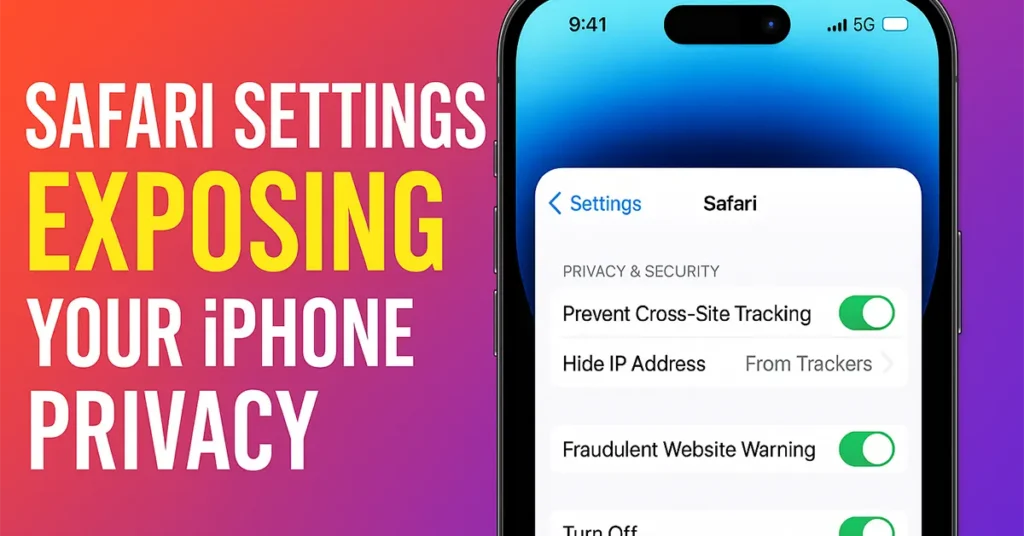
However, if you properly configure the Safari browser, you can protect yourself from such privacy threats.
Table of Contents
Fix Hidden Safari Settings from Exposing Your iPhone
To stop the Safari browser from exposing your privacy on your iPhone:
- Go to Settings.
- Scroll down the Settings page and tap on Apps.
- From Apps, search for Safari and tap on it.
- Scroll down the Safari page and go to the Privacy and Security section.
Prevent Cross-Site Tracking
If the Prevent Cross-Site Tracking option is disabled under the Privacy and Security section, enable it by tapping on the toggle button.
This feature prevents websites from tracking you across other sites. For example, after visiting one website, if you visit another website, it will not be able to know which websites you visited earlier.
Hide IP Address from Trackers
Under the Privacy and Security section, make sure Hide IP Address from Trackers is enabled.
Your IP address is like your digital fingerprint. Any site you visit can know your approximate location and the network you are using. When “Hide IP Address from Trackers” is enabled, Safari hides your IP from advertisers and trackers. It works like wearing a mask while browsing.
Enable Fraudulent Website Warning
Lastly, under the Privacy and Security section, make sure Fraudulent Website Warning is enabled. Enabling this will warn you whenever you visit a website that may be stealing your data or pretending to be a real website.
Fix Search-Related Settings
Under the Search section, you will see several options that affect your privacy.
Disable Search Engine Suggestions
By default, Search Engine Suggestions will be enabled. This feature sends every word you type into the Safari search bar to Google or another search engine even before you hit search. This is again a leak of your activity. If you want to keep your privacy safe, disable Search Engine Suggestions by tapping the toggle button.
Disable Safari Suggestions
Again under the Search section, Safari Suggestions will be enabled. If this option is enabled, the Safari browser sends everything you type to Apple to suggest websites. This is another form of activity tracking.
So disable Safari Suggestions by tapping the toggle button.
Manage Quick Website Search
Lastly, under Search, Quick Website Search will be ON. If you often search within specific sites like YouTube or Wikipedia, this option makes it easier. But if you don’t use it, turn it off to reduce the amount of data being sent.
Advanced Privacy Protection
Under Safari Settings, scroll down and tap on Advanced.
Under Privacy, tap on Advanced Tracking and Fingerprinting Protection.
By default, you will notice Private Browsing will be selected. This means advanced tracking and fingerprinting protection is enabled only when you browse in Private Mode. In normal browsing mode, it does not protect you.
Select All Browsing.
Now Safari will prevent websites from fingerprinting your device. Fingerprinting means websites collect information about your device without permission like screen size, installed fonts, device specifications, OS, and browser capabilities. When combined, these details create a unique digital fingerprint of your device.
Even if you change your IP or use a VPN, websites can still identify you through fingerprinting. When you turn this setting ON for all browsing, Safari starts altering the data websites can see, making your fingerprint confusing and unstable. This reduces a website’s ability to track you or link your visits across different sites.
Clear Suspicious Website Data
Under the Advanced page, tap on Website Data.
Here you will see all websites that have stored data on your device. Some entries may be large in size or unnecessary.
If you notice suspicious sites in this list, tap on the Edit button and remove the specific suspicious site data by tapping the – button.
To remove everything, tap on Remove All Website Data.
Control Camera, Microphone & Location Access
From the Safari Settings page, scroll down to the Settings for Websites section and tap on Camera. Make sure Ask is selected.
Set the same for Microphone as well as Location.
By selecting “Ask,” whenever a site tries to use your camera, microphone, or location, Safari will ask for your permission first. This prevents websites from using your camera or mic without your knowledge.
Review Safari Extensions
From Safari Settings, under General, tap on Extensions.
This will load all the extensions installed in your Safari browser. You need to review all extensions and delete any suspicious extensions or those not from a trusted source. Some extensions can spy and collect your browsing data.
These hidden Safari settings are often ignored, but they play a major role in protecting your iPhone from Website tracking, Fingerprinting, Data collection, Scam websites, Privacy leakage. Fix them today and enjoy a safer, faster, and more private browsing experience on your iPhone.

Leave a Reply