Swiping away an email in the Mail app on iPhone previously used to delete the selected email from your inbox. However, now this action no longer deletes the email instead, it archives the message.
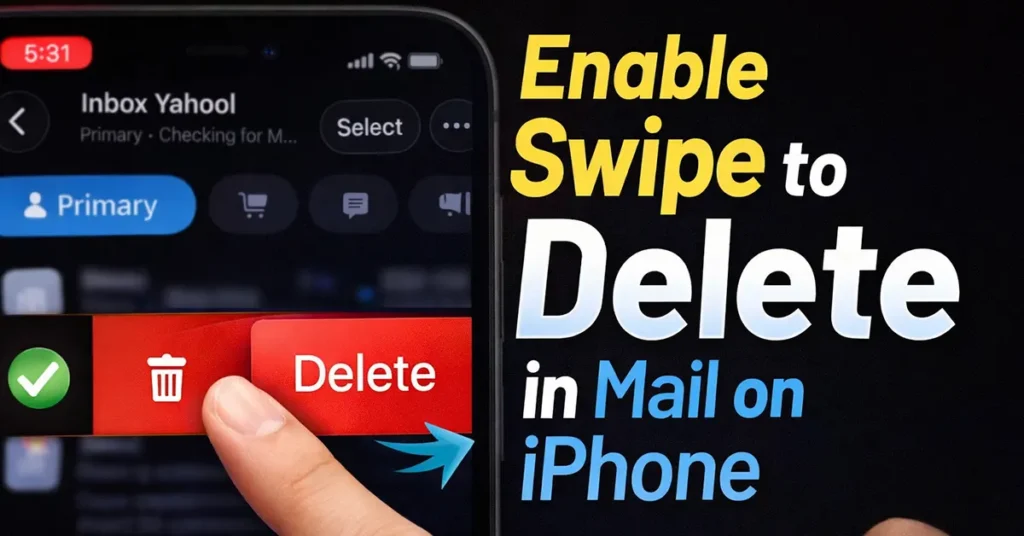
So, if you want the Mail app to delete emails when you swipe instead of archiving them, here are the changes you need to make in your settings.
Enable Swipe to Delete Mail on iPhone
To delete emails by swiping in the Mail app on your iPhone (instead of archiving), start by opening Settings.
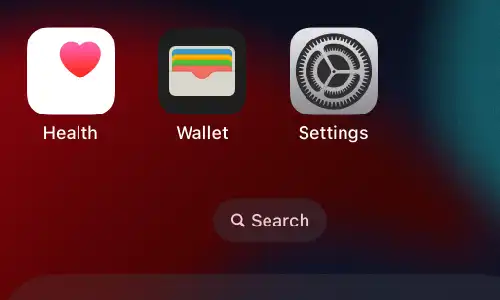
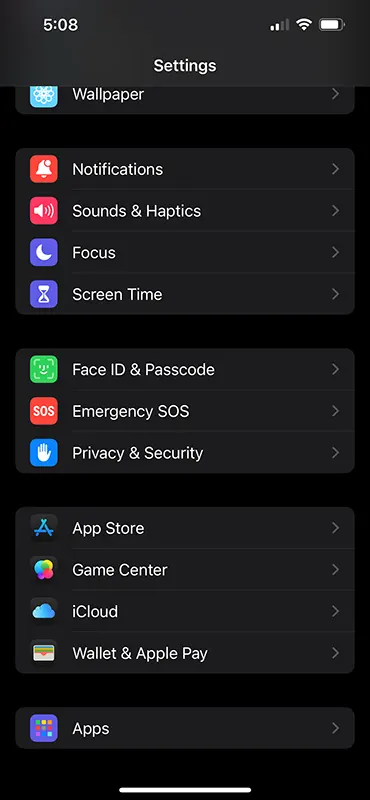
Scroll down on the Settings page and tap on Apps.
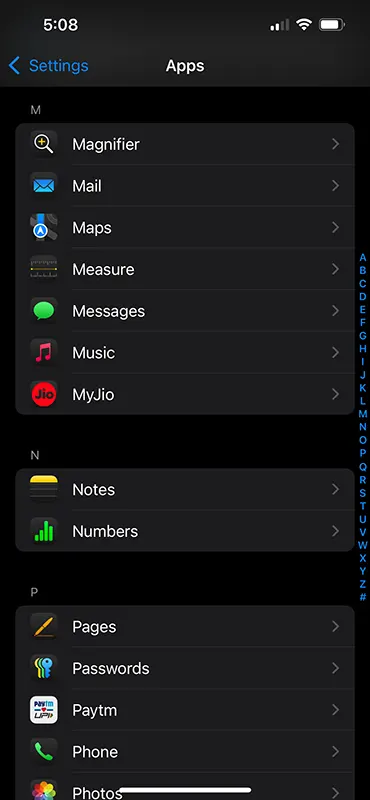
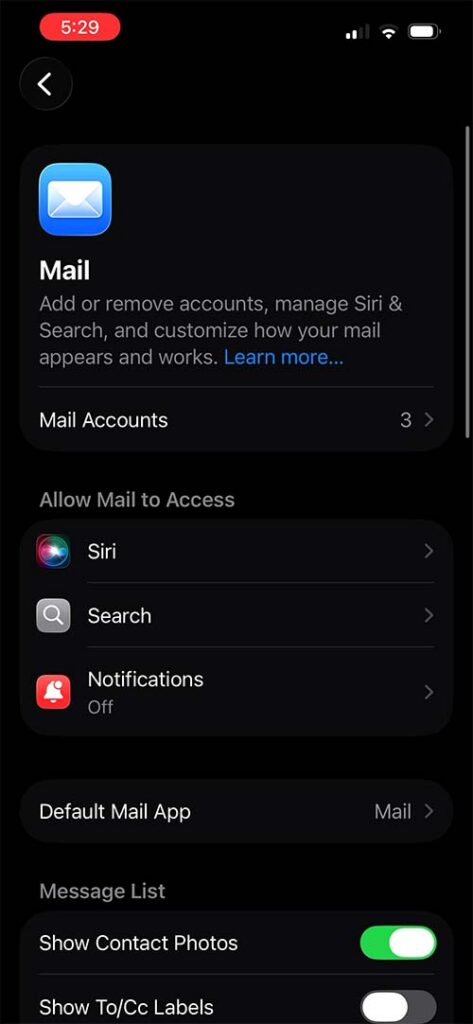
From the Apps page, search for Mail and tap on it.
Inside the Mail settings, tap on Mail Accounts.
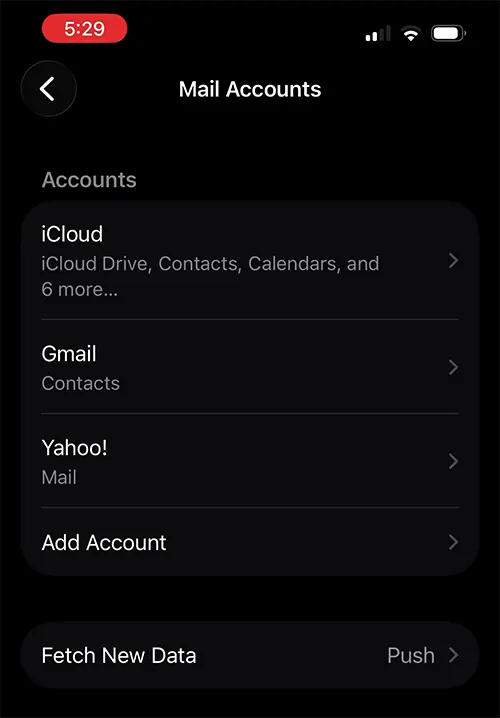
Select your email provider from the list of Mail Accounts.
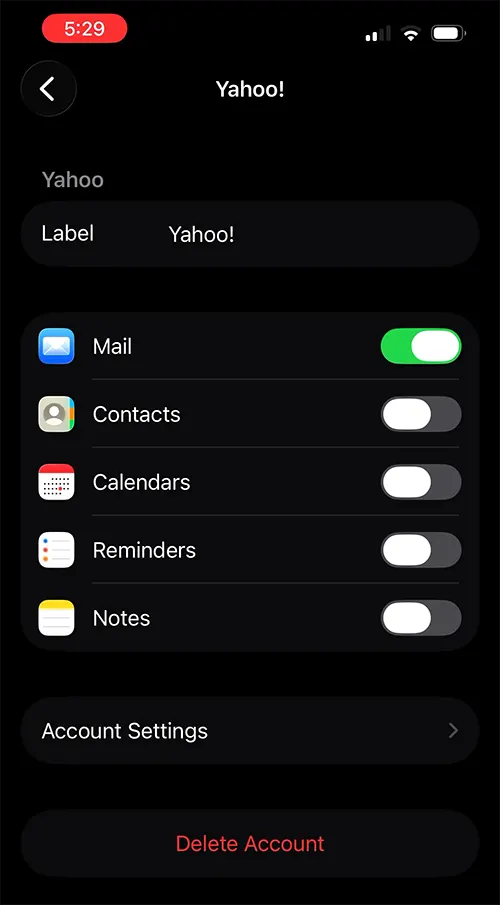
Tap on Account Settings.
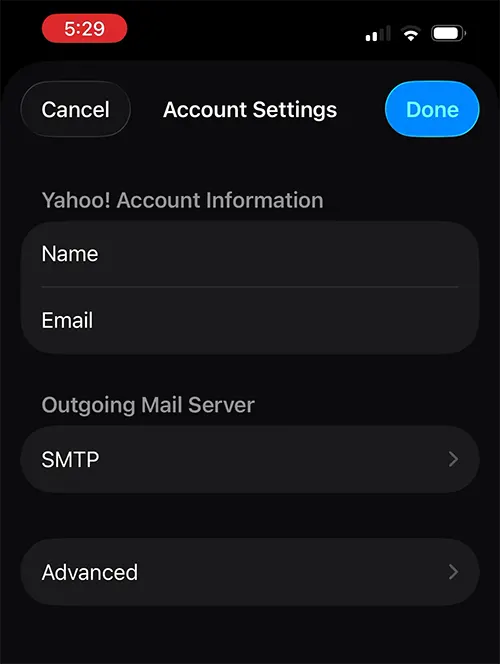
From the Account Settings page, tap on Advanced.
Under Move Discarded Messages Into, change the option from Archive Mailbox to Deleted Mailbox.
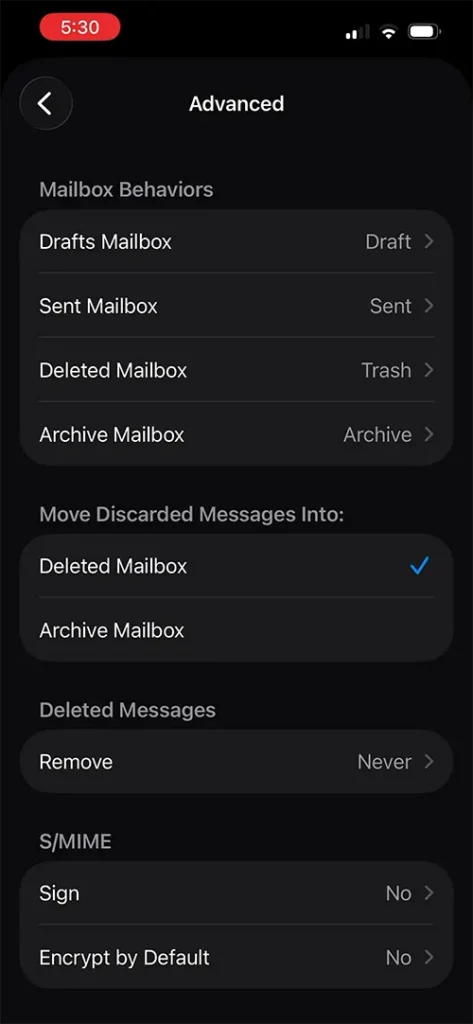
Now, go back and tap the Done button on the Account Settings page to apply the changes.
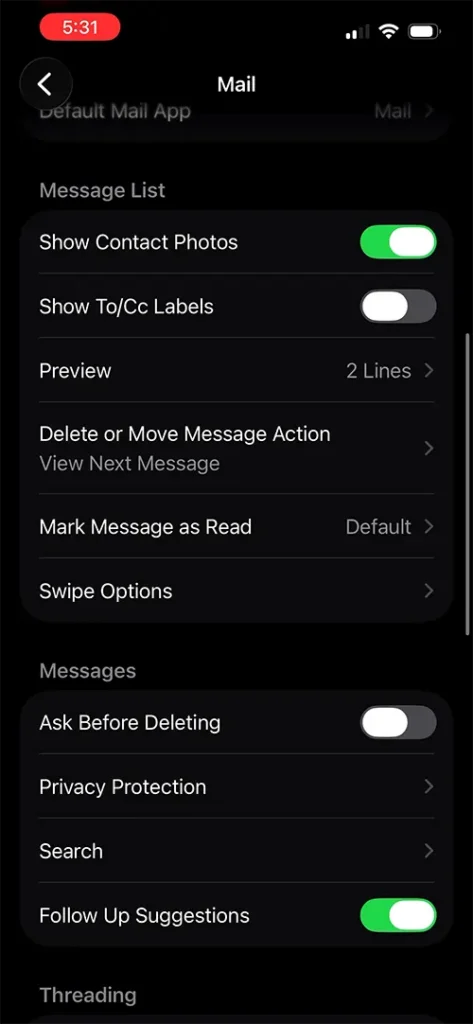
Go back to the main Mail settings page.
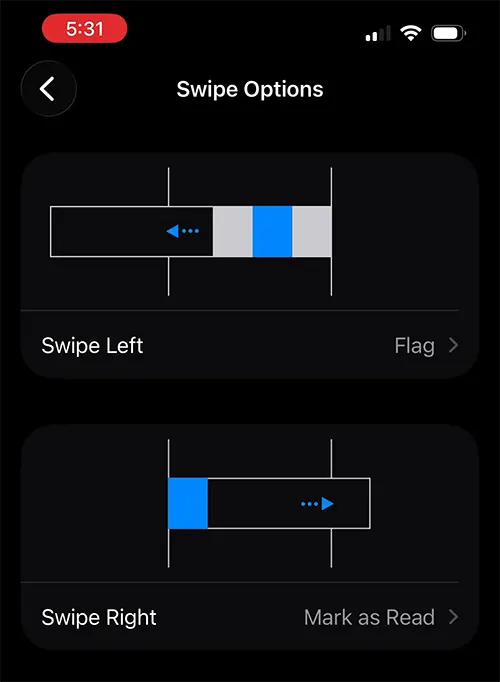
Scroll down and look for Swipe Options.
Tap on Swipe Options.
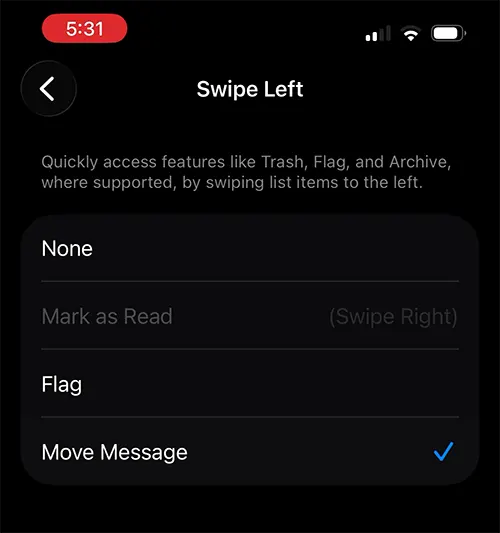
From Swipe Options, set your preferred swipe direction to delete messages.
Now, when you perform a full swipe one long motion all the way across the screen the email will be deleted instead of archived.
If you accidentally delete an email, you can quickly bring it back by tapping the screen with three fingers to instantly undo the delete action.

Leave a Reply