On all Android phones, whether they are older smartphones or the latest models, the Gemini feature has been pushed by Android. Gemini is one of the most advanced AI apps available for smartphones, and it can perform most of the tasks that an AI assistant is expected to do. Because of this, Android has started replacing the traditional Google Assistant with Gemini on many devices.
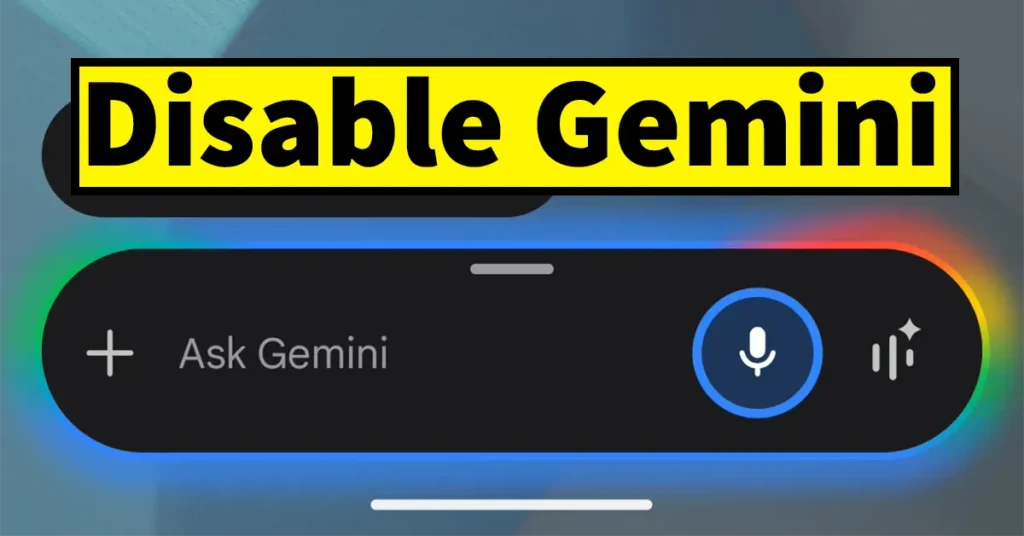
Now, when the power button is long-pressed on an Android phone, Gemini launches instead of the Google Assistant. However, Gemini may not be useful for everyone. Some users may not find it helpful for their daily usage, and others may find it annoying especially when Gemini appears accidentally due to a long press of the power button.
So, if you are someone who does not want the Gemini interface to appear on your Android phone when you long-press the power button, or if you do not want the Gemini app on your phone at all, then this guide will help you. Below are the different methods you can follow to disable or completely remove Gemini from your Android device.
There are multiple ways to disable or turn off Gemini on Android. You can either stop Gemini from appearing when the power button is long-pressed, turn it off as your digital assistant, or permanently remove the Gemini app from your phone.
Table of Contents
Disable Gemini on Android When the Power Button Is Long-Pressed
To disable Gemini from appearing when the power button is long-pressed, follow these steps:
Open Settings on your Android phone.

Scroll through the Settings page and look for Shortcuts & Accessibility, then tap on it.
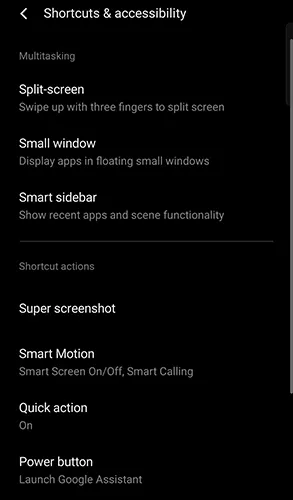
Inside Shortcuts & Accessibility, tap on Power Button.
Here, you will see an option such as Launch Google Assistant or Google Gemini, which is currently selected.
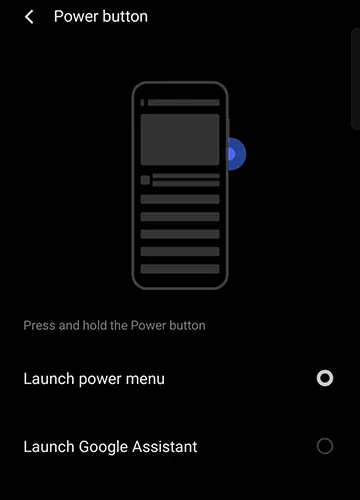
To stop Gemini from launching, change this option to Launch power menu.
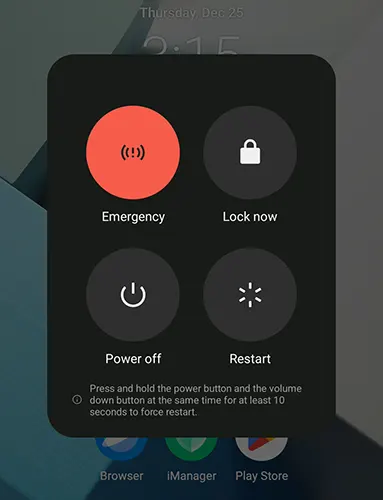
After making this change, when you long-press the power button, your phone will show the power menu instead of launching Gemini.
Please note that this method only disables the Gemini interface from appearing via the power button shortcut. Gemini will still remain active as your default digital assistant. To fully turn off Gemini as your Google digital assistant, you need to follow the next set of steps.
Turn Off Gemini on Android Completely
To turn off Gemini as your digital assistant on Android, follow these steps carefully:
Open Settings on your Android phone.
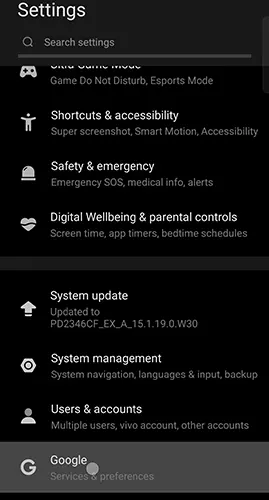
Scroll down and tap on Google.
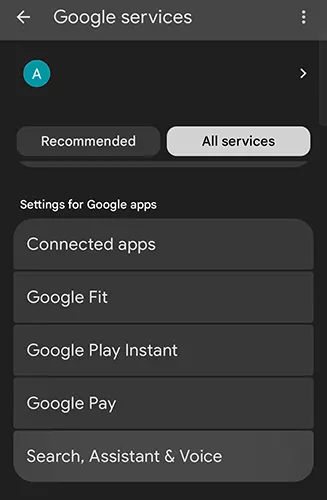
From the Google Services page, tap on the All Services tab.
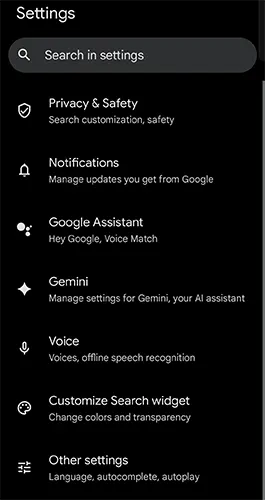
Scroll down and under the Settings for Google apps section, tap on Search, Assistant & Voice.
On the next screen, tap on Gemini.
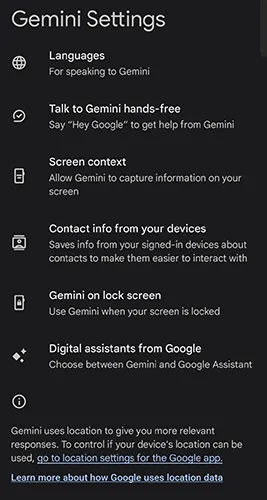
Scroll down the Gemini settings page and tap on Digital assistants from Google.
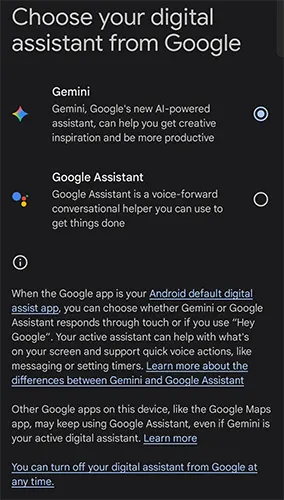
On this page, you will see an option called Choose your digital assistant from Google. Here, you will get two options:
- Gemini
- Google Assistant
If you do not want Gemini, you can select Google Assistant, which will switch back to the classic assistant that was available before Gemini.

However, if you want to turn off the digital assistant completely, scroll down to the bottom of the page where you will see the option:
“You can turn off your digital assistant from Google at any time.”
Tap on this option. A confirmation pop-up will appear asking you to confirm turning off the digital assistant. Tap on Turn off.
Once this is done, your digital assistant will be completely disabled and will no longer respond to any commands.
Remove Google Gemini from Android Completely
The above two methods only disable Gemini from appearing via the power button or turn it off as a digital assistant. If you want to completely uninstall or remove the Gemini app from your Android phone, follow the steps below.
Open Settings on your phone.
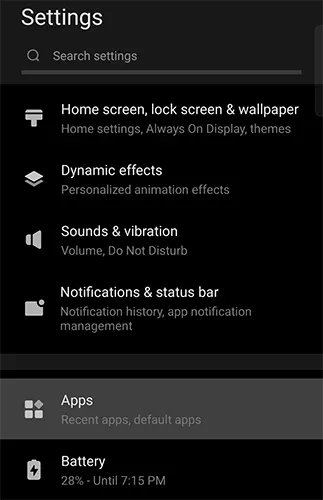
Scroll down and tap on Apps.
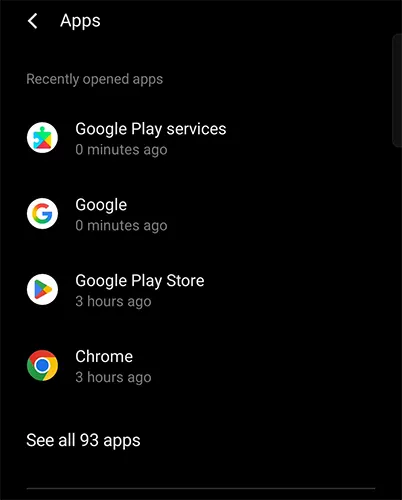
The Apps page will show only a few apps initially. Tap on See all apps to view the complete list.
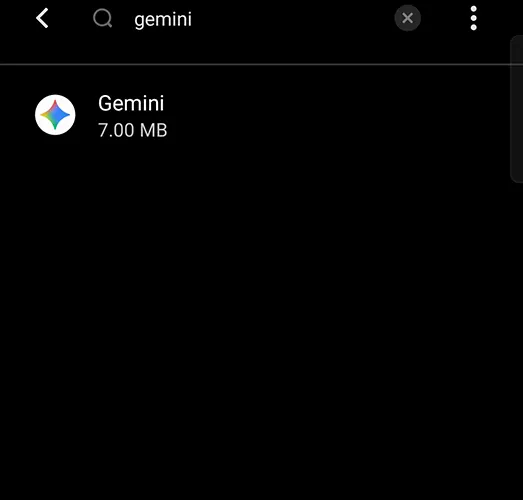
From the list of all apps, scroll down or tap on the search icon and type Gemini to quickly find the app.
Tap on Gemini to open the App Info page.
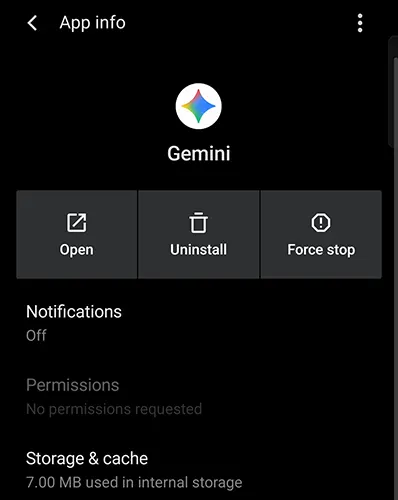
On the App Info page:
If you see the Uninstall option, tap on it to completely remove Gemini from your Android phone.
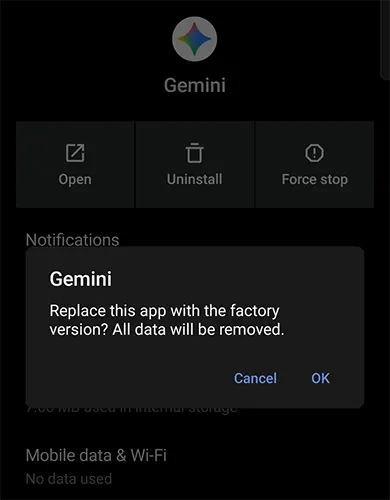
If the Uninstall option is not available (as some phones do not allow system apps to be uninstalled), tap on Disable instead.
Disabling the app will prevent Gemini from running or appearing anywhere on your phone.
This is how you can disable Gemini from the power button, turn it off as a digital assistant, or completely uninstall or disable it on your Android phone, depending on your preference.
If you are wondering why the Gemini logo is still showing in Google Messages even after you have turned off Gemini as a digital assistant and completely uninstalled the Gemini app, this happens because Gemini is still integrated into the Android operating system.
Even when the Gemini app is removed or disabled, certain Google apps especially Google Messages continue to have built-in Gemini features enabled by default. This allows users to access Gemini directly inside Messages unless it is manually turned off.
If you do not want Gemini to appear in Google Messages, you can disable it directly from the Messages app settings. Follow the steps below to completely remove the Gemini button from Google Messages.
Remove Gemini Button in Google Messages App
When you open the Google Messages app, you may notice a Gemini icon appearing just above the “Start chat” button. This Gemini button allows users to use AI features such as drafting messages, answering questions, brainstorming ideas, planning responses, and accessing Google services directly within Messages.
However, if you prefer a clean messaging interface or simply do not want Gemini inside Google Messages, you can easily disable this feature.
Open the Google Messages app on your Android phone.
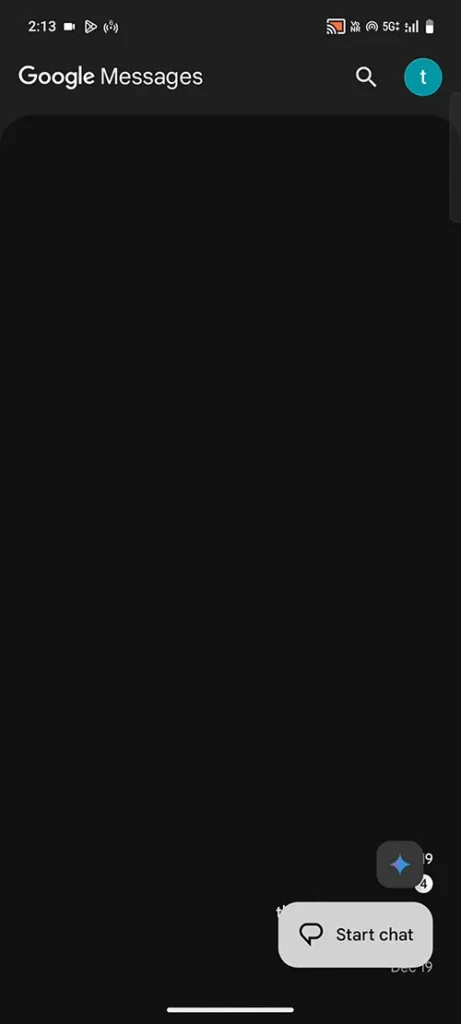
Tap on your profile icon located in the top-right corner of the screen.
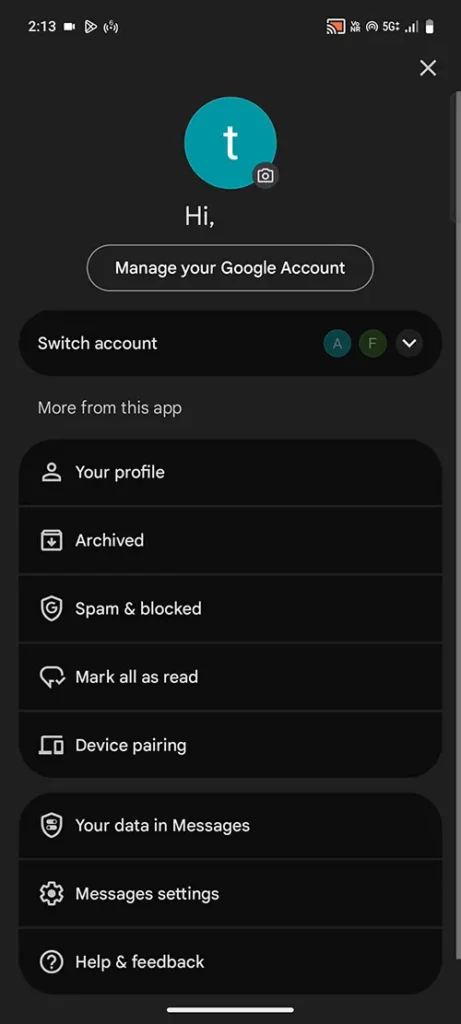
From the profile menu, tap on Messages settings.
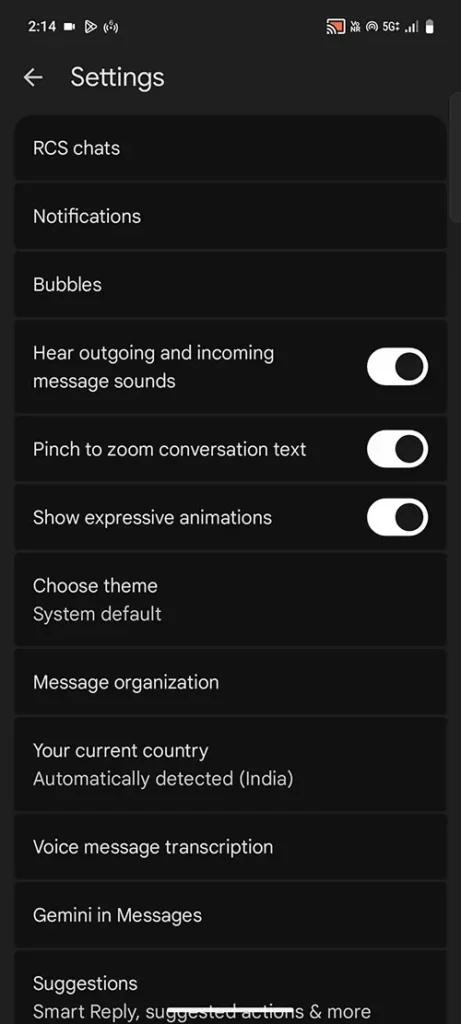
Scroll down and find the option Gemini in Messages, then tap on it.
You will see that the Show Gemini button option is enabled by default.
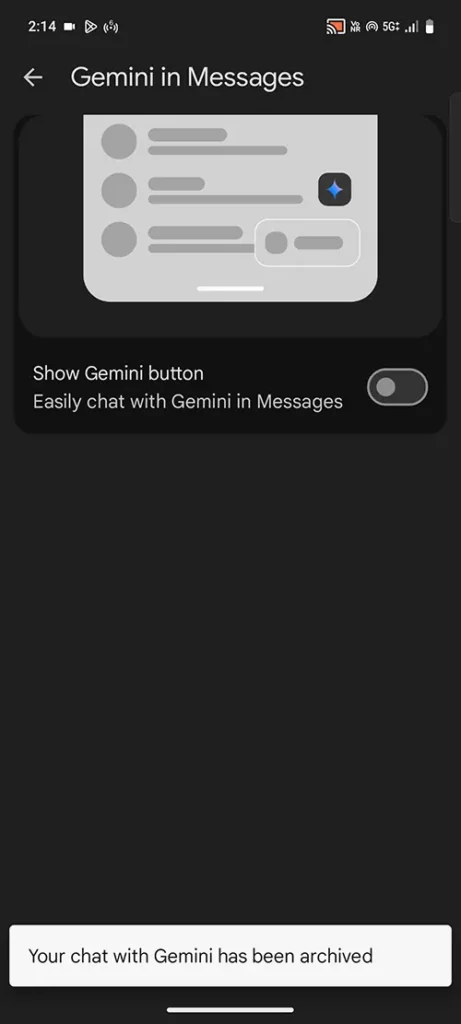
Tap on the toggle switch to disable the Show Gemini button.
A confirmation message will appear stating that your chat with Gemini has been archived.

Once these steps are completed, open the Google Messages app again. You will notice that the Gemini icon is no longer visible, and Gemini will be completely removed from the Messages interface.

Leave a Reply