If you have ever lowered your iPhone’s ringtone volume at night only to worry that your morning alarm would also become too quiet, iOS 27 has a useful solution.
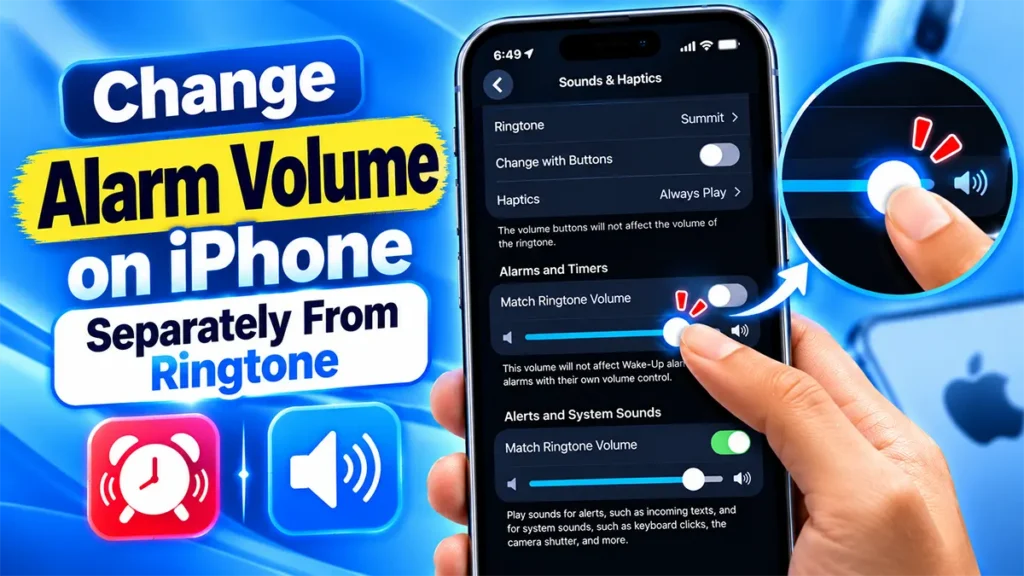
Apple has added separate volume controls for alarms and timers and for alerts and system sounds. This means you no longer have to keep your alarm volume tied to your ringtone volume.
For example, you can keep your ringtone at a low level while setting your alarm loud enough to wake you up. The setting takes only a few seconds to configure.
In this guide, I’ll show you how to change the alarm volume separately from the ringtone on an iPhone running iOS 27, where to find the new setting, and what you should know about Wake-Up alarms.
Table of Contents
How to Set a Separate Alarm Volume on iPhone
The new control is available directly inside the iPhone’s Sounds & Haptics settings.
Follow these steps:
Start by opening the Settings app on your iPhone.
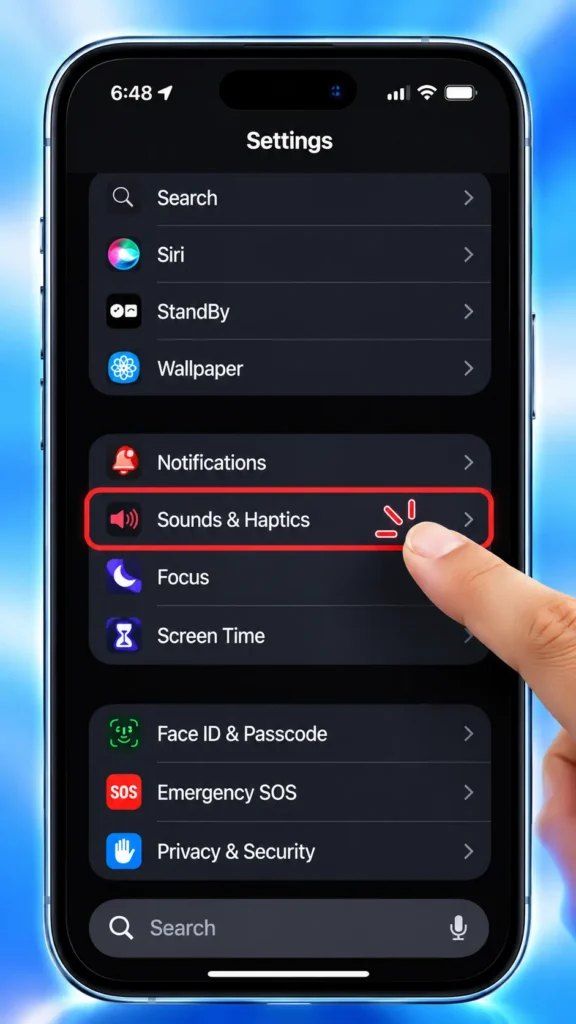
Scroll through Settings and tap Sounds & Haptics.
This is where you’ll find the ringtone, alarm, timer, alert, and other sound controls.
Scroll down until you see the Alarms and Timers section.
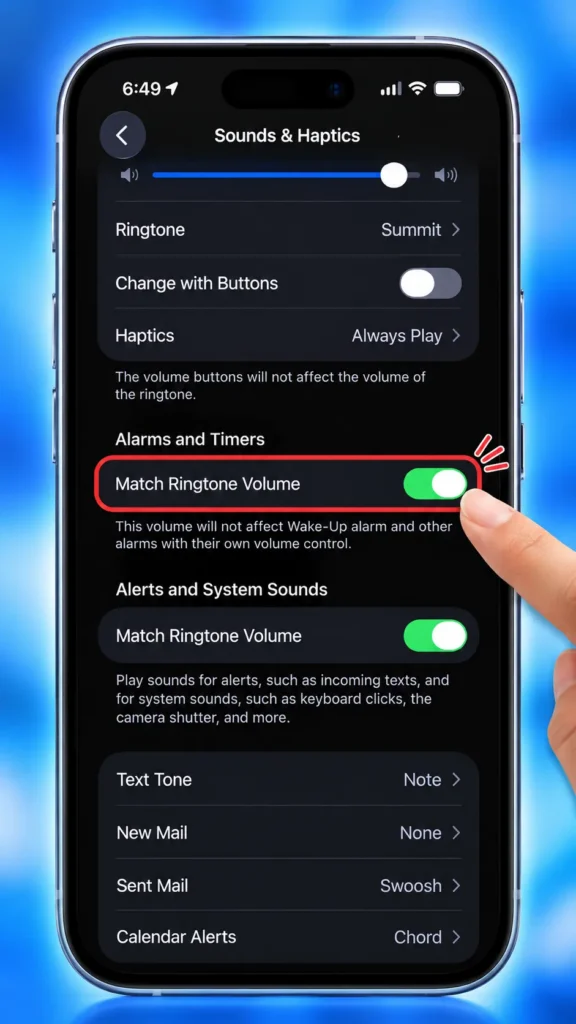
By default, iOS 27 keeps the alarm and timer volume linked to your ringtone volume. Apple calls this option Match Ringtone Volume.
Turn off Match Ringtone Volume under Alarms and Timers.
Once you switch it off, a separate volume slider appears underneath.
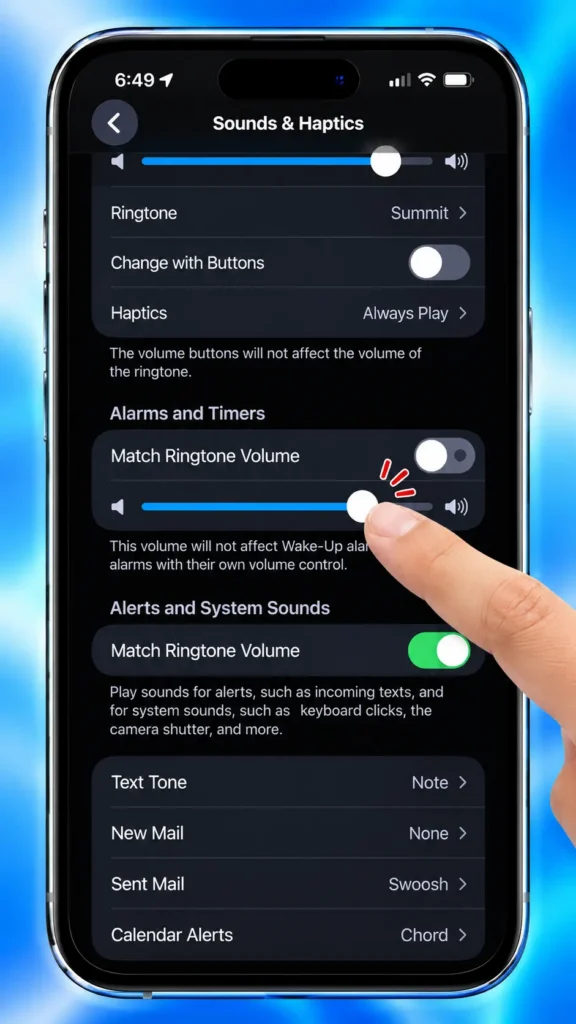
This is the important step that separates your alarm and timer volume from your ringtone.
Drag the newly available volume slider to the level you want.
If you want a louder alarm, move the slider higher.
If you don’t want your alarm to be too loud, move it lower.
The setting is saved, so you don’t have to change it every time you adjust your ringtone.
What Happens After You Separate the Volumes?
This is where the new setting becomes particularly useful.
Imagine you normally keep your ringtone volume at 30% because you don’t want incoming calls to be too loud.
Previously, changing that setting could also affect your alarm volume.
With the separate setting enabled, you can have something like:
- Ringtone: Low
- Alarm: High
- Timer: High
So you can keep your phone relatively quiet while still having a loud morning alarm.
Apple’s current iPhone guide confirms that alarms and timers can now have their own volume level instead of automatically matching the ringtone.
How to Separate Notification Volume From Ringtone Volume
iOS 27 doesn’t stop with alarms.
There’s another Match Ringtone Volume option under Alerts and System Sounds.
This controls sounds such as incoming text alerts and system sounds including keyboard clicks and the camera shutter.
To separate these sounds:
Open Settings.
Tap Sounds & Haptics.
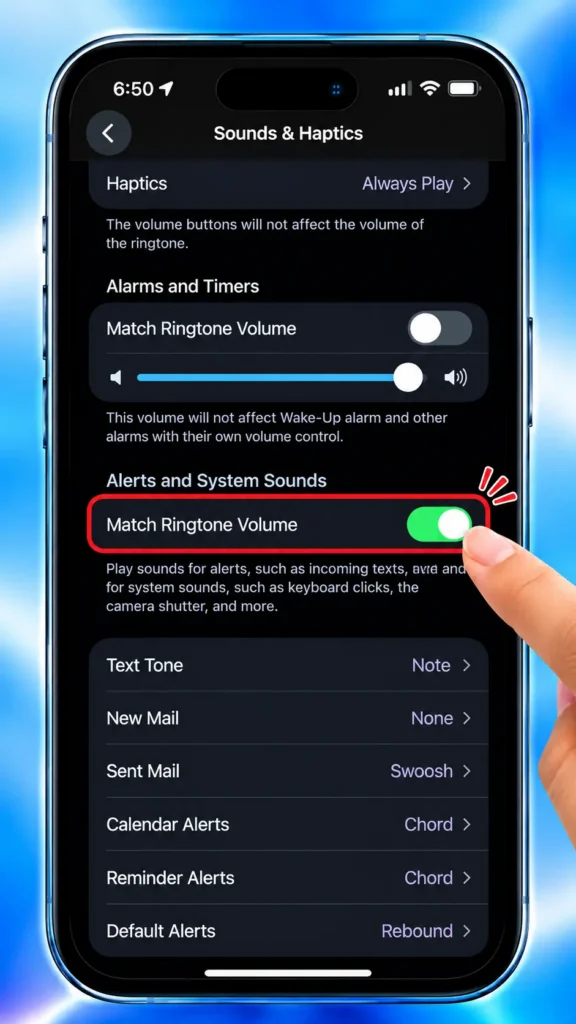
Scroll to Alerts and System Sounds.
Turn off Match Ringtone Volume.
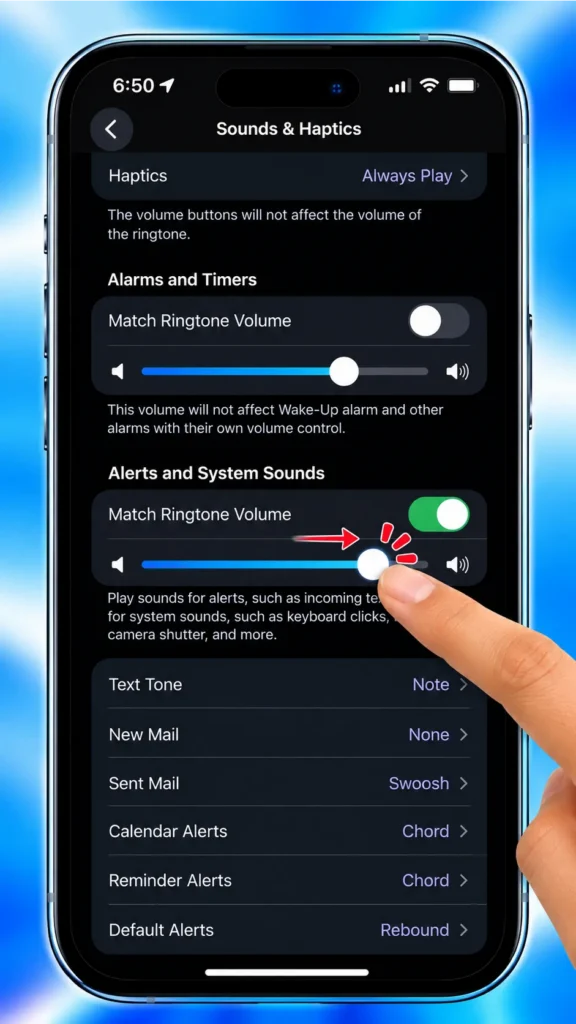
Adjust the new volume slider.
You can therefore have different levels for your ringtone, alarms and timers, and alerts/system sounds.
This is a surprisingly useful change if you like your iPhone to be quiet without risking a missed alarm.
Does This Change the Sleep Schedule Wake-Up Alarm?
There’s an important distinction here.
The Alarms and Timers volume control isn’t intended to override alarms that already have their own volume control.
Apple specifically notes that the Alarms and Timers volume doesn’t affect the Wake-Up alarm and other alarms with their own volume control.
So if you’re using the iPhone’s Sleep Schedule/Wake Up feature, don’t assume that changing the general Alarms and Timers slider will replace its dedicated alarm-volume setting.
If your Wake-Up alarm isn’t behaving the way you expect, check its individual alarm settings as well.
The ability to separate alarm volume from ringtone volume is one of those small iPhone changes that can make a noticeable difference in everyday use.

Leave a Reply