Have you ever recorded a video on your iPhone and later realized that one particular moment would have made a great photo?

Maybe someone smiled at exactly the right moment, you captured a beautiful scene while travelling, or you recorded something that happened too quickly to photograph separately.
Until recently, the easiest solution was to pause the video, take a screenshot and crop the image afterward.
iOS 27 makes this much easier.
The Photos app now includes a Save Video Frame as Photo option that lets you select a frame from a video and save it as a separate photo in your photo library. Apple documents the feature as part of the Photos experience in iOS 27.
Watch the video: How to Save a Video Frame as a Photo on iPhone
Here’s how to use it.
Table of Contents
How to Save a Video Frame as a Photo on iPhone
The process is quite simple, and you don’t need a separate app.
Open the Photos app on your iPhone.
Find the video from which you want to extract a photo.
You can use a video you recorded with the Camera app or another video that is already stored in your Photos library.
Tap the video to open it.
Press the Play button and watch for the moment you want to save.
You don’t have to stop at exactly the right moment while the video is playing. It’s often easier to pause first and then adjust the position manually.
When you reach the part of the video you want, pause playback.
Now use the video timeline to move backward or forward until you find the frame you like.
This is particularly useful when you’re trying to capture a person’s expression, a moving subject or another moment that lasts only a fraction of a second.
With the video paused, tap the three-dot More button in the upper-right corner.
You’ll see several options.
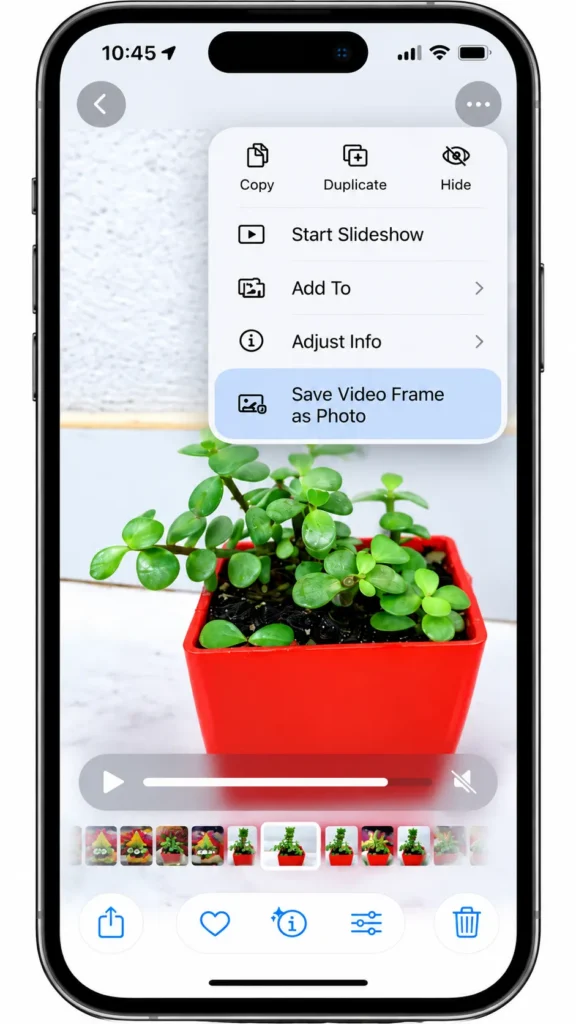
Look for:
Save Video Frame as Photo
Tap Save Video Frame as Photo.
Your iPhone will create a new photo from the selected video frame and save it to your Photos library. That’s the main advantage of this feature: you don’t have to take a screenshot of the entire iPhone screen and crop it afterward.
Once the video frame has been saved as a photo, you can edit, organize or share it like any other picture in your Photos library. If you’re concerned about sharing location information with a photo, here’s how to turn off location data when sharing photos on iPhone.
How to Get the Exact Frame You Want
Getting the right frame is probably the most important part of the process.
If you simply pause the video, you might stop slightly before or after the moment you actually want.
Instead, pause the video first and then slowly move along the timeline.
For example, suppose you recorded a video of someone smiling.
Rather than accepting the first frame that appears when you pause, move through the nearby frames and look for the expression you like best.
The same technique works for:
- People smiling or laughing
- Animals moving
- Sports and action
- Travel videos
- Family events
- Concerts
- Food videos
- Scenic locations
- Vehicles and driving videos
- Children playing
- Moments that happen very quickly
This small extra step can make a noticeable difference in the final image.
Can You Save a Video Frame From Edit Mode?
Yes. You can also work with the video from the editing interface.
Open the video in Photos and tap Edit.
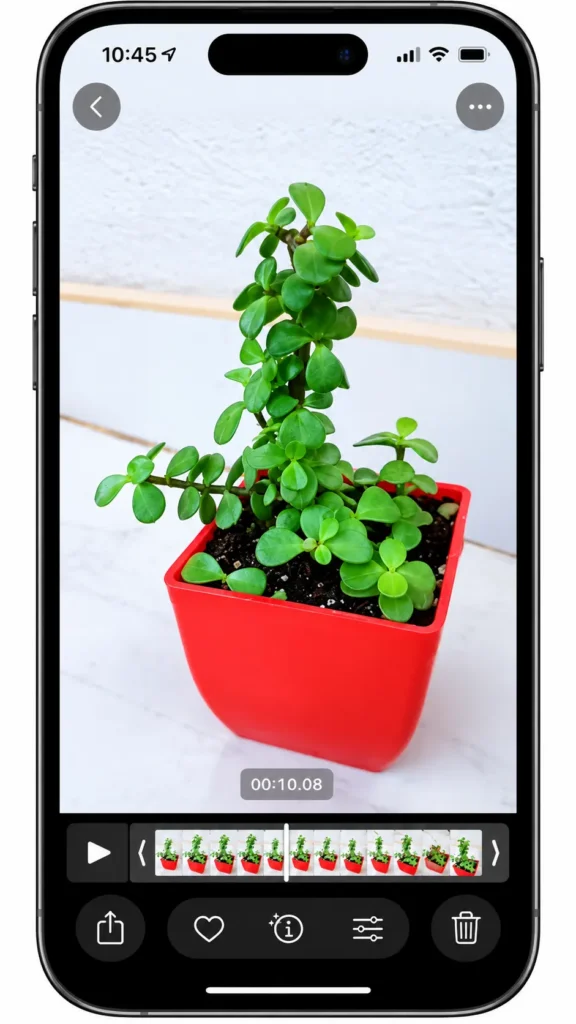
From there, move through the video until you reach the frame you want to keep.
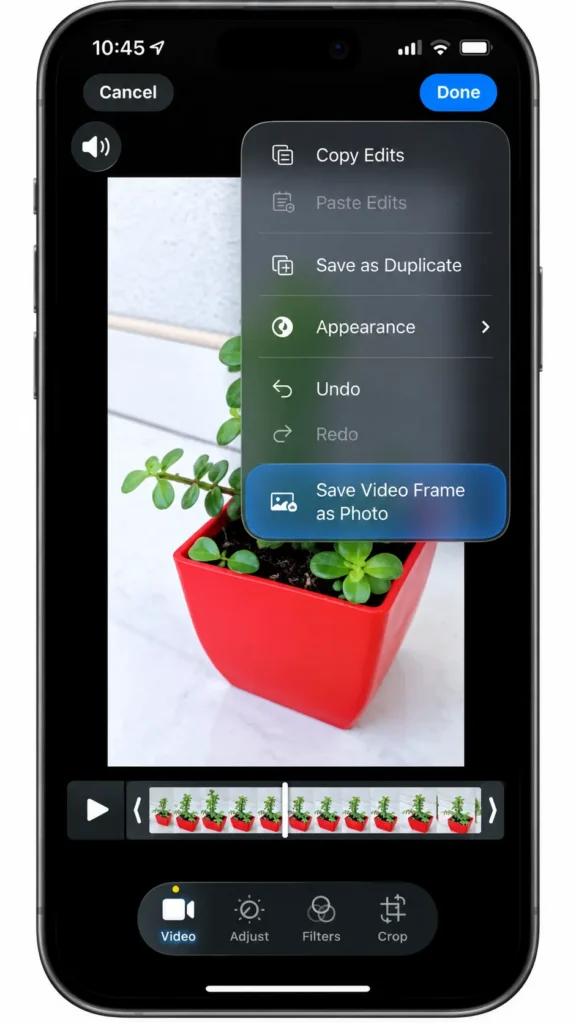
The same Save Video Frame as Photo option can be accessed from the More menu.
This can be useful when you want to be more precise about the moment you’re selecting.
If you’re trying to capture something happening on your iPhone’s screen rather than extract a frame from a video, you can also use the built-in screen recording feature on iPhone.
Where Does the Saved Photo Go?
One thing that may initially confuse you is where the new image appears in your library.
Apple says the location depends on how your Photos library is sorted.
If your library is sorted by Added, the newly created photo appears at the bottom of the library.
If your library is sorted by Captured, the saved frame appears next to the original video.
So, if you tap Save Video Frame as Photo and don’t immediately see the picture at the top of your library, don’t assume that the feature didn’t work.
Check your library’s sorting option.
Why Save a Video Frame Instead of Taking a Screenshot?
This is where the new feature becomes particularly useful.
A screenshot captures what is displayed on your iPhone’s screen.
That can include things such as:
- Playback controls
- The video timeline
- Status-bar information
- Other interface elements
- Screen-related cropping
You then have to crop the screenshot to get the image you actually wanted.
With Save Video Frame as Photo, the Photos app is designed specifically for this purpose.
You select the frame and save it as a new photo instead of photographing the screen with a screenshot.
Independent testing and reporting on iOS 27 also found that the dedicated frame-saving feature produces a cleaner result than using a screenshot.
Does the Feature Work on Every iPhone?
The important requirement is iOS 27.
Apple’s current compatibility list includes the iPhone 11 series and newer models, as well as the second-generation iPhone SE and later.
That means you don’t necessarily need the latest iPhone to use this feature.
If you’re using a compatible iPhone but don’t see the option, first check your software version.
Go to: Settings → General → Software Update
Apple provides iOS 27 for compatible devices through Software Update.
iOS 27 Finally Makes This Much Easier
The ability to save a frame from a video isn’t a complicated feature, but it’s one of those small additions that can save time.
Previously, if you wanted a still image from a saved video, a screenshot was the obvious workaround.
Now, iOS 27 gives you a dedicated option directly inside Photos:
Save Video Frame as Photo
The workflow is simple:
Open Photos → Open Video → Pause → Find the Frame → More (…) → Save Video Frame as Photo
Once you know where the option is, saving a photo from a video takes only a few seconds.
And the next time you find yourself pausing a video and preparing to take a screenshot, check the More menu first.
You may already have the exact tool you need.
Not if you’re running iOS 27 and using the Photos app. Apple now provides the Save Video Frame as Photo option directly in Photos.
Yes. You can repeat the process and save different frames as separate photos.
Check how your Photos library is sorted. Apple says that with the library sorted by Added, the saved image appears at the bottom; with Captured sorting, it appears next to the original video.
Yes. Screenshots still work, but if your goal is specifically to save a clean frame from a video as a photo, the dedicated Photos feature is the more direct method.

Leave a Reply