Sony Google TVs let you turn your television into much more than a device for watching cable channels and live TV. You can install streaming services, music apps, games and other compatible apps directly on the TV.
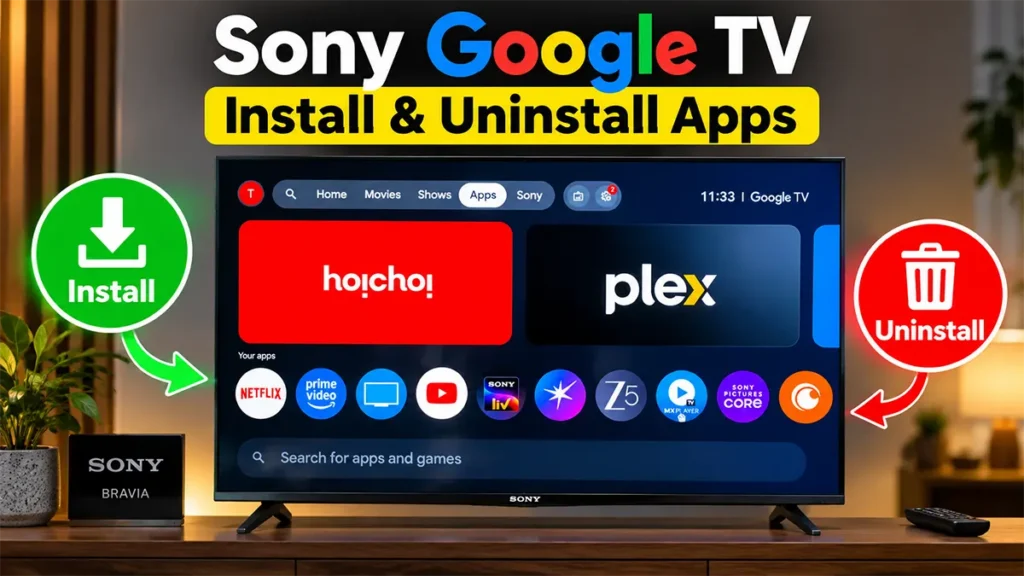
If you have recently purchased a Sony BRAVIA Google TV, you may be wondering where to find apps, how to install a new app, or how to remove an app you no longer use.
The good news is that the process is fairly simple. In this guide, I’ll show you how to install and uninstall apps on a Sony Google TV, along with what to do if an app cannot be installed or removed.
Note: The names and locations of some menu options can vary slightly depending on your Sony TV model, Google TV version and software update.
Table of Contents
How to Install Apps on Sony Google TV
You can search for and install compatible apps directly from the Apps section of your Sony Google TV.
Here’s how to do it:
From the Google TV Home screen, navigate to the Apps section.
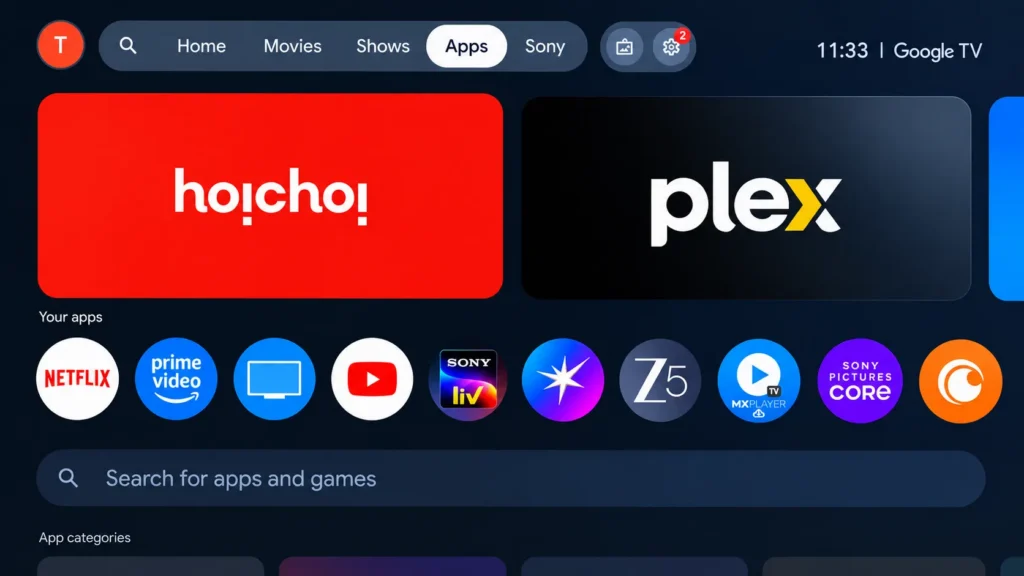
Once you are on the Apps page, scroll down until you see the Search for apps and games box.
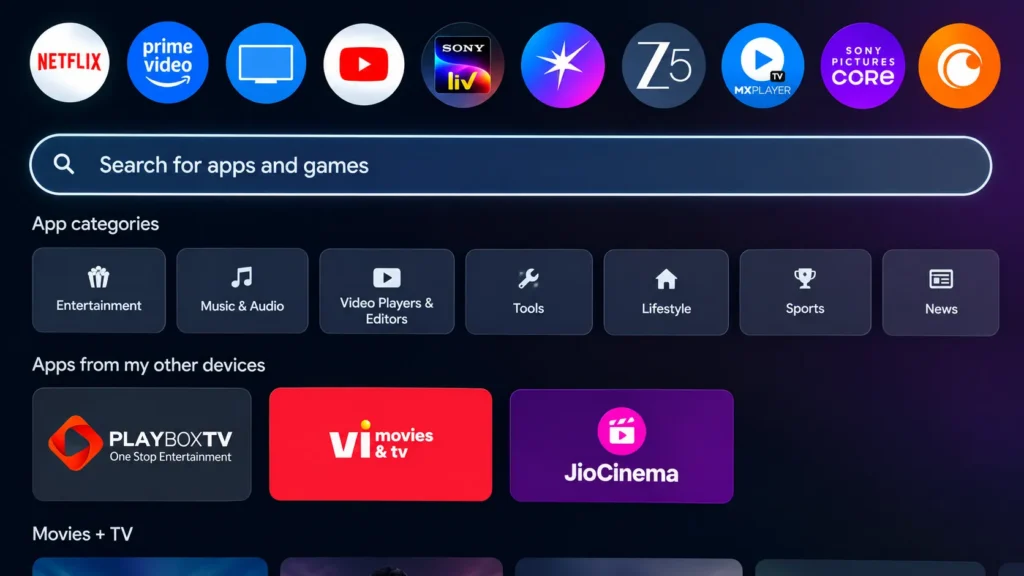
Select the search box by pressing the OK button on your Sony TV remote.
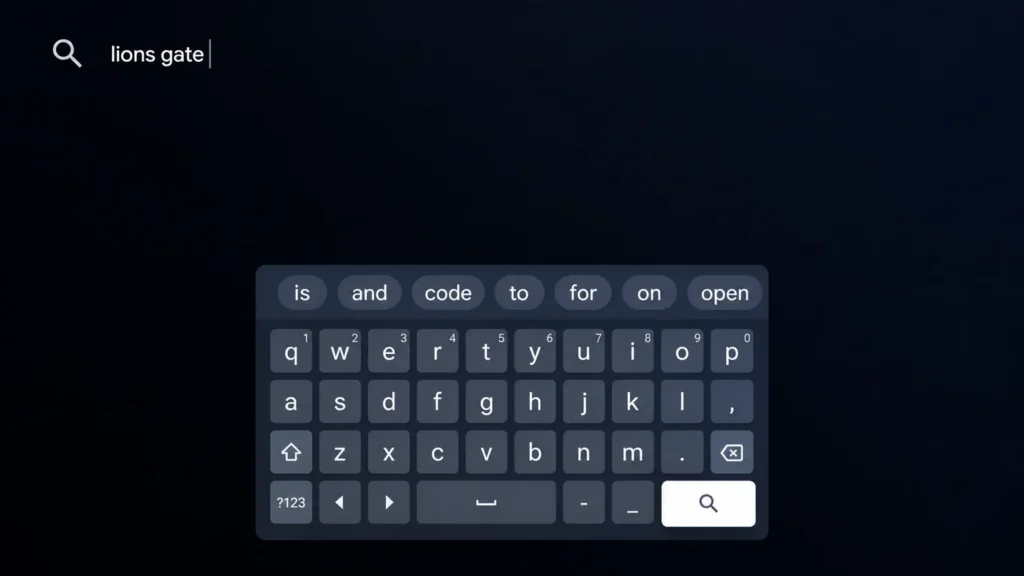
Using the on-screen keyboard, type the name of the app you want to install.
After entering the app name, select the Search icon on the on-screen keyboard and press OK.
Google TV will now display apps that match your search query.
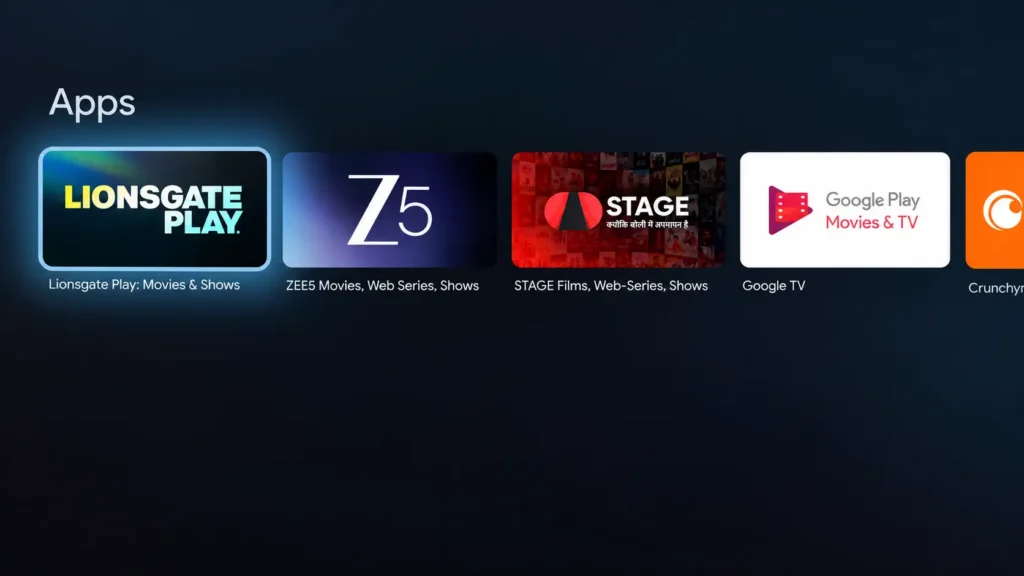
Find the correct app from the search results and select it by pressing the OK button on your remote.
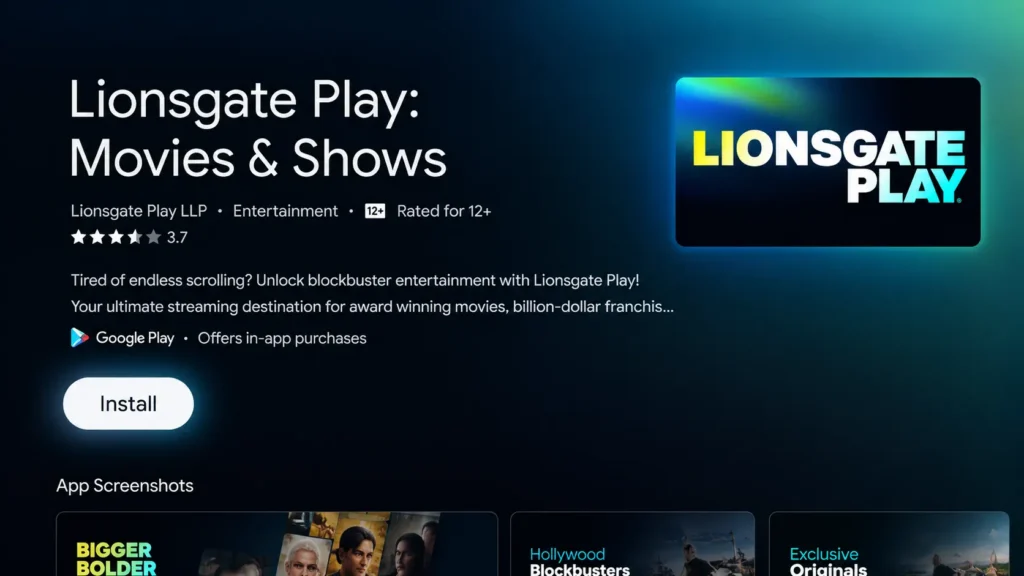
This will open the app’s page, where you can see information about the app along with the option to install it.
Select Install and press OK.
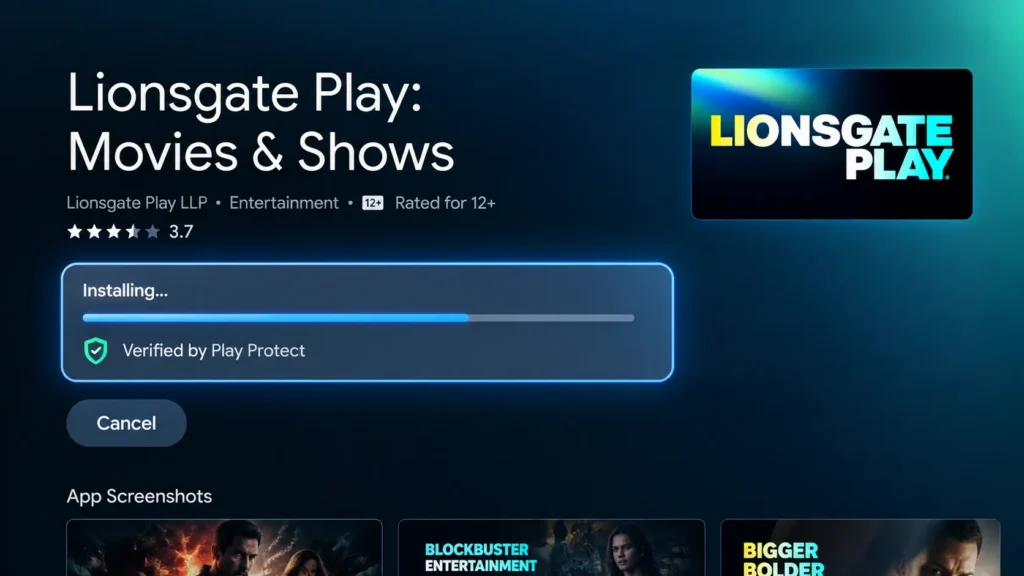
The app will now start downloading and installing on your Sony Google TV. Depending on the size of the app and the speed of your internet connection, this may take anywhere from a few seconds to several minutes.
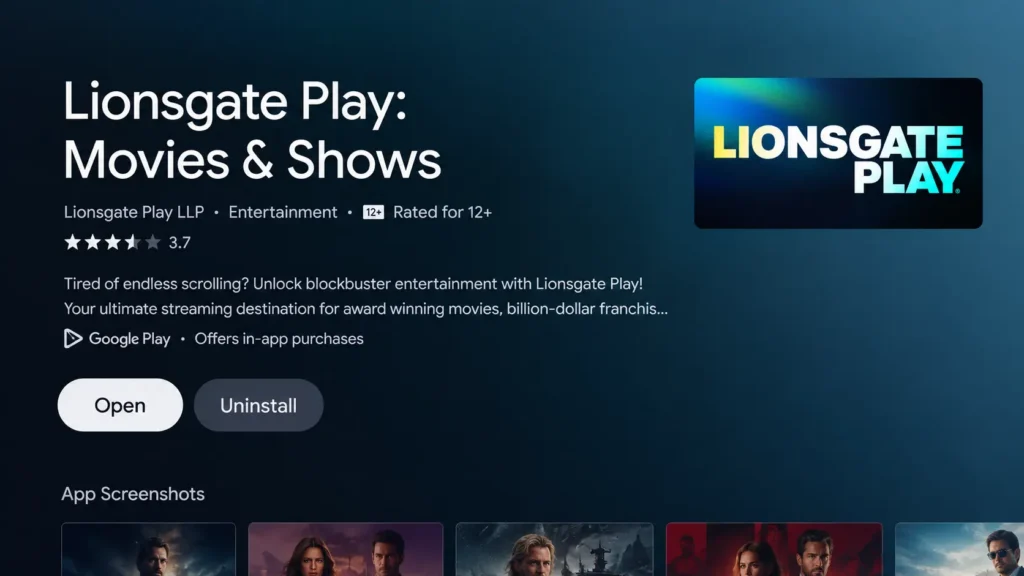
Once the installation is complete, an Open button will appear on the app page. You can select it to launch the newly installed app immediately.
How to Find a Newly Installed App on Sony Google TV
You don’t have to search for the app again every time you want to open it. Once installed, the app will also be available in the Your apps section.
To locate it:
Press the Home button on your Sony TV remote.
Navigate to the Apps page.
Scroll down to the Your apps section.
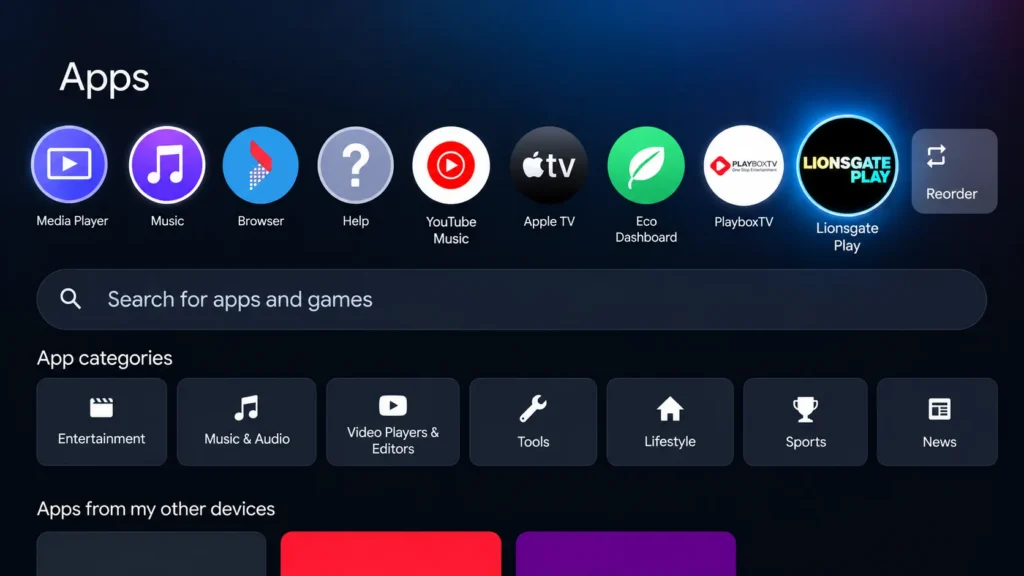
Use the Left and Right navigation buttons on your remote to browse through the installed apps.
When you find the app you just installed, select it and press OK to open it.
That’s it. The app is now installed on your Sony Google TV and can be opened whenever you need it.
How to Uninstall Apps on Sony Google TV
If you no longer use a particular app, you can uninstall it from your Sony Google TV.
There are two easy ways to do this. The first method lets you uninstall an app through the TV’s Settings menu.
Method 1: Uninstall an App From Settings
Follow these steps:
Press the Settings button on your Sony TV remote.
The Control Center will appear on the screen.
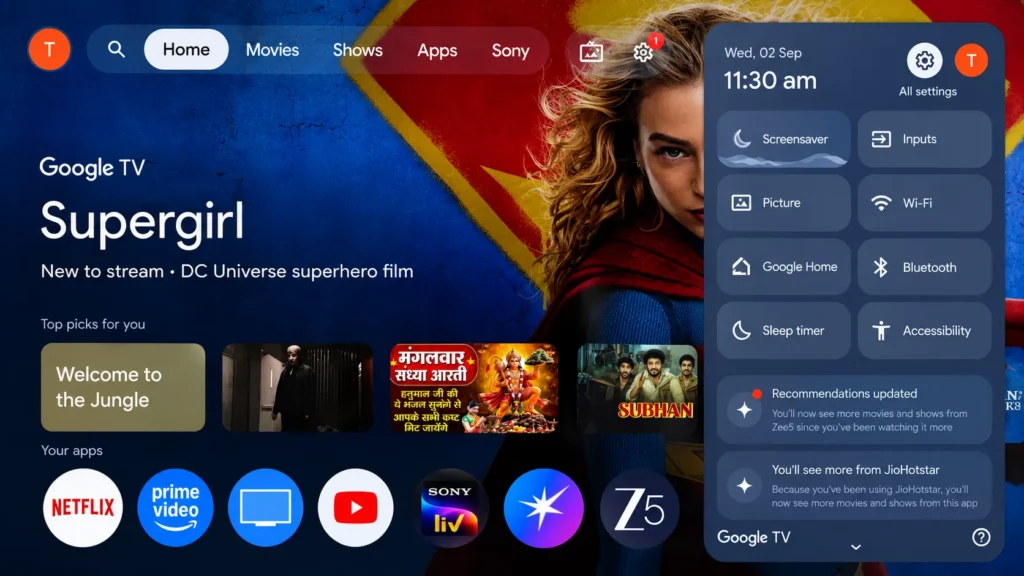
Navigate to All Settings and press OK.
Once the Settings page opens, scroll down and select Apps.
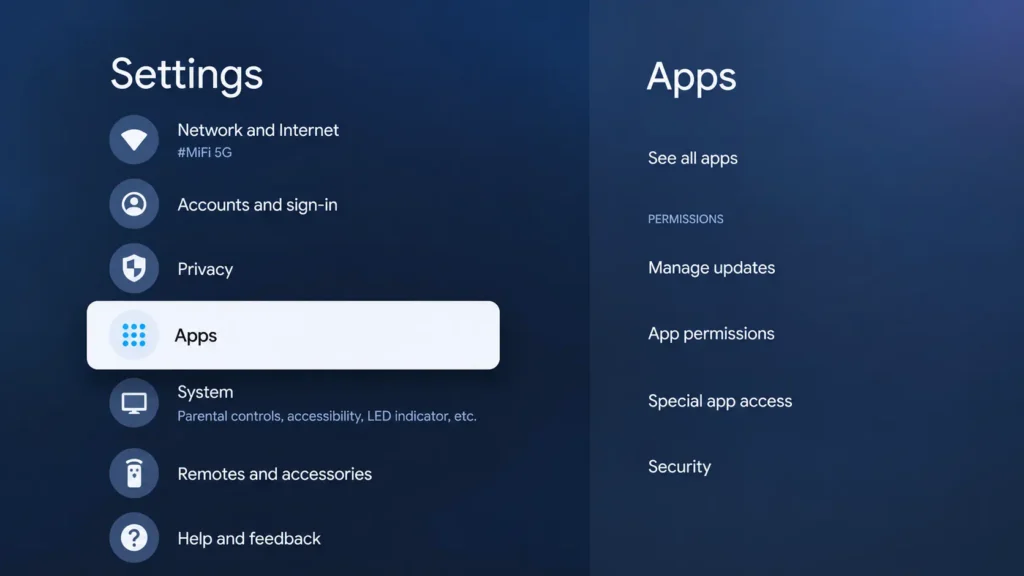
Under Apps, select See all apps.
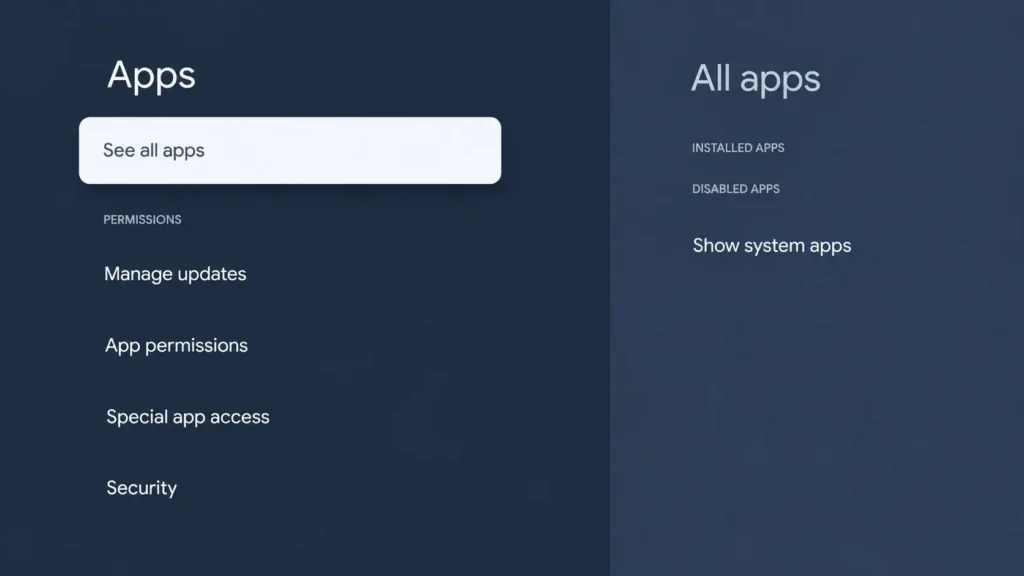
You will now see a list of the apps installed on your Sony Google TV.
Scroll through the list until you find the app you want to remove.
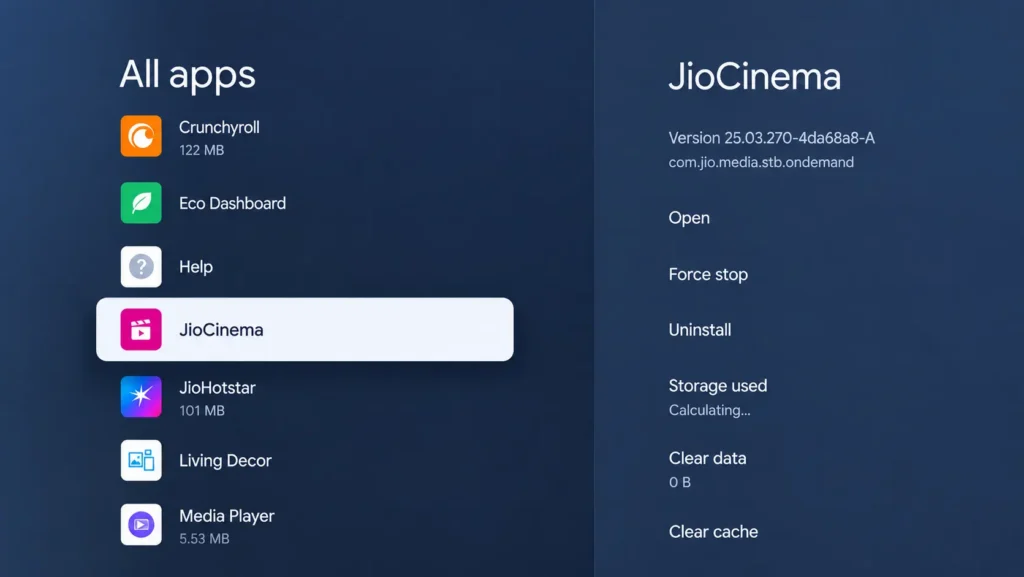
Select the app and press OK.
A page containing different options for that particular app will appear.
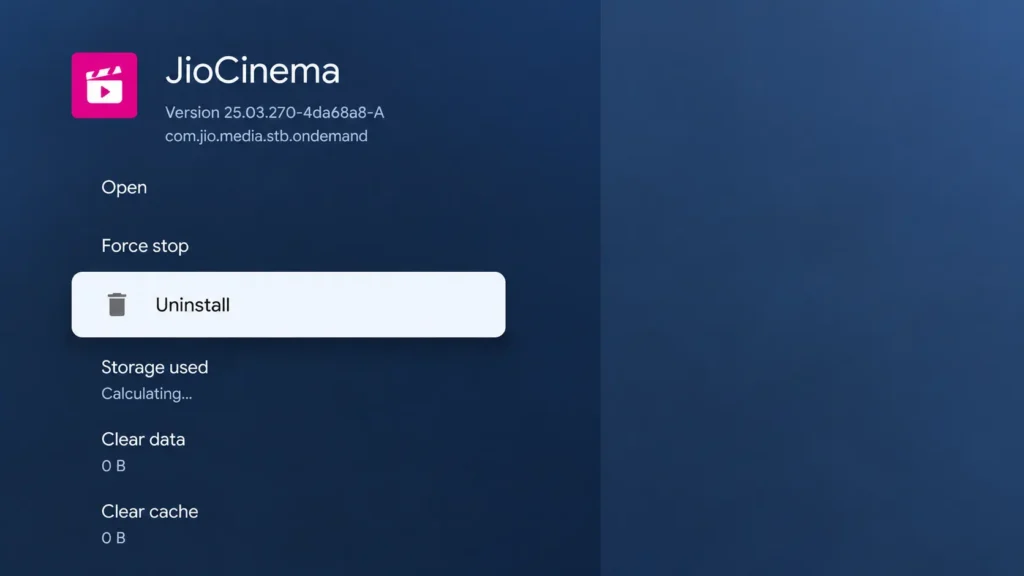
Scroll down to Uninstall and press OK.
Your TV will ask you to confirm whether you want to uninstall the app.
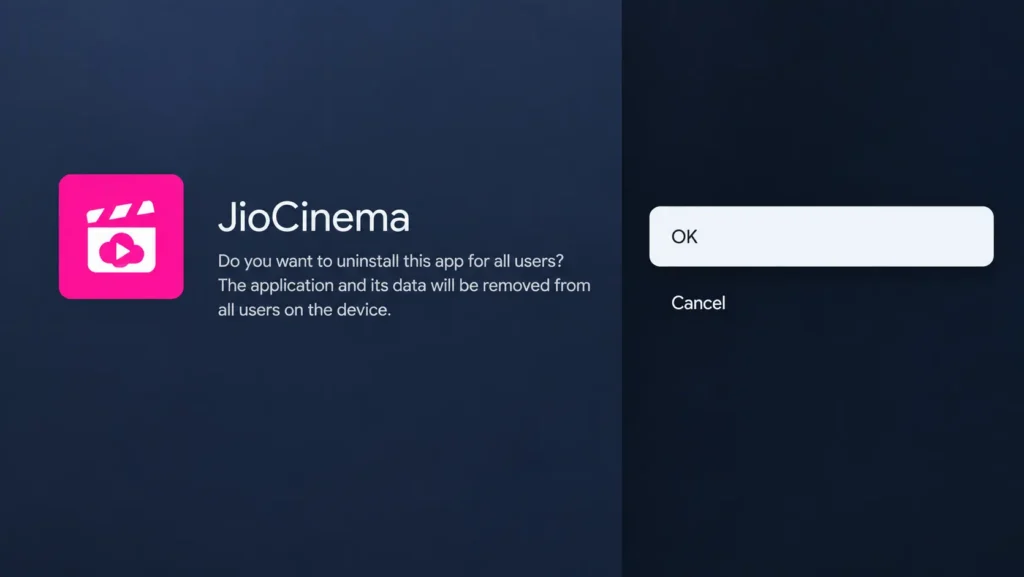
Confirm the action by selecting OK.
The selected app will now be uninstalled from your Sony Google TV.
Method 2: Uninstall an App From the Apps Page
There’s an even quicker way to uninstall an app if you can already see it in the Your apps section.
Here’s how:
From the Google TV Home screen, navigate to the Apps page.
Scroll down to the Your apps section.
Use the Left or Right navigation button on your remote to find the app you want to uninstall.
Once the app is highlighted, press and hold the OK/Enter button on your remote.
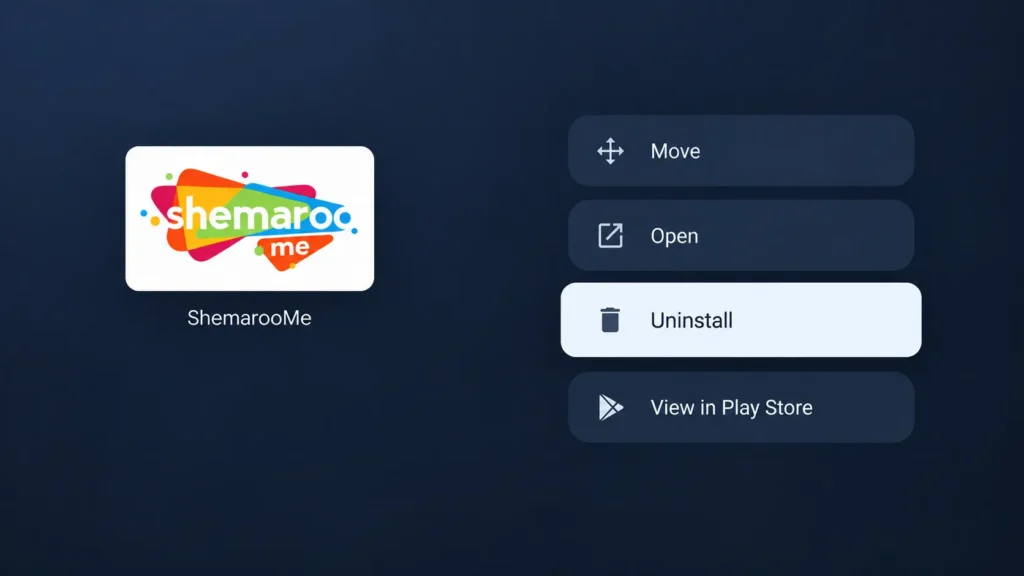
Keep the button pressed until a menu with additional options for the selected app appears.
Scroll down and select Uninstall.
Press OK.
A confirmation message will appear asking whether you want to uninstall the app.
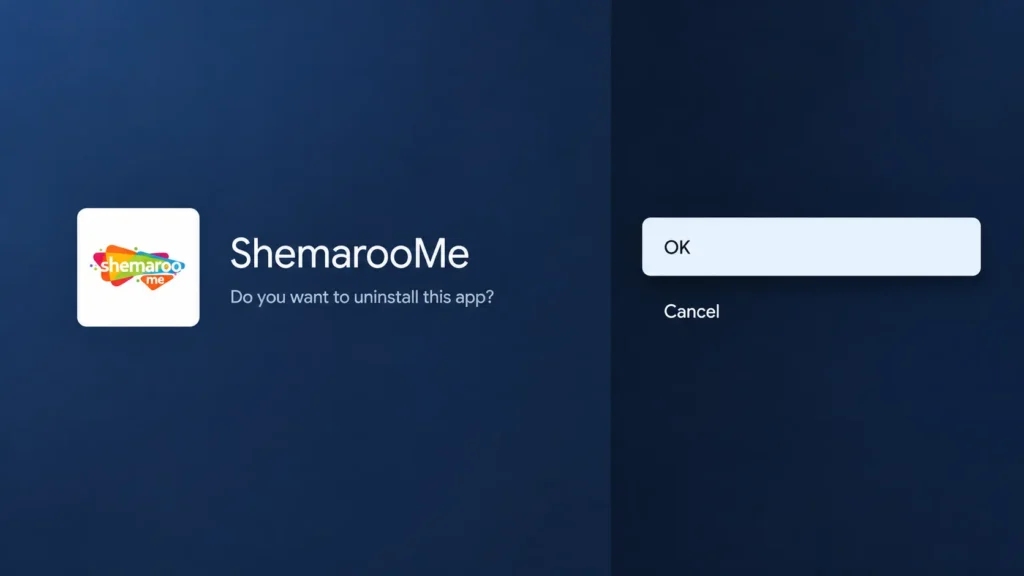
Select OK to confirm.
The app will then be removed from your Sony Google TV.

Leave a Reply