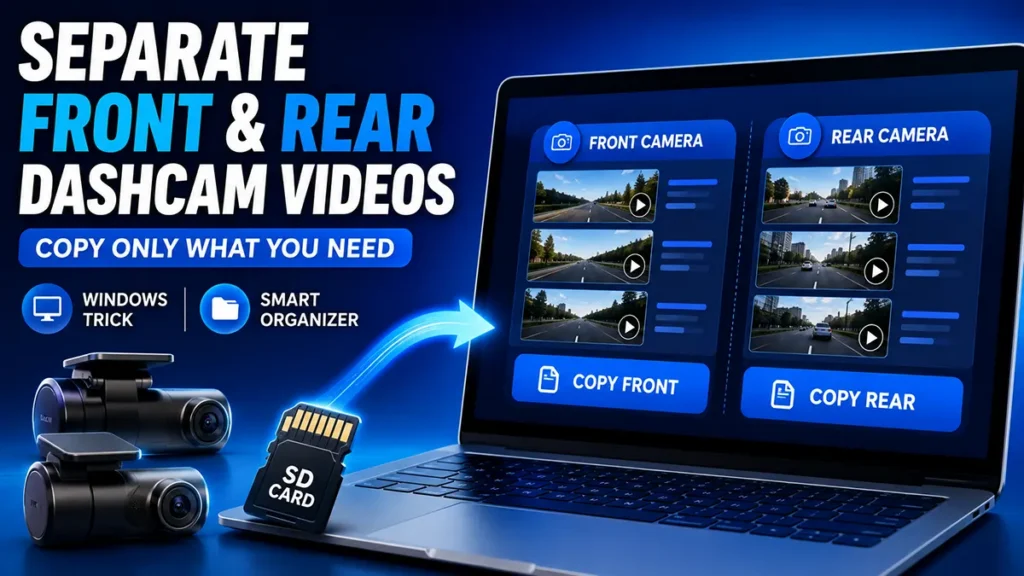
If you use a front and rear dashcam, you may have noticed that the recordings from both cameras are stored together on the microSD card. When you copy the footage to your Windows PC, finding only the front camera videos or only the rear camera videos can become a tedious job.
For example, VIOFO dashcams commonly use file names ending in F for the front camera and R for the rear camera. Depending on the model, you may see files such as: 20240101_120000_F.mp4 and 20240101_120000_R.mp4
VIOFO documentation confirms that separate files are created for front and rear cameras and that the file name identifies the camera source.
The problem is that if you have hundreds of recordings, manually finding every _F or _R file can take a lot of time.
Fortunately, there are easier ways to do it.
In this guide, I will show you two methods to separate and copy front or rear dashcam recordings on a Windows PC:
- Use Windows File Explorer to sort videos by Frame Width or Frame Height
- Use the VIOFO Dashcam Organizer to automatically separate
_Fand_Rrecordings
The first method is particularly useful when your front and rear cameras record at different resolutions.
Why Are Front and Rear Dashcam Videos Mixed Together?
Many dual-channel dashcams record the front and rear cameras as separate video files.
For example, a VIOFO dual-camera dashcam may create files similar to:
2026_0820_101500_F.mp4— Front camera2026_0820_101500_R.mp4— Rear camera
Newer VIOFO models may also include additional characters indicating recording modes or camera sources. For example, VIOFO documentation for the A229 Pro describes F as Front, I as Interior and R as Rear, while P can indicate parking-mode recording.
The recordings are normally stored on the dashcam’s memory card under folders such as DCIM\Movie. Locked/emergency recordings may be stored in an RO subfolder, while parking recordings can have their own folder depending on the model.
This means that after inserting the SD card into your PC, you can end up with a long list of front and rear recordings mixed together.
Table of Contents
Method 1: Separate Front and Rear Dashcam Videos Using Windows File Explorer
This is a useful Windows trick if your front and rear cameras record at different resolutions.
For example, imagine your front camera records at one resolution and the rear camera records at another. Windows can read the video dimensions and allow you to sort the files according to their Frame Width or Frame Height.
Instead of searching for _F and _R manually, you can group the recordings by their video dimensions.
First, remove the microSD card from the dashcam safely.
If your dashcam is still recording, turn it off before removing the card.
Insert the microSD card into your computer using:
- A built-in microSD card slot
- A USB card reader
- A microSD-to-SD adapter
You can also connect some VIOFO dashcams directly to a computer and use their storage/card-reader mode, depending on the model. VIOFO manuals describe PC/card-reader methods for accessing recordings.
Open the SD card in File Explorer.
Navigate to the folder containing your recordings.
For many VIOFO dashcams, loop recordings are stored under: DCIM > Movie
Your exact folder structure can vary depending on the VIOFO model and recording mode.
You should now see many video files.
For example:
2026_0820_101500_F.mp4
2026_0820_101500_R.mp4
2026_0820_101800_F.mp4
2026_0820_101800_R.mp4
2026_0820_102100_F.mp4
2026_0820_102100_R.mp4
Normally, you would have to identify the files ending in _F or _R.
But we can avoid doing that manually.
Inside the folder, right-click an empty area.
Select: Sort by → More…
A list of available file properties will appear.
Look for: Frame width and/or: Frame height
Select the property you want to use.
Then click OK.
You have now added the video dimension information that Windows can use for sorting.
Now right-click inside the folder again.
Select: Sort by → Frame width or: Sort by → Frame height
Windows will rearrange the video files according to their dimensions.
This is where the trick becomes useful.
If your front camera and rear camera are recording at different resolutions, the files will be grouped together according to their video dimensions.
For example, you might have something similar to:
1920 × 1080
1920 × 1080
1920 × 1080
1920 × 1080

2560 × 1440
2560 × 1440
2560 × 1440
2560 × 1440
If one resolution corresponds to the front camera and the other corresponds to the rear camera, you can select the entire group instead of manually selecting hundreds of _F or _R files.
Once Windows has grouped the files, identify which resolution belongs to your front camera.
You can check one or two files first to make sure you have identified the correct group.
Then select the entire group. Press: Ctrl + C
Open the folder where you want to save the recordings and press: Ctrl + V
Windows will copy the selected front-camera recordings to your computer.
You don’t have to manually select every _F file.
The same technique can be used for the rear camera.
After sorting by Frame Width or Frame Height, find the group belonging to the rear camera.
Select that group and press: Ctrl + C
Then open your destination folder and press: Ctrl + V
You now have only the rear-camera recordings copied to your PC.
Important: This Windows Sorting Trick Does Not Work for Every Dashcam
This is an important point.
Frame Width and Frame Height can only separate the cameras if the two cameras have different video dimensions.
If both cameras record at exactly the same resolution, Windows will place them in the same resolution group.
For example, if both cameras record at: 2560 × 1440 then sorting by Frame Width or Frame Height will not tell Windows which file is from the front camera and which is from the rear camera.
Some VIOFO models and configurations can use the same resolution for front and rear cameras. VIOFO’s documentation shows examples where front and rear resolutions can be configured differently on some models, while other models/configurations can use matching resolutions.
So when should you use this method?
Use the Frame Width/Frame Height method when:
- Your front and rear cameras use different resolutions
- You are using Windows 10 or Windows 11
- You want to quickly copy a large number of recordings
- You don’t want to manually select
_For_Rfiles
If both cameras use the same resolution, use the second method instead.
Method 2: Automatically Separate VIOFO Front and Rear Videos
If you don’t want to rely on video resolution, there is another convenient solution.
You can use the VIOFO Dashcam Organizer
The tool is designed specifically to identify VIOFO front and rear recordings based on their file names.
It recognizes files ending in:
_ForF→ Front Camera_RorR→ Rear Camera
The organizer then places the recordings into separate Front Camera and Rear Camera sections.
Open the VIOFO Dashcam Organizer in your browser.
You don’t need to install a Windows program.
You have several ways to add your recordings.
You can select the video files from your computer, select an entire folder where supported, or drag and drop the recordings onto the page.
If you are using Firefox and the folder-selection option isn’t available, you can use the file-selection or drag-and-drop method. The tool notes that folder selection works more conveniently with Chromium-based browsers such as Google Chrome or Microsoft Edge.
Once the files are selected, the organizer checks their file names.
For example: 20240101_120000_F.mp4 is identified as a Front Camera recording.
And: 20240101_120000_R.mp4 is identified as a Rear Camera recording.
The tool also supports file names where the camera identifier appears directly before the file extension, such as video123F.mp4 and video123R.mp4.
he recordings are displayed separately.
You can view: Front Camera Recordings and Rear Camera Recordings
If you want all the front videos, use Select All in the Front Camera section.
If you want all the rear videos, use Select All in the Rear Camera section.
This is much easier than scrolling through hundreds of files and manually looking for _F and _R.
After selecting the recordings you need, use the appropriate copy option.
For front footage, choose: Copy Front Files For rear footage, choose: Copy Rear Files
The browser will then allow you to choose where the selected recordings should be saved.
Is the VIOFO Dashcam Organizer Safe for Private Dashcam Footage?
This is an important consideration because dashcam recordings can contain sensitive information such as:
- Vehicle registration numbers
- People’s faces
- Locations
- Addresses
- Road journeys
- Accident footage
- GPS-related information
According to the organizer’s documentation, the tool performs its file processing directly inside the web browser. It states that the videos are not uploaded to a server or stored online.
That makes a browser-based, client-side approach particularly useful when dealing with personal dashcam footage.

Leave a Reply