Have you added a website, blog, affiliate, or other external link to your YouTube video description, only to find that the link is not clickable?
This can be frustrating, especially if you use YouTube to send viewers to your website, blog, online store, affiliate products, or other external pages. A non-clickable link can mean lost visitors, missed affiliate clicks, and fewer potential conversions.
Fortunately, the problem is usually easy to fix.
In this guide, you will learn how to make links clickable in a YouTube description, why your links may not be clickable, and how to enable the YouTube feature required for external links.
Important: YouTube currently allows clickable external URLs in long-form video descriptions, provided your channel has access to the required advanced features. URLs in YouTube Shorts descriptions and comments are non-clickable.
Table of Contents
Why Are My YouTube Description Links Not Clickable?
There are two common reasons why a link in your YouTube description may not be clickable:
- The URL has not been entered in the proper format.
- Your channel does not have access to the advanced features required for clickable external links.
Let’s look at both solutions.
Fix 1: Add the Complete URL to Your YouTube Description
The first thing you should check is the way you have entered the URL.
If you want to add a link to your website, don’t enter only the domain name.
For example, instead of: revealthat.com
use the complete URL: https://revealthat.com
The same principle applies to external websites and affiliate links.
Using the complete URL makes it clear to YouTube that you are adding an external web address.
After adding or correcting the URL, save the video description and check the video again.
If the link is still not clickable, you may need to enable access to YouTube’s advanced features.
Fix 2: Enable Clickable External Links by Verifying Your Phone Number
If you have entered the URL correctly but the link is still not clickable, the next thing you should check is whether the required YouTube feature is enabled on your channel.
YouTube provides certain features only after you complete verification. Phone verification is an important step in gaining access to additional channel features, while advanced features may require further eligibility depending on your channel.
Sign in to your YouTube account and open YouTube Studio.
You can use YouTube Studio on your computer to check and edit your video’s description.
Click Content from the left-hand menu.Select any video.Click the three dots next to the video.Select the option to edit the video’s title and description.
You can use an existing video for this check. You don’t necessarily need to publish a new video.
In the Description box, enter your complete website URL.
After entering the URL, look below the description box.
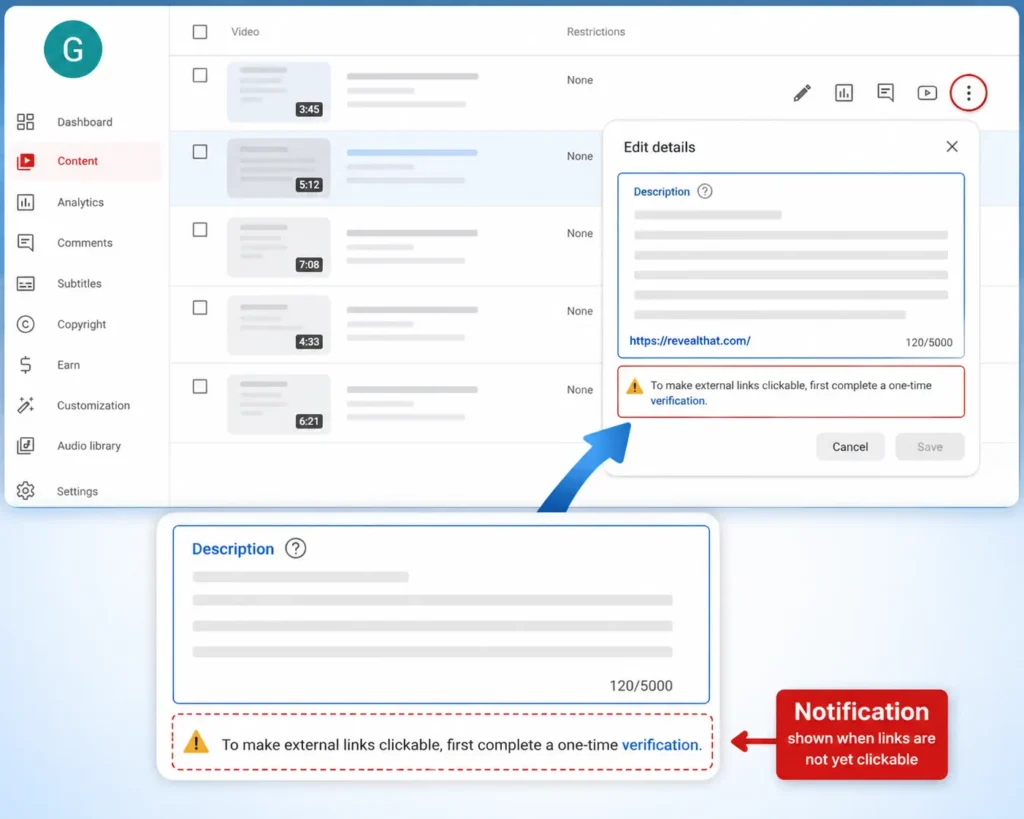
If the required feature has not been enabled, YouTube may display a notice similar to: “To make external links clickable, first complete a one-time verification.”
If you see this message, it indicates that you need to complete the verification process before YouTube can make eligible external links clickable.
Under the description box, look for the verification link provided by YouTube.
Click the verification option.
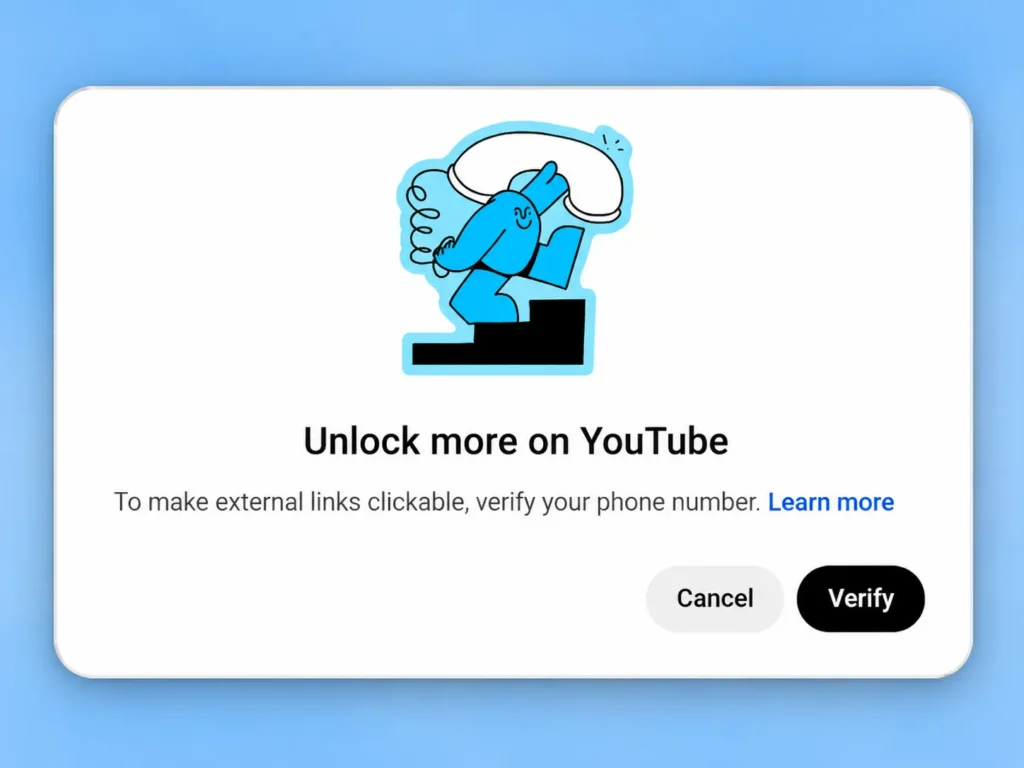
A popup or verification page may appear with a message such as “Unlock more on YouTube.”
Click the Verify button to continue.
A phone verification page will appear.
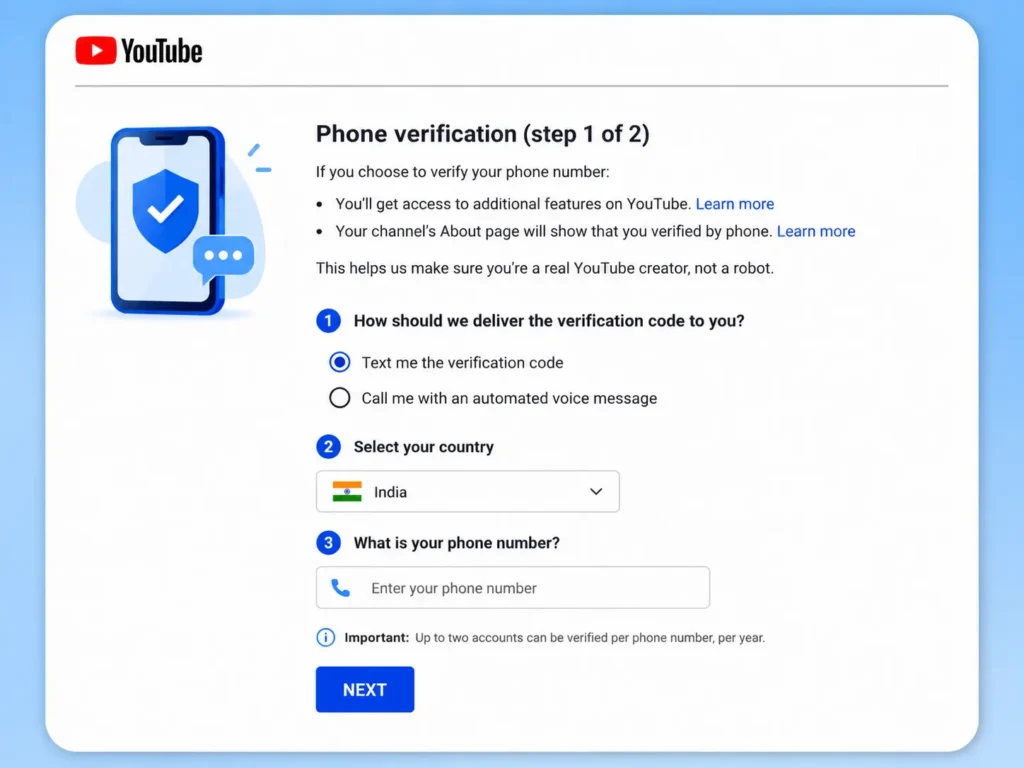
YouTube may give you an option to receive the verification code through:
- Text message
- Voice call
Select your preferred method.
Select your country from the country selection menu.
For example, if you are in India, select India (+91).
Enter your mobile phone number in the field provided.
Then click Next.
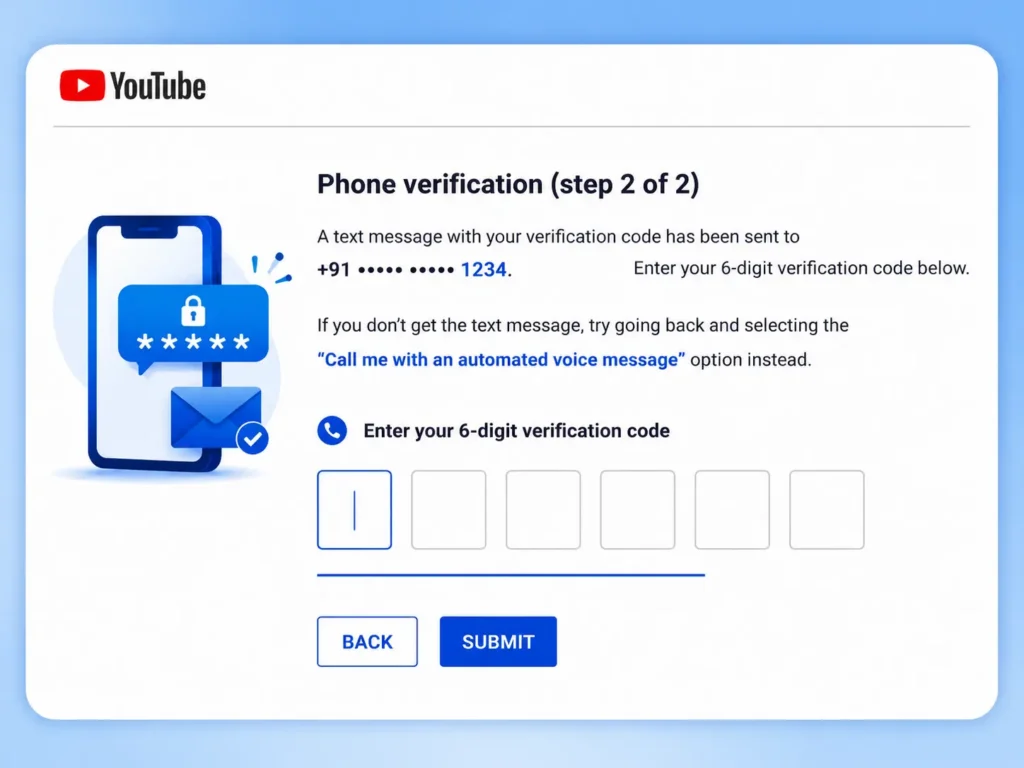
YouTube will send a 6-digit verification code to your mobile number using the delivery method you selected.
Check your SMS messages or answer the verification call, depending on the option you selected.
Enter the 6-digit code on the YouTube verification page.
Then click Submit.
Once YouTube successfully verifies your phone number, the verification process is complete.
Depending on your channel’s feature eligibility, this may enable the relevant additional features or allow you to proceed with the remaining requirements for advanced features.
If YouTube asks you to complete another step for Advanced Features, follow the instructions shown in YouTube Studio → Settings → Channel → Feature eligibility.
Now return to your video and check the description.
Make sure the URL is written as a complete address, for example: https://revealthat.com
Open the published video and expand the description.
If your channel has the required feature access and the link is in a supported location, the URL should now appear as a clickable link.

Leave a Reply