Is your Sony Google TV running slow? Does it take a long time to open apps, freeze while navigating menus, or lag when streaming YouTube, Netflix, or other apps? If you’re frustrated with a sluggish TV, you’re not alone.
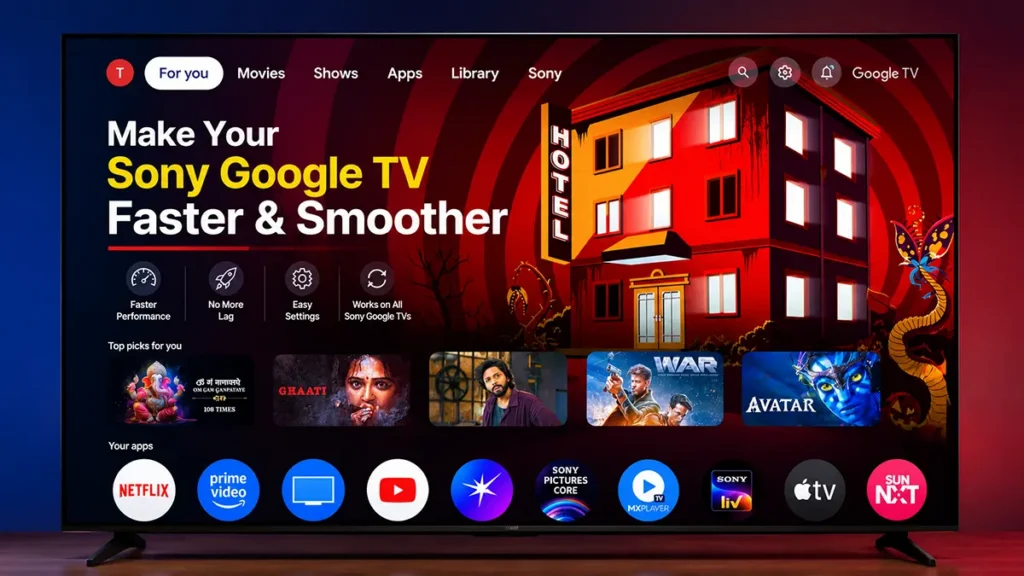
Many Sony Google TV users notice that their TV becomes slower over time. Apps may take longer to launch, the home screen may feel unresponsive, and switching between apps can become frustrating. Fortunately, you don’t need to install any third-party cleaner apps or immediately perform a factory reset.
In this comprehensive guide, you’ll learn how to make your Sony Google TV faster using built-in settings that are already available on your TV. These simple changes can help improve performance, reduce lag, free up memory, and make your TV feel much smoother.
Whether you’re using a newer Sony Google TV or an older model, these tips can help you enjoy a faster and more responsive viewing experience.
Table of Contents
Why Is My Sony Google TV Running Slow?
There are several reasons why your Sony Google TV may become slow over time:
- Too many apps running in the background.
- Limited RAM and storage space.
- Cached app data consuming memory.
- Autoplaying recommendations on the home screen.
- Too many installed apps.
- Software updates leaving temporary files behind.
The good news is that you can often improve your TV’s performance by adjusting a few settings without deleting your data.
Before changing any settings, make sure your Sony Google TV has enough battery power if it’s connected to a backup power source, or simply ensure it remains plugged into a stable power supply.
Also, keep your TV remote handy, as you’ll need it to navigate through the settings.
Most of the methods below take only a few minutes to complete.
Enable Developer Options on Sony Google TV
Developer Options is a hidden menu that unlocks advanced settings for your Sony Google TV. One of these settings allows you to limit background apps, which can significantly improve performance on TVs with limited RAM.
Don’t worry simply enabling Developer Options is completely safe and won’t affect your TV unless you change the settings yourself.
Using your Sony TV remote, press the Settings button or open the Settings menu from the home screen.
Scroll down and select System
Inside the System menu, choose About
Scroll down until you find Android TV OS Build
Although your TV uses the Google TV interface, this menu is still labeled Android TV OS Build on most Sony Google TV models.
Using your remote, press the OK button seven times continuously.
After a few presses, a message will appear on your screen saying: “You are now a developer!”
Congratulations! Developer Options are now enabled on your Sony Google TV.
Tip: If Developer Options were already enabled, you’ll see a message saying that you’re already a developer.
Limit Background Processes
This is one of the most effective ways to make your Sony Google TV faster.
Whenever you open apps such as YouTube, Netflix, Prime Video, Disney+ Hotstar, or other streaming services, they often remain active in the background even after you’ve switched to another app.
Over time, these background apps consume valuable RAM, leaving less memory available for the app you’re currently using.
By limiting the number of background processes, your TV can dedicate more resources to the active app, resulting in smoother performance.
Go back to Settings → System → Developer Options
Scroll down until you locate Background Process Limit
Select it to open the available options.
From the list of options, select At most 1 process
This tells your Sony Google TV to keep only one app running in the background at a time.
Every app running in the background uses a portion of your TV’s RAM and processor.
When too many apps remain active, your TV has fewer resources available for the app you’re currently using. This often causes:
- Slow app launches
- Laggy menus
- Delayed remote response
- Stuttering while switching apps
- Freezing and hanging
Limiting the background process to one app helps free up memory and reduces unnecessary background activity.
After changing this setting, many users experience:
- Faster app loading
- Smoother navigation
- Quicker response to remote commands
- Less lag when opening apps
- Reduced freezing
- Better overall performance
This optimization is especially effective on Sony Google TVs with 2 GB of RAM or older hardware.
If your Sony TV is frequently losing its internet connection, check out our guide on how to fix Sony TV keeps disconnecting from WiFi
Enable Apps Only Mode
Did you know that your Sony Google TV constantly loads movie recommendations, TV show suggestions, advertisements, and promotional content on the home screen?
While these recommendations are useful, they also consume RAM, use your internet connection, and require your TV to keep refreshing content in the background. This can make the home screen slower, especially on older Sony Google TV models.
Enabling Apps Only Mode simplifies the home screen by hiding most recommendations and focusing on the apps you actually use.
If you mainly use apps like YouTube, Netflix, Prime Video, JioHotstar, Sony LIV, Zee5, or other streaming services, Apps Only Mode can make your TV feel much more responsive.
Using your remote, open the Settings menu.
Scroll down and select Accounts & Sign In
(Some Sony Google TV models may display Accounts & Profiles instead.)
Choose the Google account that is currently signed in to your Sony Google TV.
Scroll down and enable Apps Only Mode
Once enabled, Google TV will stop showing most recommendations and advertisements on the home screen.
Instead, your installed apps become the main focus.
After enabling this feature, you may notice:
- Faster home screen loading
- Less clutter
- Reduced background activity
- Improved navigation
- Faster response while browsing apps
- Cleaner interface
Many users who search for “Sony Google TV home screen slow” or “Google TV running slow” find this setting especially helpful.
Turn Off Autoplay Videos
Another hidden reason why Sony Google TV feels slow is autoplaying previews.
Whenever you highlight movies or shows on the Google TV home screen, preview videos often start playing automatically. While this feature looks attractive, it continuously uses your TV’s processor, RAM, graphics hardware, and internet connection.
Disabling autoplay helps reduce unnecessary background activity and creates a smoother experience.
Go to Settings → Accounts & Sign In
Select your Google account.
Find Autoplay Video
Turn it Off.
Some Sony Google TV models also include Autoplay Audio
If available, turn that Off as well.
Turning off autoplay offers several benefits:
- Faster home screen
- Reduced processor usage
- Less RAM consumption
- Better overall responsiveness
- Reduced internet usage
- No distracting preview videos
Although this setting alone won’t dramatically speed up your TV, it contributes to smoother overall performance when combined with the other optimizations in this guide.
Factory Reset Your Sony Google TV (Last Resort)
If your Sony Google TV is still slow, freezing, hanging, or lagging after trying all the methods above, performing a factory reset is the best solution.
A factory reset removes unnecessary system files, clears app data, deletes corrupted settings, and restores your TV to its original factory condition.
If your TV has been used for several years or has many installed apps, a factory reset can often restore its original performance.
Having persistent problems with your Sony Google TV? Follow our step-by-step Sony TV factory reset guide to restore the TV and go through the setup process again.
Important: A factory reset permanently deletes all downloaded apps, Google accounts, Wi-Fi passwords, files, and personalized settings. Make sure you know your Google account login details before proceeding.
Using your TV remote, open the Settings menu.
Scroll down and choose System
Inside the System menu, select About
Scroll down and choose Reset
Now choose Factory Reset
A warning message will appear explaining that your Sony Google TV will return to its factory default settings.
The reset will permanently erase:
- Google accounts
- Downloaded apps
- Installed files
- Wi-Fi settings
- Personal preferences
- Login information
- Saved configurations
Read the warning carefully before continuing.
If you’re sure you want to continue, select Erase Everything
Your Sony Google TV will ask for confirmation one last time.
Select Erase Everything again to begin the reset process.
Your Sony Google TV will restart automatically.
You’ll now see an Erasing message on the screen.
The reset process may take several minutes depending on your TV model.
During this time:
- Do not unplug the TV.
- Do not switch off the power.
- Do not press any buttons on the remote.
Simply wait until the reset is complete.
Once the reset finishes, your Sony Google TV will restart again and display the initial setup screen.
Follow the on-screen instructions to:
- Select your preferred language
- Connect to your Wi-Fi network
- Sign in with your Google account
- Install available software updates
- Complete the TV setup
After setup is complete, your Sony Google TV will be ready to use.
If software issues or accumulated system data were causing the slowdown, you’ll likely notice a significant improvement in performance.
Over time, your Sony Google TV collects temporary files, cached data, outdated settings, and app information that can gradually reduce performance.
A factory reset removes these unnecessary files and gives your TV a fresh start.
Many users notice:
- Faster startup
- Smoother menus
- Apps opening more quickly
- Better streaming performance
- Less freezing
- Improved remote response
- Reduced lag
Additional Tips to Keep Your Sony Google TV Fast
Even after optimizing your TV, following these tips can help maintain smooth performance over time.
Keep Your TV Updated
Sony regularly releases software updates that improve performance, stability, and security.
Go to Settings → System → About → System Software Update
Install updates whenever available.
Keeping your Sony Bravia TV software up to date can also help resolve performance and stability issues. Learn how to update Sony Bravia TV to the latest software version
Remove Apps You Don’t Use
Unused apps consume storage and may continue running background services.
Delete apps you no longer use to free up storage space.
Restart Your TV Regularly
Restarting your Sony Google TV once every few days clears temporary memory and helps keep the system responsive.
Keep Enough Free Storage
Avoid filling your TV’s internal storage completely.
Keeping several gigabytes of free space helps apps perform better.
Avoid Installing Too Many Apps
Only install apps you actually use.
Having dozens of apps installed can gradually affect performance.
By following these steps, you can enjoy a faster, smoother, and more responsive Sony Google TV without installing any third-party apps. Regular maintenance, keeping your TV updated, and avoiding unnecessary background activity will help ensure it continues performing well for years to come.

Leave a Reply