A Digitally Signed Survey Plan of a land or property may be required for various official purposes such as: Registration of a Sale Deed, Property Mutation, Partition of Land, Property Verification, Legal and Government-Related Procedures, Other Revenue Department Requirements.
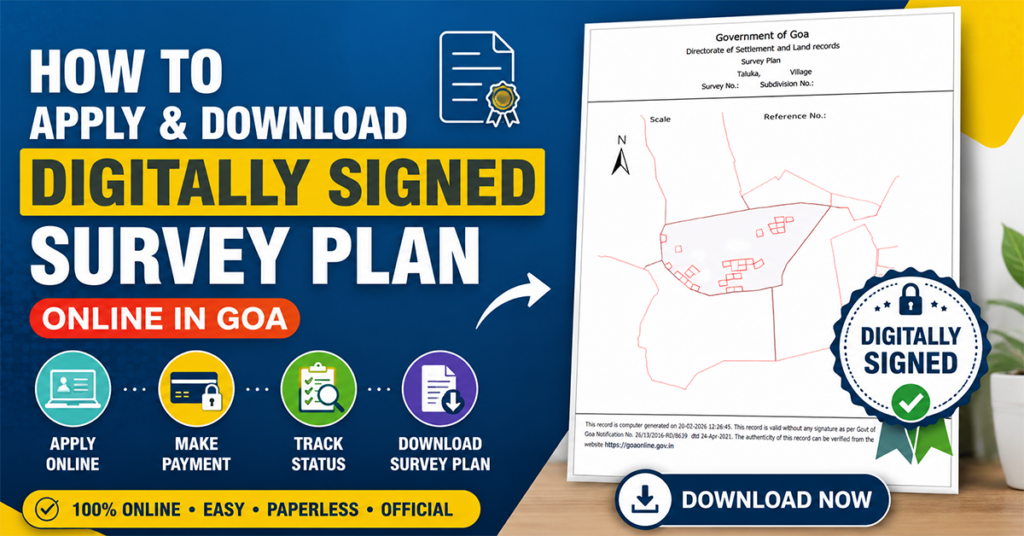
Although there are several options available to download a Survey Plan online, most of them are meant only for informational purposes. For official use, obtaining a Digitally Signed Survey Plan is essential.
Difference Between a Regular Survey Plan and a Digitally Signed Survey Plan
A regular Survey Plan downloaded online generally:
- Does not contain any digital signature.
- Includes a watermark stating “For Informational Purpose Only.”
- May not be accepted for official or legal transactions.
On the other hand, a Digitally Signed Survey Plan:
- Is digitally signed by the concerned government authority.
- Does not contain any informational watermark.
- Can be used for official purposes where an authenticated survey plan is required.
Since a Digitally Signed Survey Plan is an official document, a prescribed fee must be paid to obtain it.
To make the process convenient for citizens, the Goa Revenue Department provides an online facility through the Goa Online Portal. This enables applicants to apply for and download a Digitally Signed Survey Plan without visiting any government office, making the entire process paperless and hassle-free.
In this guide, we will explain the complete process for applying and downloading a Digitally Signed Survey Plan online in Goa.
Process for Application for Issuance of a Digitally Signed Survey Plan
Open your web browser and visit the Goa Online Portal https://goaonline.gov.in
If you already have an account, log in using your existing credentials.
If you do not have an account, create a new user account by completing the registration process and then log in.
After logging in successfully:
- Click on the Services tab.
- Select All Services from the available options.
On the next page, all services available on the Goa Online Portal will be displayed.
- Scroll down and locate the Revenue section.
- Search for Issuance of Digitally Signed Survey Plan.
- If the service is not immediately visible, click on the More button to expand the list of services.
Click on Issuance of Digitally Signed Survey Plan.
A screen displaying the procedure and service details will appear.
Click on the Proceed to Apply button to continue.
The “Application for Issuance of Digitally Signed Survey Plan” form will now be displayed.
You need to enter the property details carefully.
From the Service dropdown menu, select one of the following options:
- Survey Plan (Rural)
- Computerized Survey Plan (Urban)
Choose the appropriate option depending on whether your property falls under a rural or urban area.
From the Plan Type dropdown menu, choose:
- Single
- Combined
Select the option according to your requirement.
Choose the following details:
- District
- Taluka
- Village / City
Make sure the selected location matches the property for which the survey plan is being requested.
From the Survey Number / PT Sheet Number dropdown list, select the correct survey number of your property.
You can usually find this information in:
- Sale Deed
- Mutation Records
- Property Card
- Other Property Documents
Next, select the appropriate:
- Sub-Division Number (for rural properties)
- Chalta Number (for urban properties)
Ensure that the selected number corresponds to your property.
After entering all details, the payable amount for the issuance of the Digitally Signed Survey Plan will be displayed on the screen.
Verify the information carefully.
Click on Save and Proceed to Pay.
A confirmation message will appear stating:
“You will not be able to make any changes once the application is submitted. Do you want to proceed for payment?”
Verify the details once again.
Click Yes to continue.
A Payment Requirement Confirmation page will be displayed.
Click on Proceed to Pay.
A disclaimer popup will appear.
Read the information displayed and click OK to proceed further.
You will now be redirected to the e-Challan payment page.
Here:
- Enter the CAPTCHA security code.
- Select your preferred payment gateway.
- Click on Initiate Payment.
On the next page, select your preferred payment method such as:
- UPI
- Net Banking
- Debit Card
- Credit Card
- Other available options
Proceed with the payment.
The payment details will be displayed for verification.
Review the information carefully.
Click on Confirm and complete the payment transaction.
Once the payment is successful, an e-Receipt will be generated.
You may click on Print or save the receipt as a PDF for future reference.
This receipt serves as proof of payment and may be useful for tracking your application.
Click on Go to Department Website.
A confirmation message will be displayed stating that:
“Your application with payment has been saved successfully.”
An acknowledgment number for your application will also be generated.
Make a note of this acknowledgment number for future reference.
You can also click on Payment Receipt to download a copy of the payment receipt.
How to Check Application Status
Return to the Goa Online Portal dashboard.
Under the Inbox section, click on Applications.
A list of all applications submitted through your account will be displayed.
Scroll down to the List of All Applications section.
Locate your application for Issuance of Digitally Signed Survey Plan.
Under the Status column, you can view the current status of your application.
If the status is displayed as Under Process, it means:
- Your application has been received.
- The concerned department is processing the request.
- The Digitally Signed Survey Plan is not yet available for download.
Once the application is processed and approved, the status will change to Issued.
This indicates that the Digitally Signed Survey Plan has been generated and is ready for download.
How to Download the Digitally Signed Survey Plan
When the status changes to Issued:
Click on the arrow icon appearing next to your application.
The application details page will open.
Before accessing the document, a feedback form may appear.
Provide your feedback regarding the application process.
- Enter your feedback.
- Click on Submit.
A confirmation popup will appear.
Click OK to continue.
Within the Issuance of Digitally Signed Survey Plan Details page:
Click on the Download button.
The Digitally Signed Survey Plan will be downloaded to your device.
After downloading the document:
- Open the PDF file.
- Verify the digital signature.
- Print the survey plan if a physical copy is required.
You can now use the Digitally Signed Survey Plan for official purposes such as sale deed registration, mutation, partition, and other government-related procedures.
The Goa Online Portal has simplified the process of obtaining a Digitally Signed Survey Plan by allowing citizens to apply, pay fees, track application status, and download the document completely online.
By following the steps mentioned above, you can easily obtain an officially authenticated Digitally Signed Survey Plan without visiting any government office, making the entire process convenient, transparent, and paperless.

Leave a Reply