Have you clicked a photo of a document on your iPhone and need to send it as a PDF? Whether it’s an ID card, bill, receipt, form, certificate, or any important document, PDF is often the preferred format for sharing and printing.
The good news is that you don’t need to install any third-party app to convert a picture into a PDF on your iPhone. Apple has built this feature directly into iOS, but many iPhone users are unaware that it exists.
In this guide, you’ll learn how to convert a picture to PDF on iPhone using the built-in Photos and Files apps.
Table of Contents
Why Convert a Picture to PDF on iPhone?
There are several advantages to converting a photo into a PDF document:
- PDF files look more professional when shared.
- Most offices, schools, and government websites prefer PDF documents.
- PDF files are easier to print.
- The document layout remains unchanged across devices.
- Multiple photos can be combined into a single PDF file.
- PDF format helps keep documents organized and easy to access.
If you have taken a picture of a document using your iPhone camera, converting it to PDF can make it easier to share via email, WhatsApp, or cloud storage services.
How to Convert a Picture to PDF on iPhone
Follow the steps below to turn a photo into a PDF file on your iPhone.
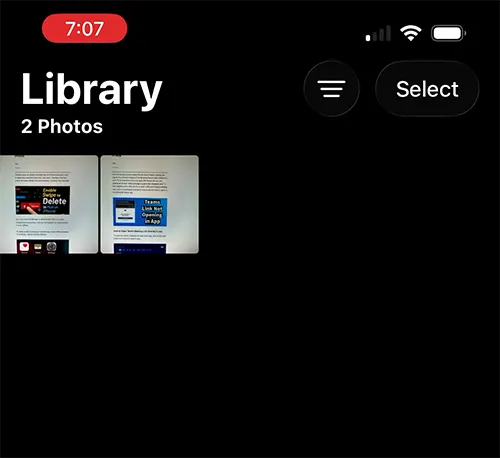
Unlock your iPhone and open the Photos app.
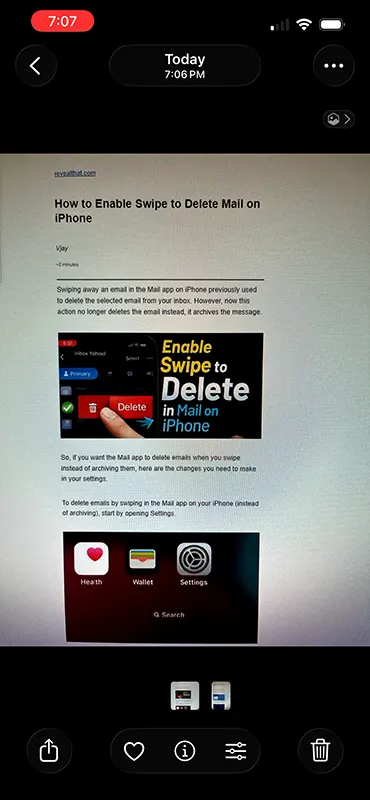
Browse your Photo Library and tap the photo that you want to convert into a PDF.
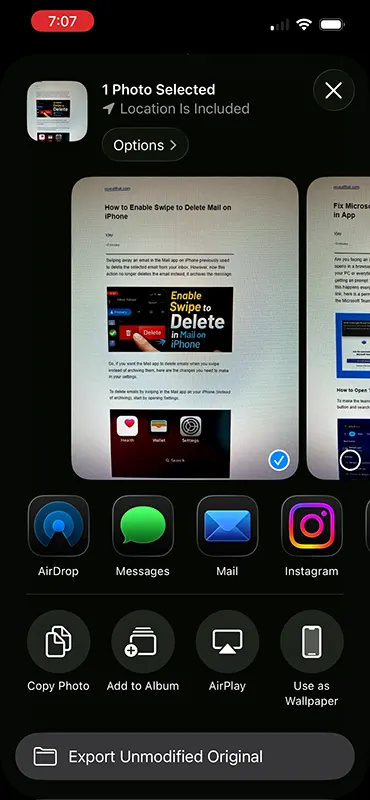
Once the photo opens, tap the Share button located at the bottom-left corner of the screen. The Share button appears as a square with an upward-pointing arrow.
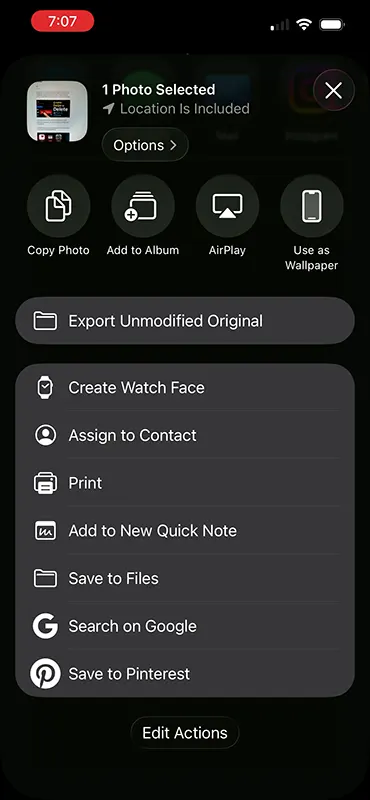
Scroll down through the available options and tap Print.
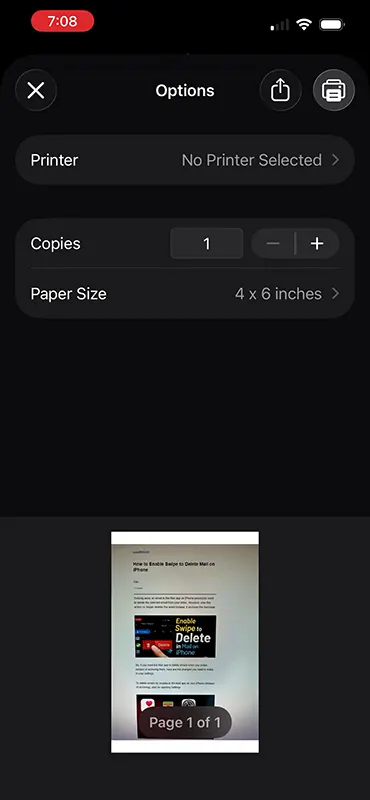
Don’t worry you are not actually going to print the photo.
The Print Options screen will appear.
Tap the Share button located in the top-right corner of the screen. iPhone will automatically generate a PDF version of the selected photo.
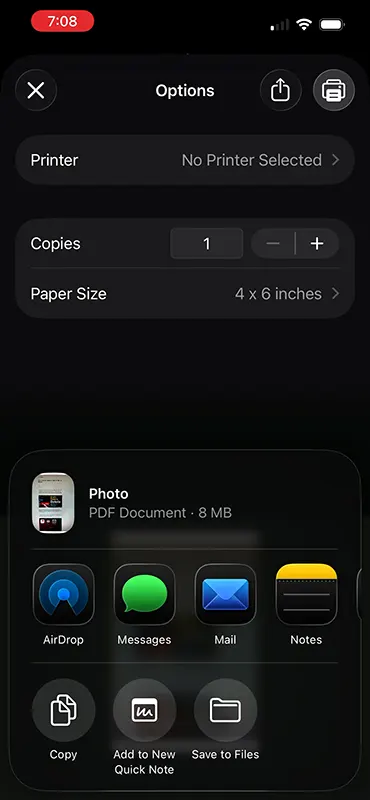
You will now see the photo displayed as a PDF document along with its file size.
From the available sharing options, tap Save to Files.
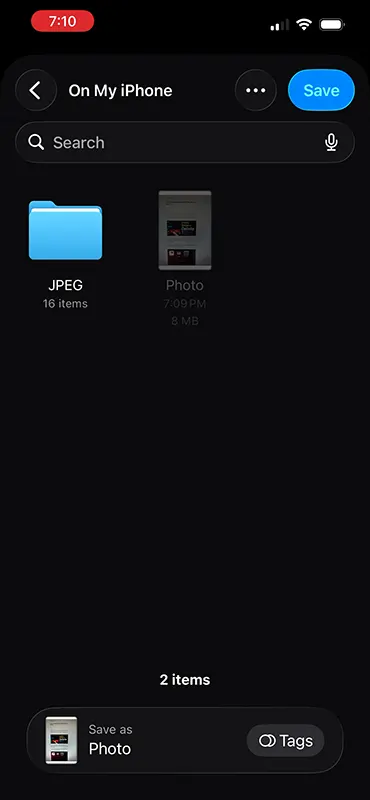
Choose a location where you want to store the PDF file. You can save it:
- On My iPhone
- iCloud Drive
- A specific folder within the Files app
After selecting the location, tap Save.
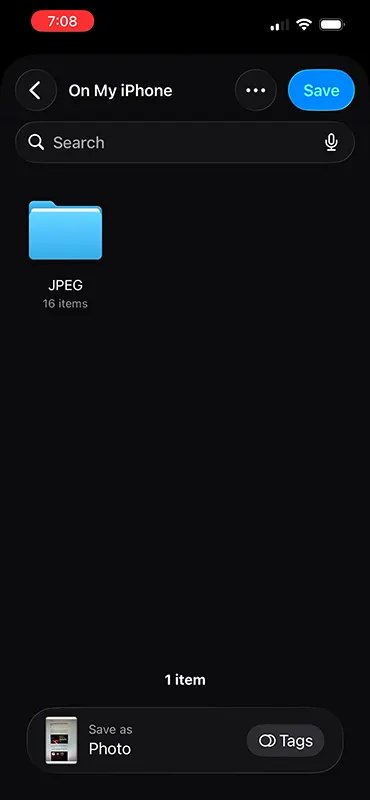
Open the Files app on your iPhone.
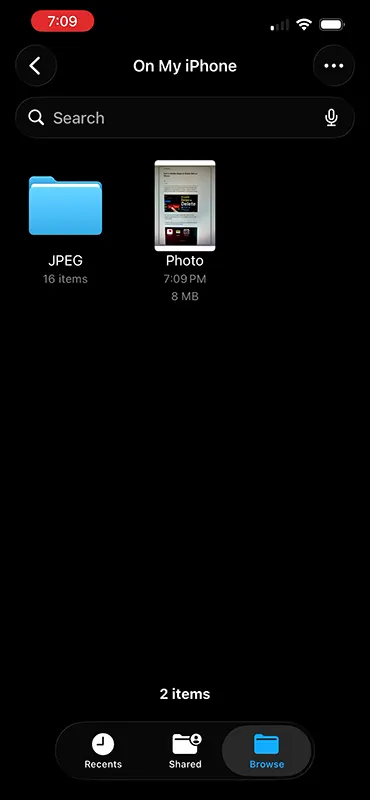
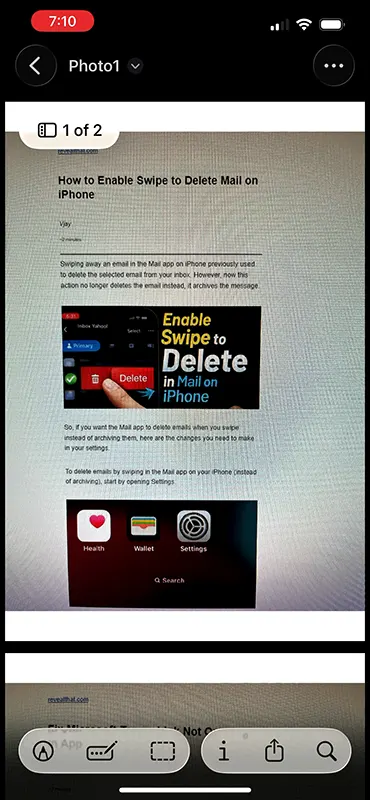
Navigate to the folder where you saved the PDF file and tap it to open.
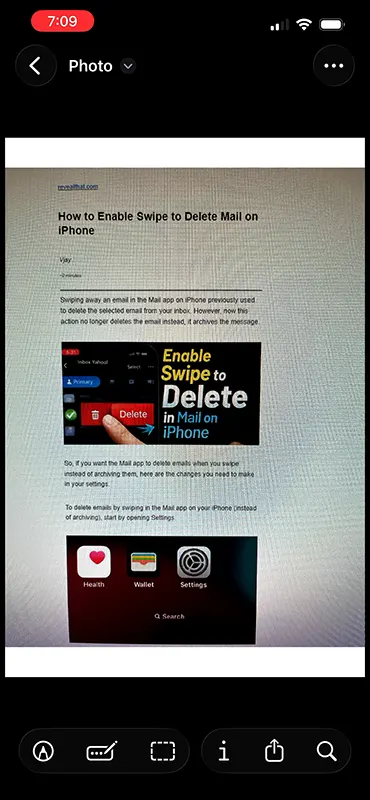
You will see that your photo has been successfully converted into a PDF document.
Does Converting a Photo to PDF Delete the Original Picture?
No. The original photo remains unchanged in the Photos app.
When you convert a picture to PDF, iPhone creates a new PDF copy of the selected image. Your original photo will continue to remain in its existing format such as JPG, JPEG, HEIC, or PNG.
How to Convert Multiple Photos into One PDF on iPhone
If you want to create a single PDF containing multiple pictures, follow these steps:
Open the Photos app.
Tap Select in the top-right corner.

Choose multiple photos.
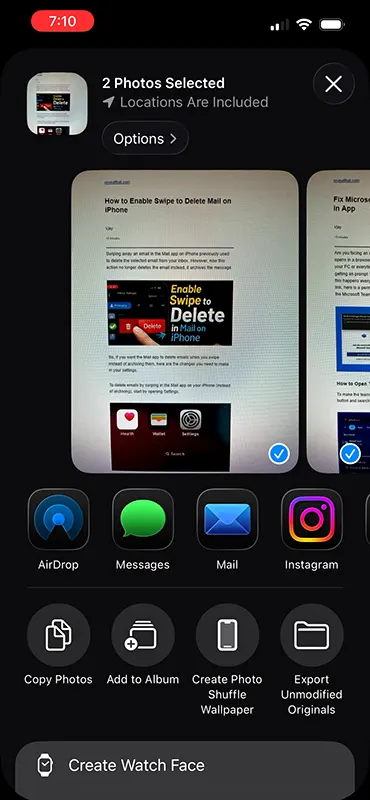
Tap the Share button.
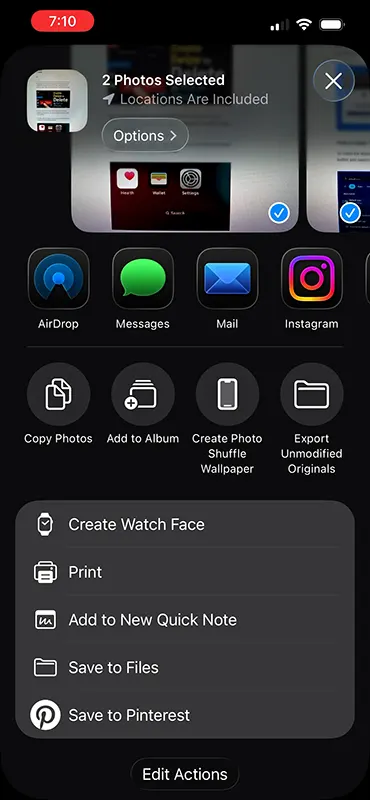
Select Print.
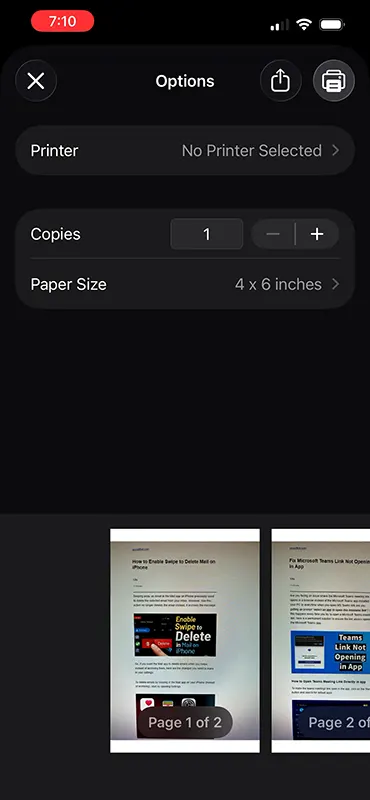
Tap the Share button again from the preview screen.
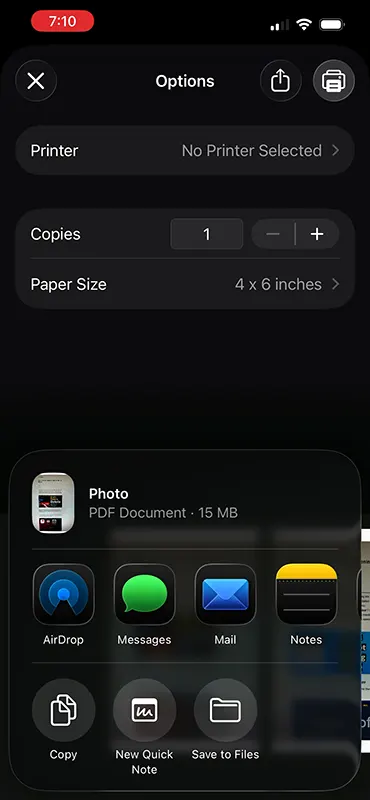
Choose Save to Files.
Save the generated PDF.
Your selected photos will be combined into a single PDF document.
Troubleshooting: Print Option Not Showing
If you do not see the Print option:
Make sure your iPhone is running the latest version of iOS.
Scroll down completely in the Share menu.
Restart your iPhone and try again.
Ensure the photo is fully downloaded if it is stored in iCloud Photos.
Yes. Apple provides this feature for free, and no additional app is required.
In most cases, the PDF maintains excellent image quality suitable for sharing, printing, and document submission.
Yes. After creating the PDF, you can share it through Mail, Messages, WhatsApp, AirDrop, or other supported apps.
Yes. The method works with HEIC, JPG, JPEG, PNG, and most image formats stored in the Photos app.
Converting a picture to PDF on iPhone is quick and easy thanks to the built-in features available in iOS. You don’t need any third-party applications to create PDF files from photos. Simply open the photo, use the Print option, save it as a PDF, and store it in the Files app.
Whether you’re submitting documents online, sharing receipts, sending forms, or organizing important images, converting photos to PDF on your iPhone can make the process more professional and convenient.

Leave a Reply