• Home
  • About
  • Contact Us
  • Privacy Policy

Reveal That

Powered by Technology & Internet

  • Android
  • WordPress
  • Internet
  • Software
  • Windows
  • SEO Tutorial
  • Make Money Online
  • Tools
    • Case Converter Upper Lower Title Sentence Caps
    • HEIC to JPEG
    • Car Android Boot Logo Generator
    • Viofo Dashcam Video Combiner
    • Viofo Dashcam Organizer

How to Enable Swipe to Delete Mail on iPhone

Written by:
Vjay
Published on:
February 11, 2026
Thoughts:
No comments yet

Swiping away an email in the Mail app on iPhone previously used to delete the selected email from your inbox. However, now this action no longer deletes the email instead, it archives the message.
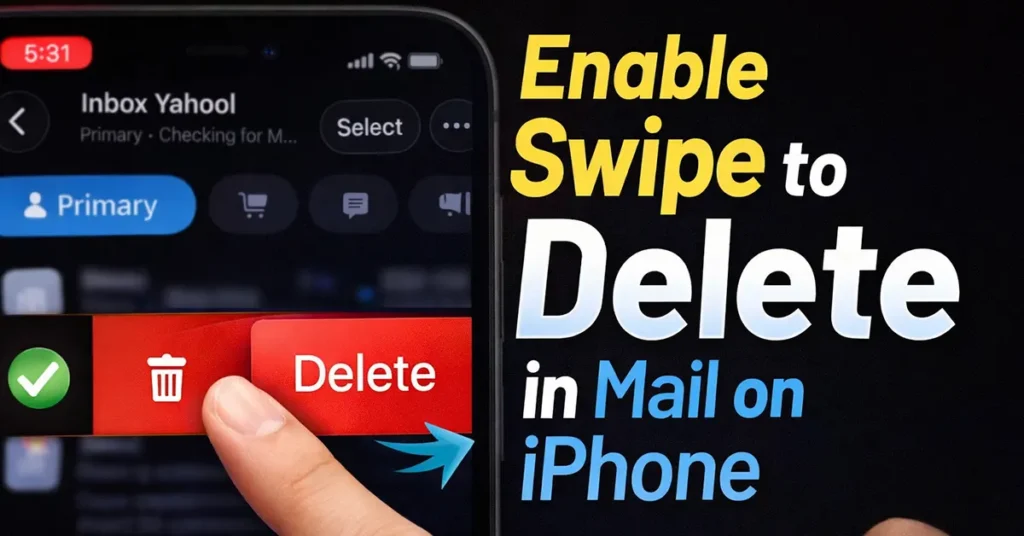
Enable Swipe to Delete Mail on iPhone

So, if you want the Mail app to delete emails when you swipe instead of archiving them, here are the changes you need to make in your settings.

Enable Swipe to Delete Mail on iPhone

To delete emails by swiping in the Mail app on your iPhone (instead of archiving), start by opening Settings.

iPhone Settings

Scroll down on the Settings page and tap on Apps.
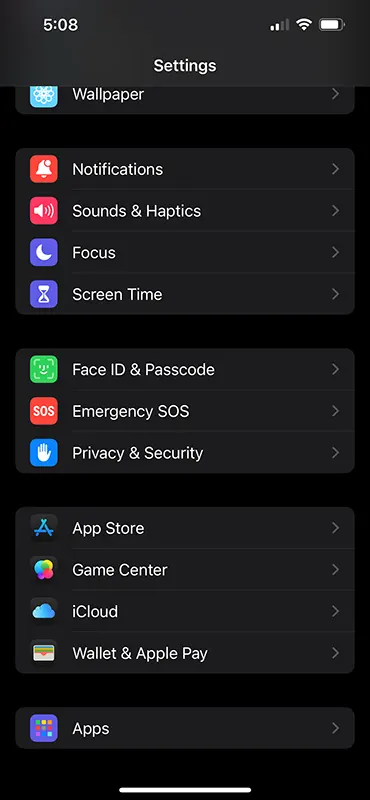
iPhone Settings Bottom

From the Apps page, search for Mail and tap on it.
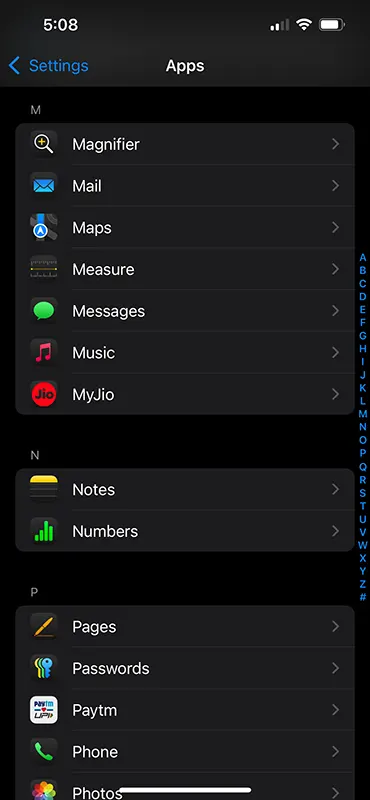
iPhone Settings apps

Inside the Mail settings, tap on Mail Accounts.
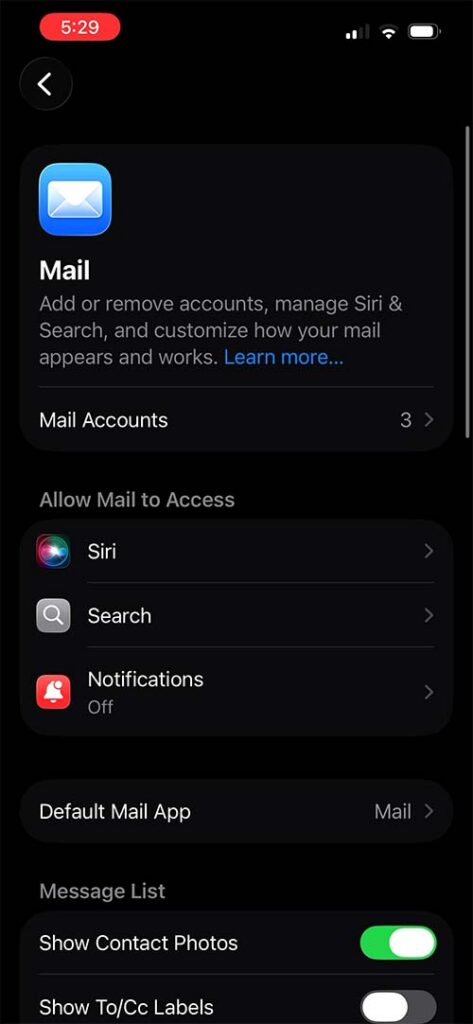
Mail Settings

Select your email provider from the list of Mail Accounts.
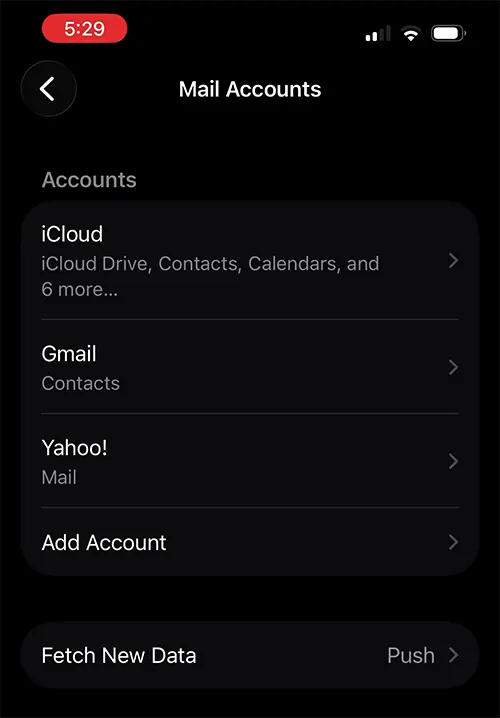
Mail Accounts

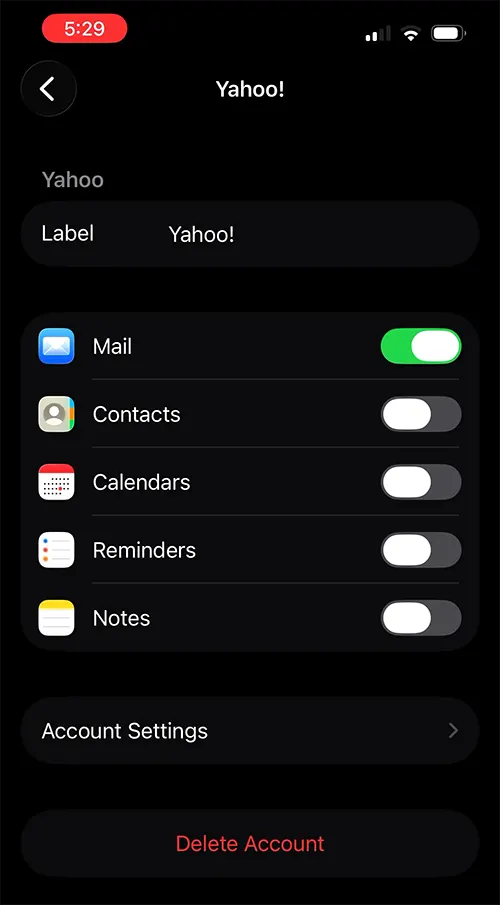
Tap on Account Settings.

Email Account Settings

From the Account Settings page, tap on Advanced.
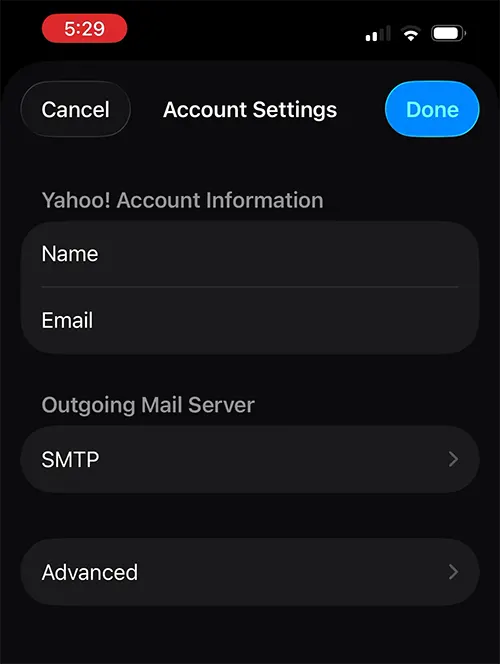
Account Settings

Under Move Discarded Messages Into, change the option from Archive Mailbox to Deleted Mailbox.
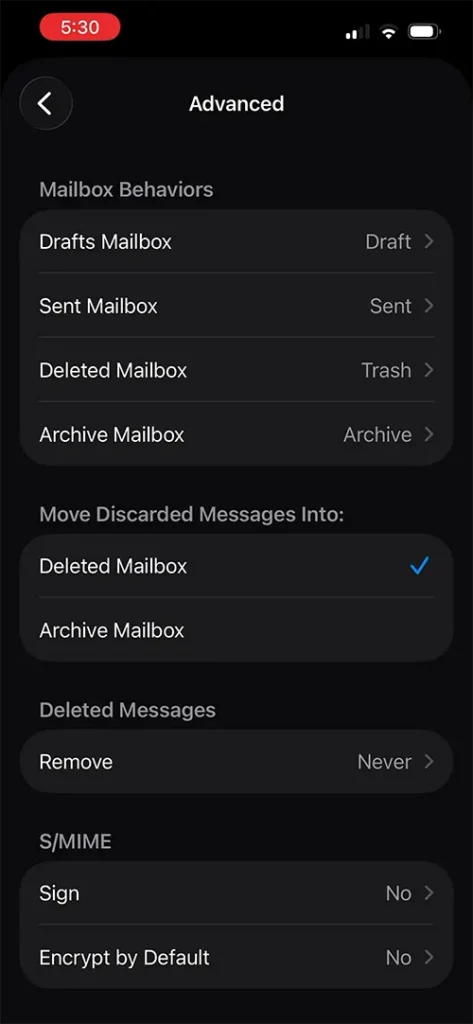
Advanced Move Discarded

Now, go back and tap the Done button on the Account Settings page to apply the changes.
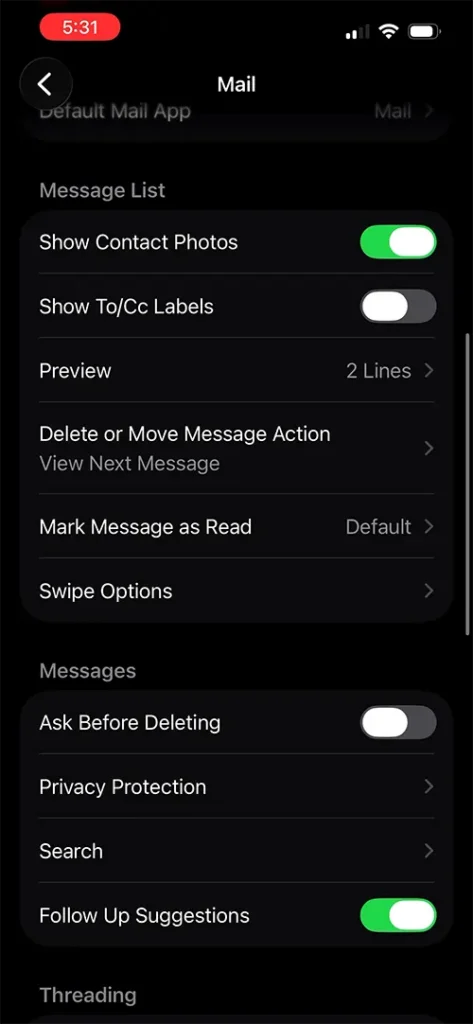
Mail Settings

Go back to the main Mail settings page.
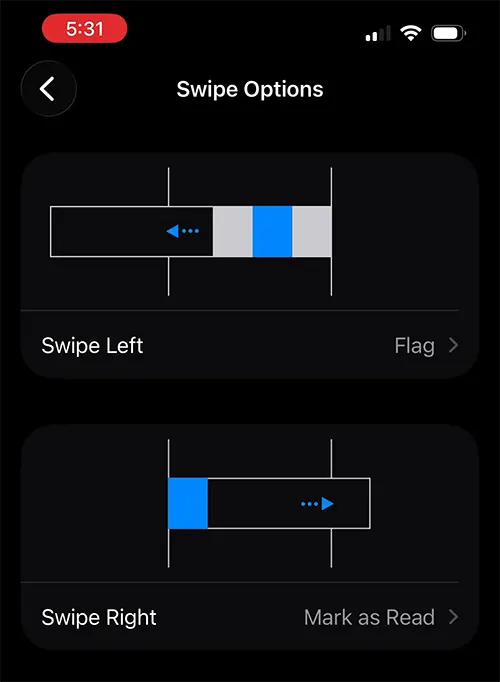
Swipe Options

Scroll down and look for Swipe Options.

Tap on Swipe Options.
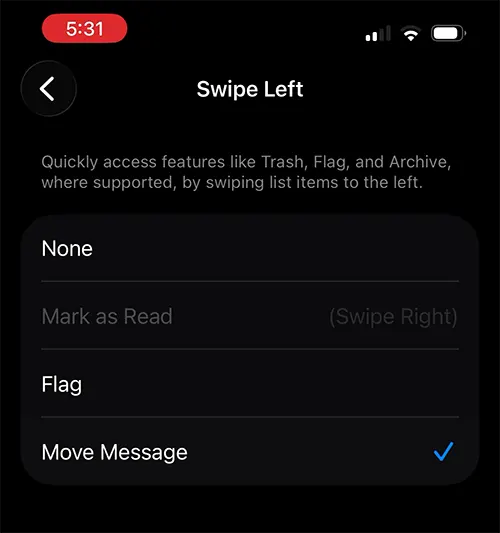
Swipe Left

From Swipe Options, set your preferred swipe direction to delete messages.

Now, when you perform a full swipe one long motion all the way across the screen the email will be deleted instead of archived.

If you accidentally delete an email, you can quickly bring it back by tapping the screen with three fingers to instantly undo the delete action.

Join us on Telegram

Categories: Apple

About Vjay

Vijay is the founder of RevealThat.com, sharing practical and easy-to-understand content on technology and internet-related topics since 2015. His work focuses on real-world solutions that help users make better use of technology. Connect via the Contact Us page.

Leave a Reply Cancel reply

Your email address will not be published. Required fields are marked *

5 × 1 =

RECENT POSTS

Wordle Today Answer – Wordle For Today Hint Revealed Here

Spelling Bee Answers – New York Times Game

Letter Boxed Answers Today

Mega Millions Winning Numbers

Amazon Quiz Answers – FunZone

NYT Sudoku Answers Today – New York Times

NYT Connections Answers for Today

How to Disable Gemini on Android

How to Change Mobile Number in Tata Play | Change RMN in Tata Sky

How to Clear Calling SIM Preference on Android (Remove “Remember This Choice”)

© 2026 · RevealThat.com · Sitemap · All trademarks & logos belongs to their respective owners

Jai Mata Di

ॐ ऐं ह्रीं क्लीं चामुण्डायै विच्चे|