Do you wish to add text on your iPhone Lock Screen?
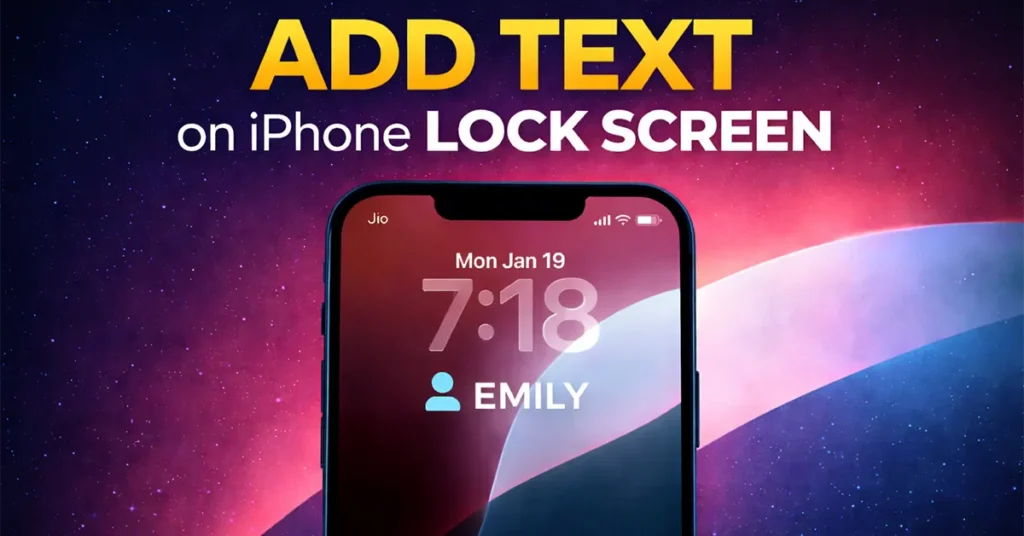
The purpose of adding text to the iPhone Lock Screen can be different for different users. Some people may want to display their contact number on the Lock Screen. This can be very helpful if you accidentally lose your iPhone anyone who finds it and is willing to return it can easily contact you using the number displayed on the Lock Screen.
Others may want to personalize their iPhone by adding their name or the name of a loved one, making the Lock Screen look more stylish and customized.
The good news is that you do not need to install any third-party app to add text to your iPhone Lock Screen. This feature is already built into iOS and can be done using the Focus feature on your iPhone.
Add Text on iPhone Lock Screen
Swipe down from the top-right corner of your iPhone screen to open the Control Center.
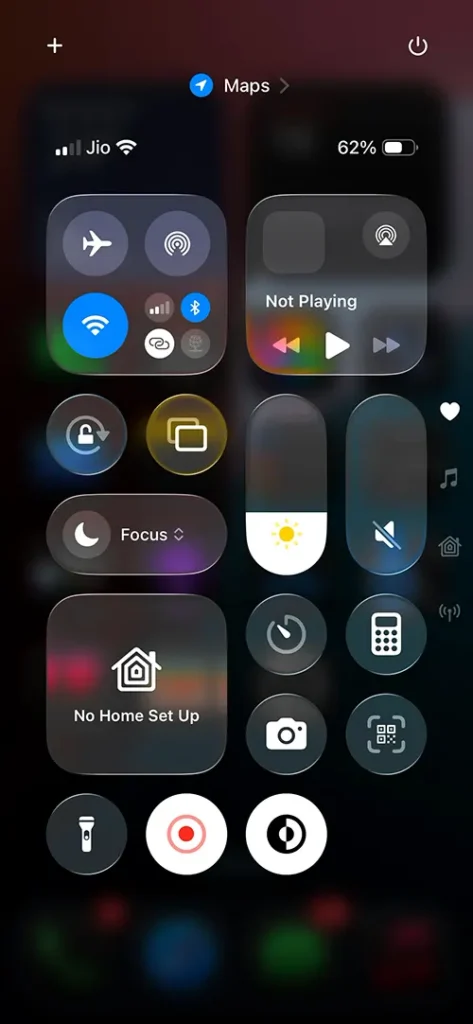
In the Control Center shortcuts, tap on “Focus.”
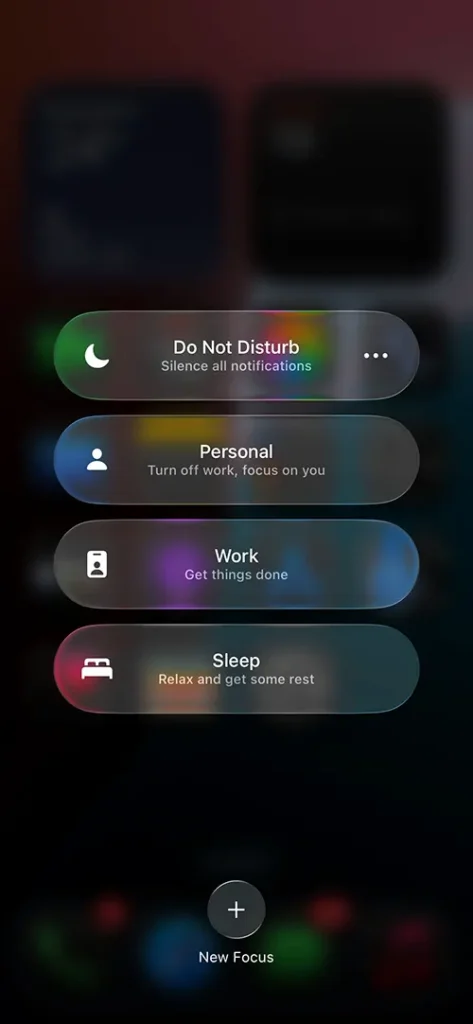
If you are unable to find the Focus option in the Control Center, open Settings and then tap on “Focus.”
Inside the Focus settings, tap on the “+” (plus) icon to add a new Focus mode.
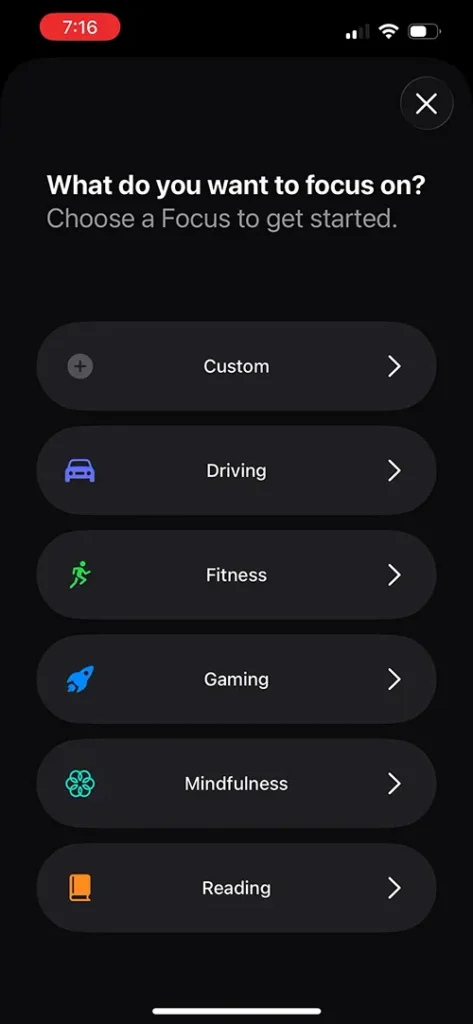
On the screen that says “What do you want to focus on?”, select “Custom.”
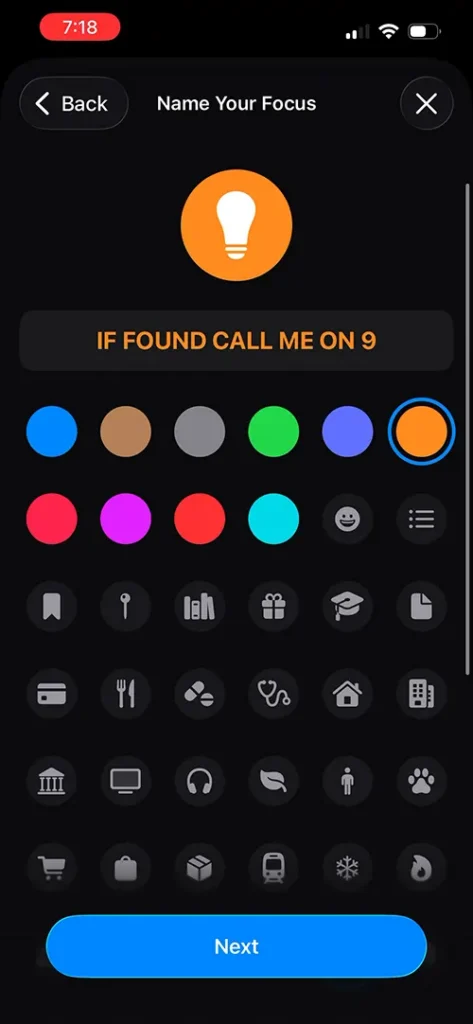
On the “Name Your Focus” page, enter the text you want to appear on the Lock Screen. This can be: Your name, Your phone number, Any message that helps someone contact you if they find your iPhone and are willing to return it.
After entering the name, select a color from the available options and choose an icon that best represents your text.
Once you have made your selections, tap on the “Next” button.
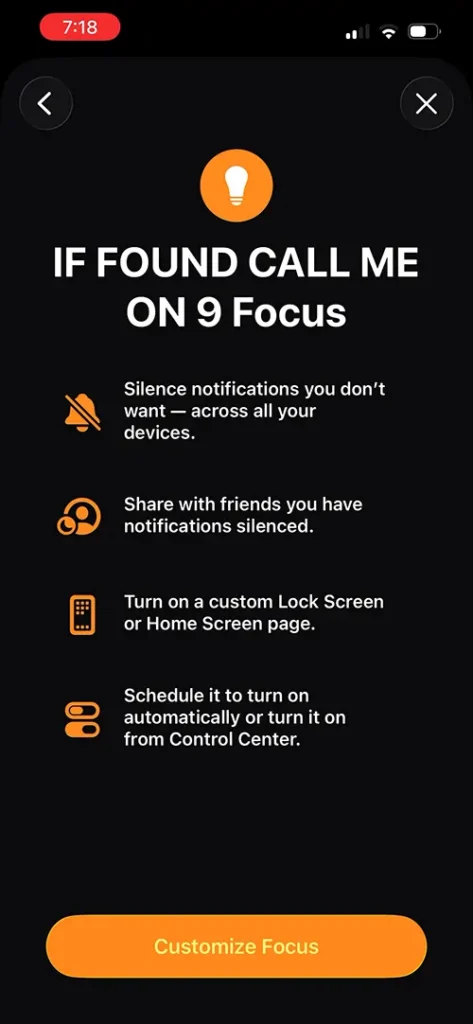
On the next screen, tap on “Customize Focus.”
This will display the newly created Focus mode.
Tap on “Back,” and you will now see your created Focus listed under the Focus modes.
Now, go back to the Home Screen of your iPhone and swipe down from the top-right corner again to open the Control Center.
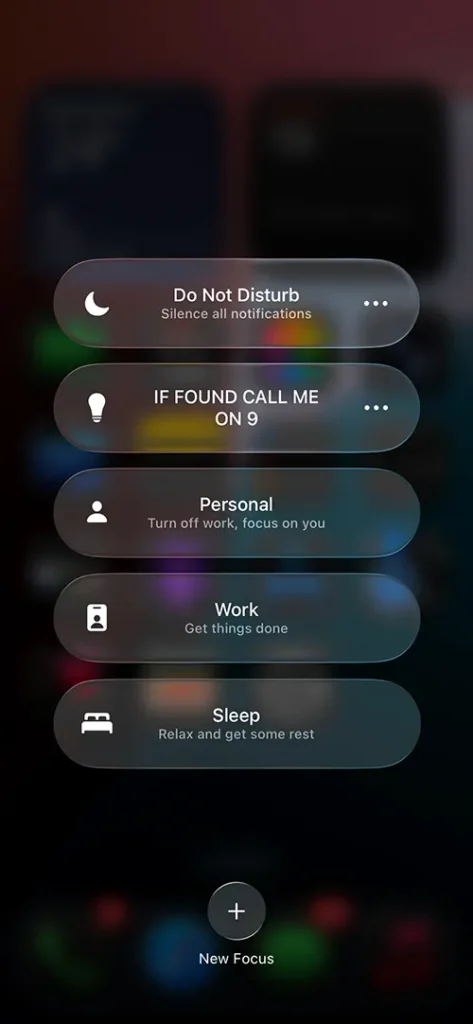
Tap on “Focus,” and then select the Focus name that you just created.
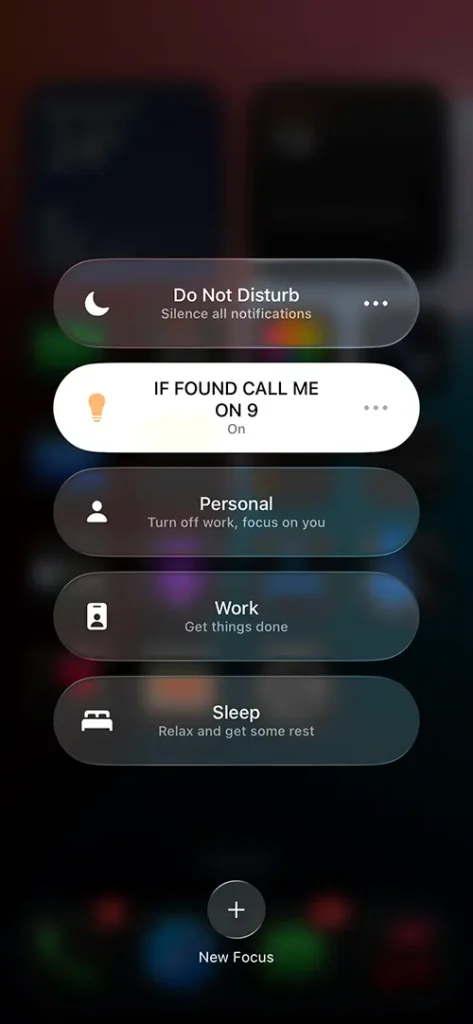
Once you tap on your created Focus, its status will change to ON, indicating that it is active.
Return to the Home Screen. When the Focus is enabled, you will notice the Focus icon appearing at the top of the status bar.
Lock your iPhone.
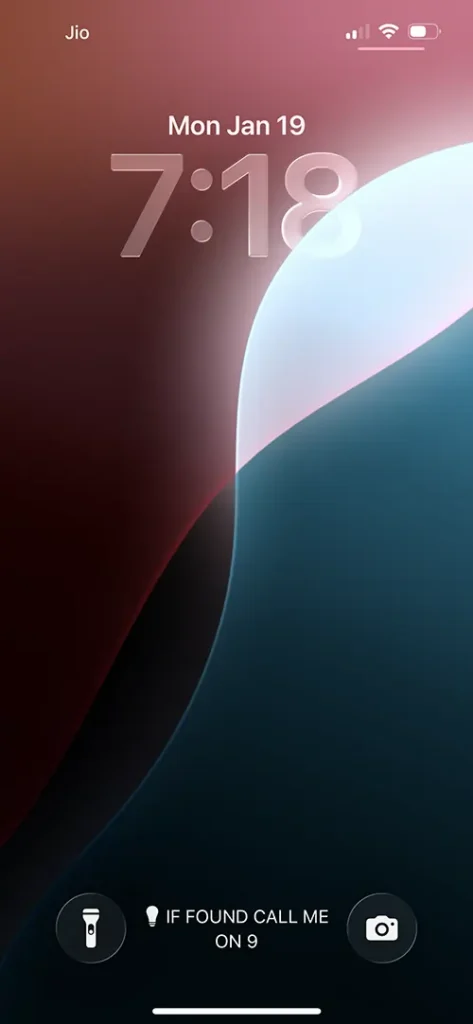
At the center of the Lock Screen, you will now be able to see the text you added, along with the selected icon.
This is how you can add text to your iPhone Lock Screen, making it easier for someone to reach you if they find your device and are willing to return it, while also giving your iPhone a personalized and stylish look.
If you want to turn off the text displayed on the Lock Screen, open the Control Center by swiping down from the top-right corner of your iPhone screen.
From the Control Center, tap on “Focus.” Then, tap on the Focus mode that you previously enabled. Once you tap on it, the Focus will be turned OFF, and this will immediately remove the text from being displayed on the Lock Screen.

Leave a Reply