Do you want to set ChatGPT as your digital assistant instead of Siri on your iPhone? If yes, this is possible but only on iPhones that support Apple Intelligence.
You may have already noticed that when you ask certain questions to Siri, it is sometimes unable to provide a direct answer. In such cases, Siri responds by asking, “Do you want me to use ChatGPT to answer that?” To continue, you must manually give permission each time before ChatGPT is used.
If you find this extra confirmation step annoying and want ChatGPT to automatically handle your questions for faster and smarter responses, you can integrate ChatGPT directly with Siri through Apple Intelligence. This allows Siri to seamlessly pass unanswered queries to ChatGPT without repeatedly asking for your permission.
Below are the steps you need to follow to replace Siri with ChatGPT on your iPhone.
Replace Siri With ChatGPT on iPhone
Replace Siri with ChatGPT on iPhone
To replace Siri with ChatGPT on your iPhone, start by opening the Settings app.
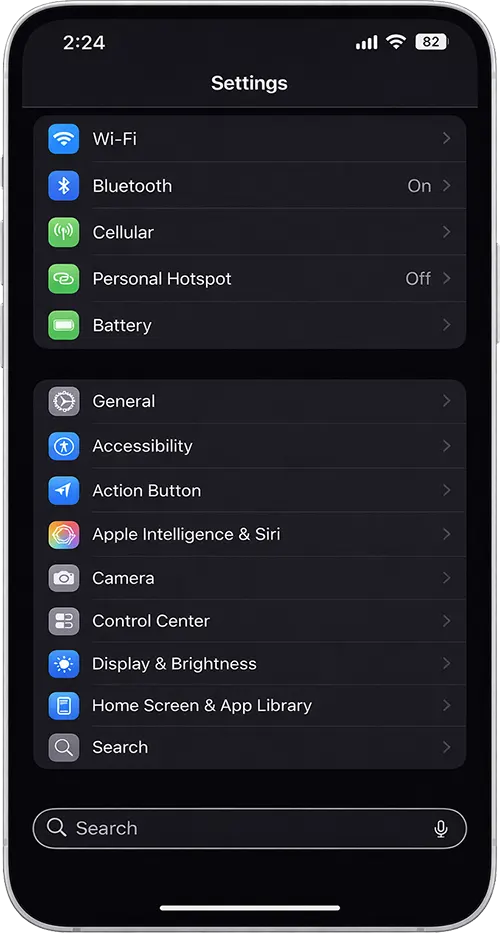
Scroll down and tap on Apple Intelligence & Siri.
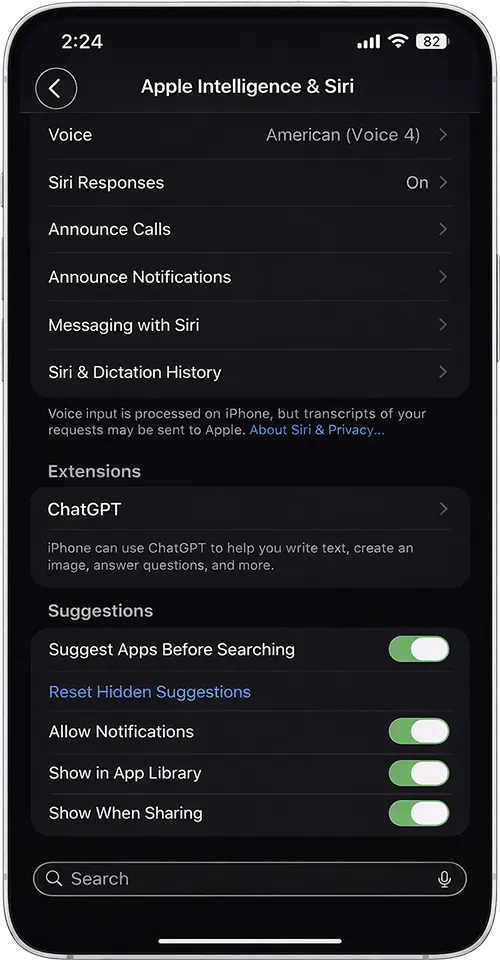
On the Apple Intelligence & Siri page, scroll further down until you find the Extensions section. Under Extensions, tap on ChatGPT.
Now, enable ChatGPT. You will be prompted to set it up by logging in with your existing ChatGPT account. If you don’t already have an account, you can easily create a new one during this step.
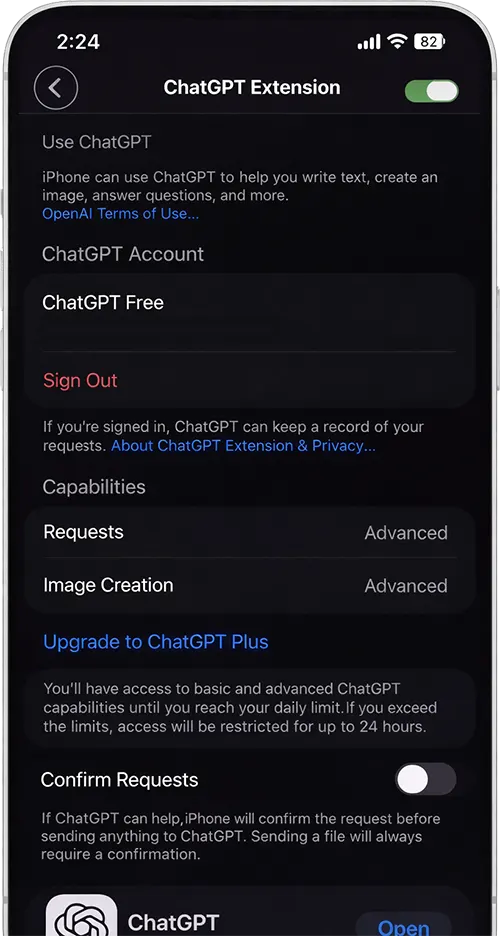
After successfully logging into your ChatGPT account, locate the option called Confirm Requests and disable it.
Once this setting is turned off, Siri will no longer ask for your permission every time it needs to use ChatGPT.
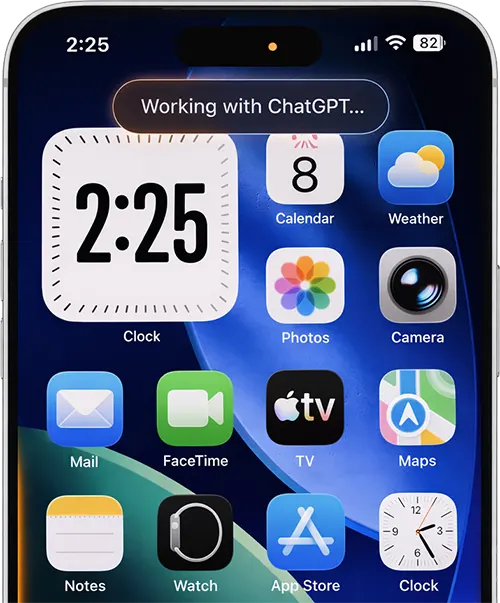
From now on, whenever you ask a question that Siri cannot answer on its own, it will automatically work with ChatGPT and provide you with a response instantly without any interruptions or confirmation prompts.
This is how you can seamlessly integrate ChatGPT into Apple Intelligence and Siri on your iPhone for faster, smarter, and more efficient answers, without waiting or tapping extra buttons.

Leave a Reply