If you have set up Face ID on your iPhone, you may have noticed that even a brief view of your face can unlock the device. While this feature is convenient, it can also raise security concerns. In some situations, if someone gets hold of your iPhone and tries to unlock it using Face ID while you are sleeping, unconscious, distracted, or simply not paying attention, there is a possibility that the phone may unlock without your knowledge.
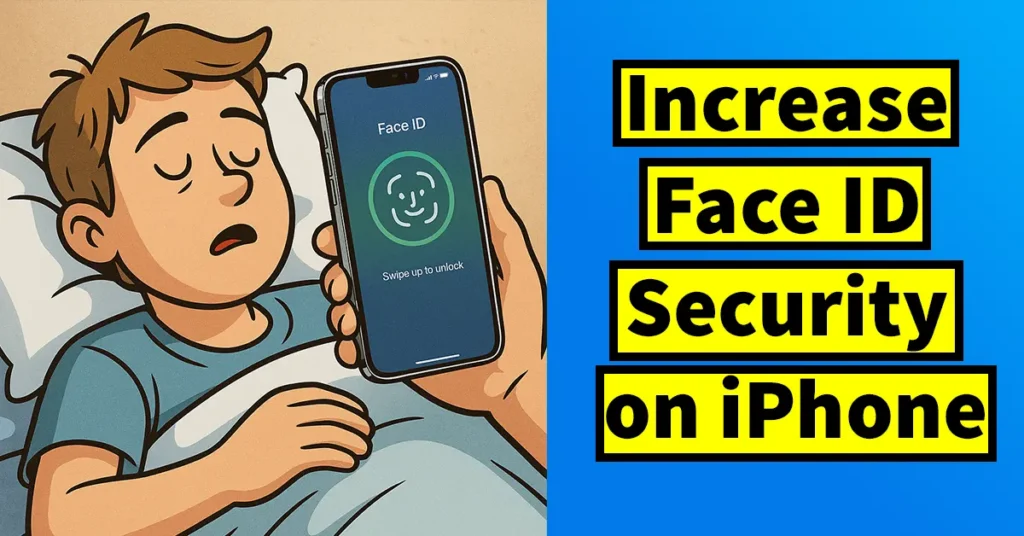
If you are worried about this type of security risk, there is no need to panic. Apple has already considered these scenarios and has provided specific settings within iOS that allow you to strengthen Face ID security. By enabling these settings, you can ensure that your iPhone only unlocks when you are actively and consciously looking at the screen.
Table of Contents
Prevent iPhone from Unlocking Through Face ID Without Knowing
To secure your iPhone by increasing Face ID protection and to prevent it from unlocking when you are asleep or not paying attention, there are three important settings that you need to configure. These settings work together to make Face ID more secure and reliable.
Open the Settings app on your iPhone.
Scroll down the page and tap on Face ID & Passcode.
Enter your iPhone Passcode to access the Face ID and Passcode settings page.
Enable Attention Aware Features
Once you are on the Face ID & Passcode page, scroll down until you reach the Attention section.
In this section, you will see an option called Attention Aware Features.
If this option is disabled, tap on the toggle button to enable it.
After enabling Attention Aware Features, your iPhone will only unlock using Face ID when it detects that your eyes are actually looking at the screen. This means the device actively checks your attention before unlocking.
If this feature is turned off, someone could potentially bring the phone close to your face while you are sleeping or unaware, and the iPhone might unlock. Enabling this setting helps prevent such unauthorized access and adds an extra layer of security.
Enable Require Attention for Face ID
Under the same Attention section, you will find another option called Require Attention for Face ID.
Tap on the toggle button to enable this option.
When this setting is enabled, Face ID will not unlock your iPhone if you are distracted, looking away, or if someone is trying to force your face toward the screen. It also prevents unlocking when your eyes are closed or partially covered, making Face ID significantly more secure.
This setting is especially helpful in situations where someone attempts to unlock your phone without your consent or when you are not fully alert.
Review Face ID with a Mask Setting
Scroll up on the Face ID & Passcode page and locate the option Face ID with a Mask.
This feature is useful for users who frequently wear a face mask and still want their iPhone to unlock using Face ID.
If you regularly wear a mask and want Face ID to recognize you even while wearing it, you can enable this option. However, if you do not wear a mask often, it is recommended to keep this feature disabled. Leaving it turned off slightly reduces the chances of accidental or unintended unlocking.
By enabling these Face ID security settings, you can ensure that your iPhone only unlocks when you are consciously looking at the screen and paying attention. This helps protect your personal data and prevents unauthorized access, even if someone tries to unlock your phone without your knowledge.

Leave a Reply