Viofo is one of the most reliable brands that produces dash cameras for vehicles. But to record videos on a dash cam, a memory card is a must. And this is where a common issue often arises an error faced by almost every Viofo dash cam user at least once. The error is none other than the Slow Card Error.
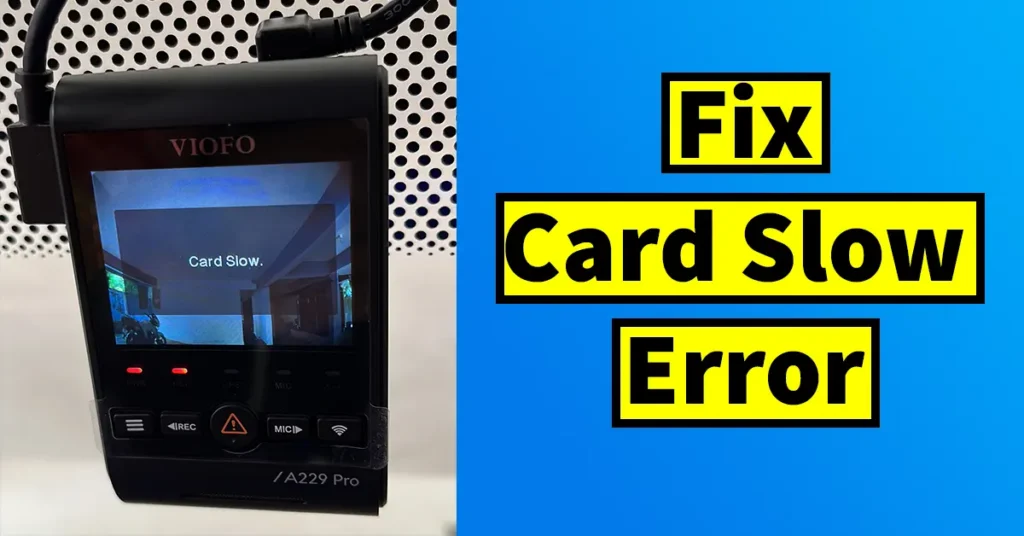
When the Slow Card Error occurs, the dash cam starts making a continuous beeping sound, which alerts you that something is wrong with the recording process. If your dash cam has a display screen, you may also see a message saying “Slow Card” when you wake up the screen. This error is generated due to the micro SD card that you have inserted into the dash cam, and not because of a fault in the dash cam itself. When such an error appears, the dash cam usually stops recording and shows the slow card warning, which means something is wrong with your memory card.
So, when this error appears, how do you troubleshoot it? Let’s try to find out in this post.
Table of Contents
Fixing Slow Card Error in Viofo Dash Cam
If the Slow Card Error has appeared in your dash cam due to a minor bug or temporary glitch, the fixes below might resolve the issue. If not, you may need to try the other solutions mentioned further down.
Reinsert Card
Sometimes, the Slow Card Error may appear if there is dust on the memory card connectors. In that case, you simply need to eject the card from the dash cam, clean the connectors gently, and reinsert it into the dash cam.
After reinserting, wait for a few minutes and check whether the error reappears. If it doesn’t, then the issue has been resolved.
Dash Cam Restart
A quick restart of the dash cam can sometimes fix the Slow Card Error. All you need to do is disconnect the dash cam from the power source and reconnect it after a few minutes. If the error disappears, then the restart has worked for you.
Deep Format
When the Slow Card Error appears repeatedly, you can try formatting the card using your laptop or computer by performing a non-quick format (also known as deep format).
To do this, download the formatting tool guiformat2 from: https://bit.ly/formattool
Steps:
- Install and launch the tool.
- Insert the micro SD card into your PC or laptop using a card reader.
- Select the correct card drive.
- Untick the Quick Format option and click on Start.
- The formatting process will take several minutes to complete.
- Wait until a success message is displayed.
- Once done, eject the card and insert it back into the dash cam.
- Check whether the Slow Card Error appears again. If it doesn’t, then the deep format has fixed the issue.
Viofo Dash Cam Software Update
If the Slow Card Error is caused due to a software or firmware issue, updating the dash cam’s firmware may fix it. You can refer to our dedicated article on how to update Viofo Dash Cam Software. Once the update is complete, check if the error still appears. If it doesn’t, then the problem was likely caused by firmware bugs.
Card Usage Cycle
All micro SD memory cards have a lifespan or usage cycle. When a memory card is used in a dash cam, it undergoes constant read and write operations. If you have been using the same memory card for a long time, it might be reaching the end of its life. In such cases, replacing the card with a new one is the best option. If the card is still under warranty, you can try getting it replaced.
Supported Card Type
Viofo has clearly mentioned the list of supported micro SD cards for their dash cams after extensive testing. If you are using an unsupported card, the Slow Card Error may appear frequently. Even if the error does not show up initially, it will likely appear after a few months of usage, eventually damaging the card. Therefore, it is always recommended to use the memory cards suggested by the brand.

Leave a Reply