Are your website URLs connected through Cloudflare?
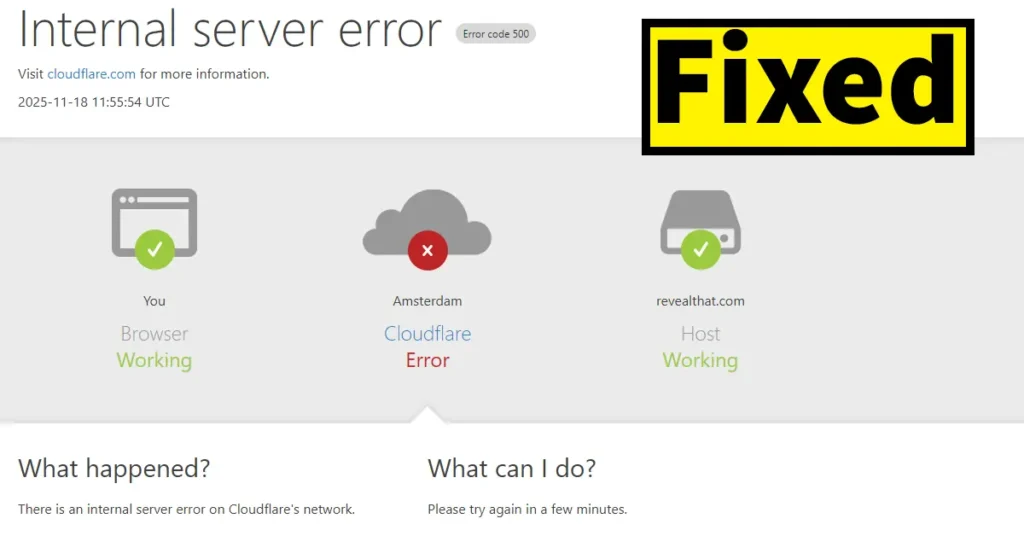
But while accessing your website dashboard or any URL, are you getting Error Code 500 – Internal Server Error?
If yes, then this article explains the likely cause and the solution to make your website live again.
Table of Contents
Why Does Internal Server Error 500 Occur on Cloudflare-Connected Websites?
If your website is experiencing this error, it usually means that your website is connected through Cloudflare. This error is triggered due to an outage or disruption at Cloudflare.
In the error screen, you will notice that Cloudflare shows an error symbol, indicating that the connection is not being established successfully from Cloudflare to the server where your website is hosted.
You will also see a checkmark on your hosting status, which confirms that your server is working correctly and there is no issue on the hosting provider’s side.
The issue is only with the Cloudflare connection layer.
How to Fix Internal Server Error 500
This error gets resolved automatically by Cloudflare once their servers are restored to normal after the outage.
However, if you want your website to work immediately, you can temporarily turn off Cloudflare for your domain.
But keep in mind:
- Your hosting IP will be exposed when Cloudflare is turned off.
- This might introduce security risks if kept disabled for too long.
Still, as a temporary measure, you can turn off Cloudflare until the outage is fixed, and your website will start working again.
How to Disable Cloudflare on Your Website (Temporary Fix)
If you want to make your website accessible immediately during a Cloudflare outage, you can temporarily disable Cloudflare for your domain. Follow the steps below:
- Log in to your Cloudflare account.
- From the dashboard, select the website for which you want to turn off Cloudflare.
- Once the website is selected, scroll to the “Advanced Actions” section.
- Click on “Pause Cloudflare on Site.”
After performing this action, Cloudflare will be disabled until you manually re-enable it again.
If the issue is due to a Cloudflare outage, pausing Cloudflare will allow your website to work normally by directly accessing your hosting server instead of routing through Cloudflare.
You can check the ongoing status of the Cloudflare Global Network experiencing issues by visiting https://www.cloudflarestatus.com/
Internal Server Error 500 on Cloudflare-connected websites is usually not a hosting problem but a temporary Cloudflare outage. The safest solution is to wait until Cloudflare restores normal operations, or alternatively, disable Cloudflare temporarily to bring your website back online.

Leave a Reply