In many recent Android phones like Samsung, realme, Redmi, Mi, Vivo, OnePlus, and others, when you try to turn off the phone by pressing the power button, instead of turning it off or showing power options, Google Assistant pops up.
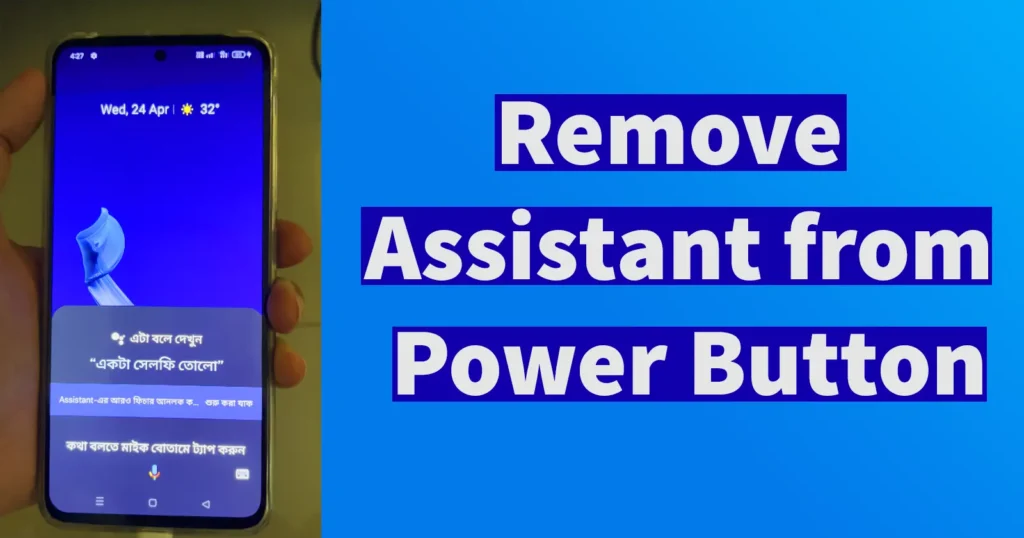
If you’re reading this, you might be wondering how to turn off or restart your device using the physical power button. If you’re looking for a solution to remove Google Assistant from the power button on your Android phone, we’ve got you covered.
Remove Google Assistant from Power Button
Previously on Pressing the Power Button, the Google Assistant used to open but on keeping the button long pressed after the appearance of Voice Assistant the power options to restart and power off used to appear. But recently even though if the power button is long pressed the power options doesn’t appear. In the latest phones the new changes has been implemented where the Power button opens Google Assistant.
To enable the Power Control using the physical power button or remove Google Assistant from Power Button follow the below steps. But the below steps are for those Android Phones in which on pressing Power Button or long pressing Power Button the Power Control doesn’t appear and instead Google Assistant Pops up.
Open Settings
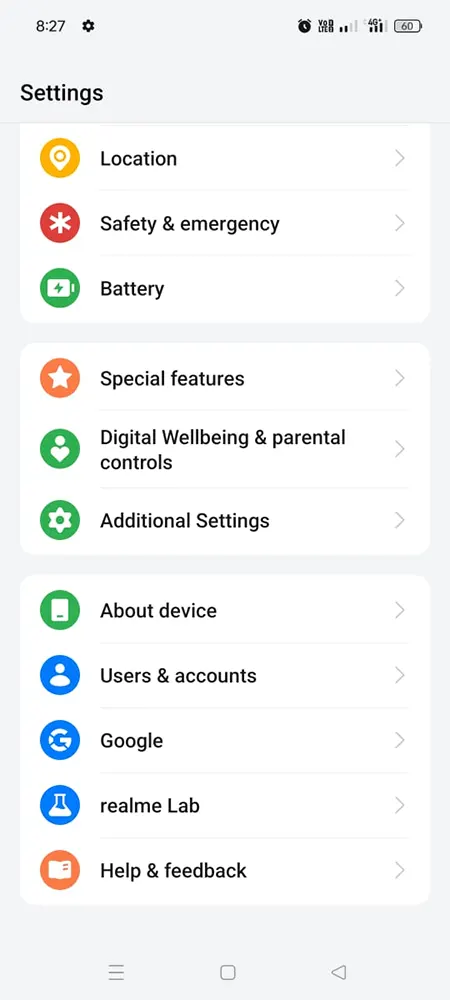
Tap on Additional Settings
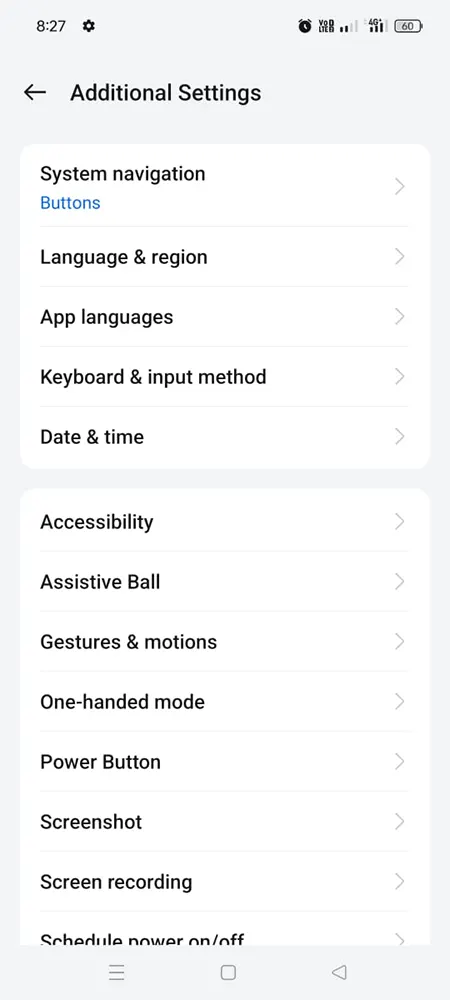
Under Additional Settings page, search for Power Button and tap on it
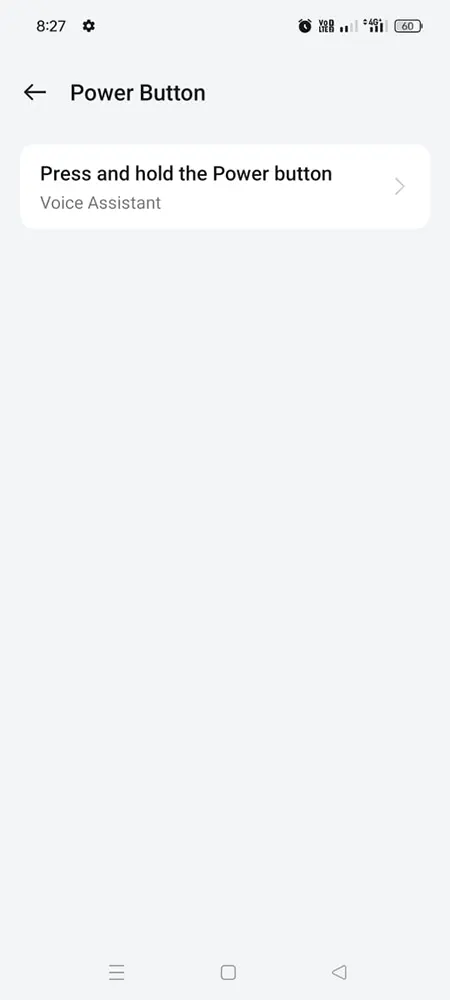
From the Power Button page tap on the Press and hold the Power button
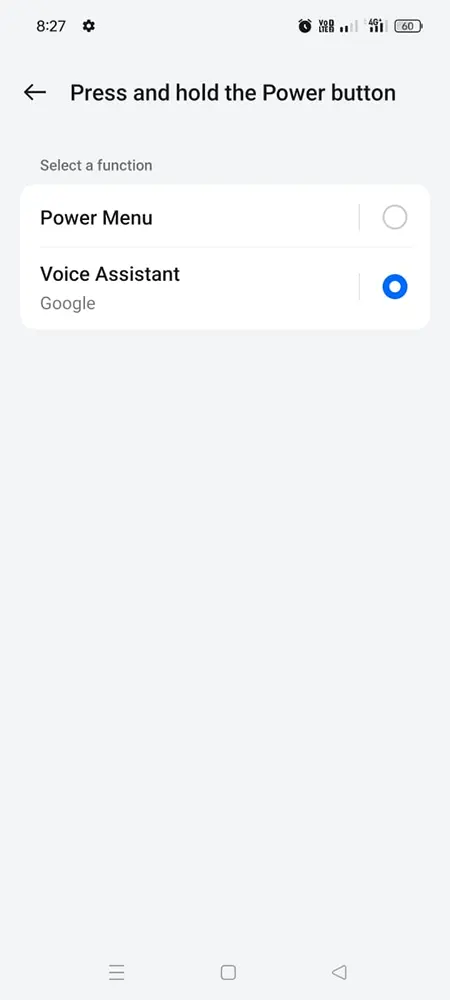
On the Press and hold the Power button by default Voice Assistant will be set, to make the Power Menu to appear on Pressing the Physical Power button on phone select Power Menu
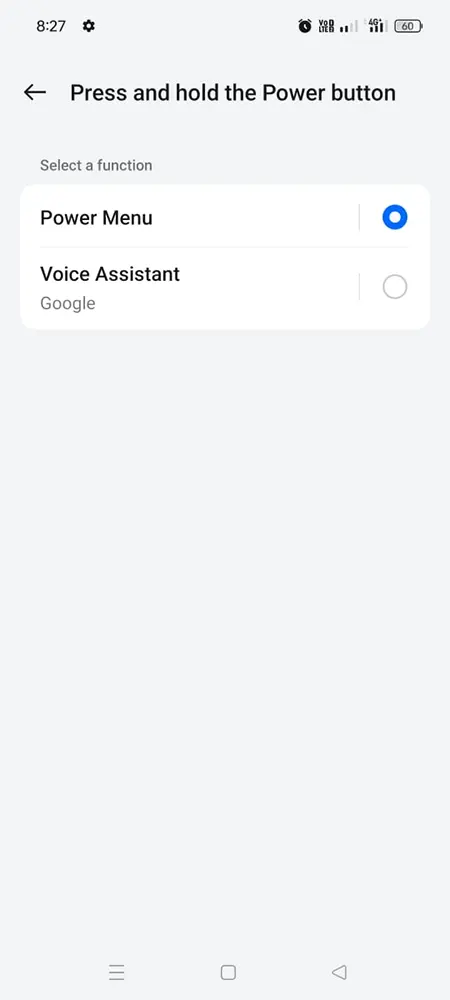
Once selecting the Press and hold the Power button function to Power Menu, from now onwards when you press the physical Power button the Power Menu will appear where you will get option to Power Off and Restart.
Alternatively if the above steps doesn’t work or you need to keep pressing the power button after the Google Assistant Pops up to get Power Options then you can follow the below steps.
To disable or remove Google Assistant from Power button on your Android, open Settings
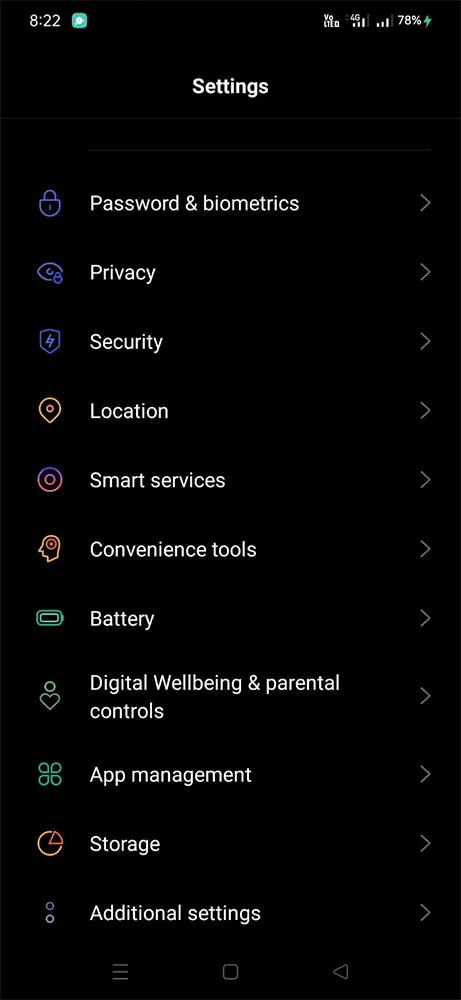
Scroll down and tap on Convenience tools
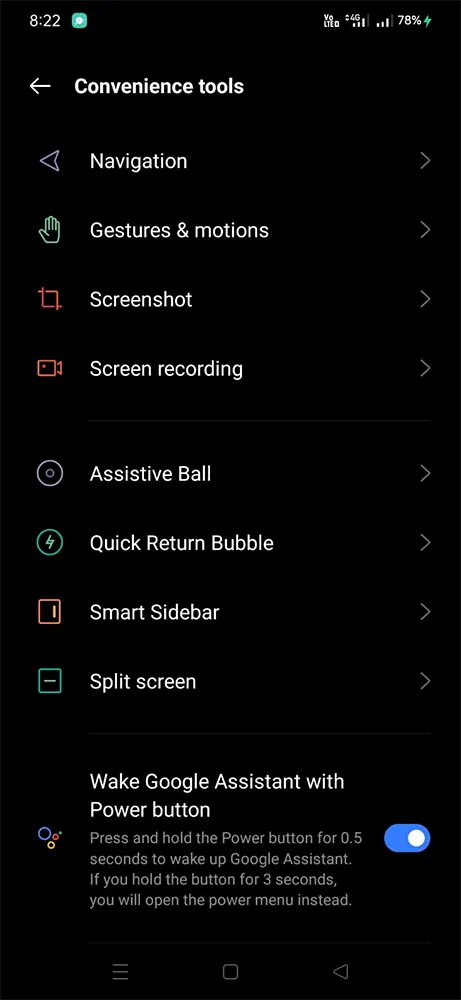
Under Convenience tools page you will find Wake Google Assistant with Power button
By default it will be enabled
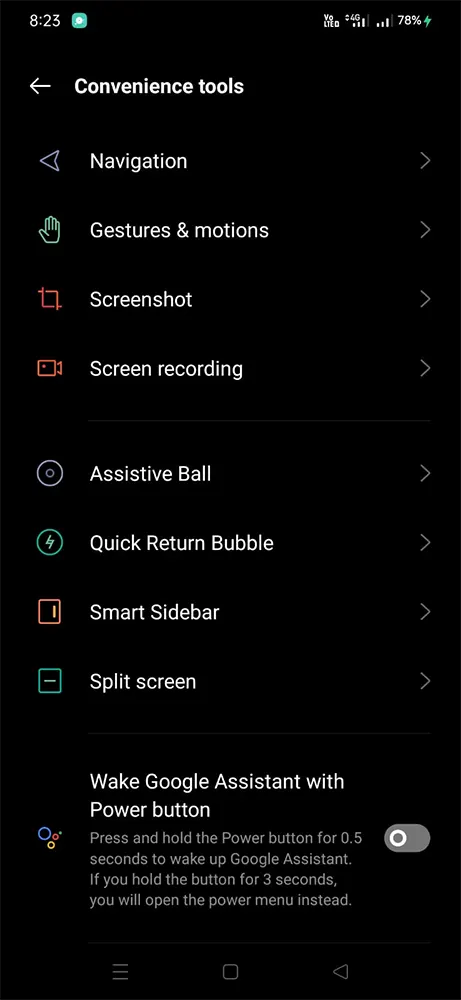
Tap on the Wake Google Assistant with Power button to disable it.
That’s it, now when you long press the power button on your Android the Google Assistant won’t popup anymore and instead you will get the Power options.

Leave a Reply