How to See WiFi Password on iPhone: WiFi Password may be required once in a while when you want connect a new device to WiFi or when you want to share WiFi with your guests arrived at your premises. To connect to WiFi, you usually need to enter the WiFi password the first time you connect a device to the network, because the device remembers it after that. Since we don’t use the WiFi password often, we tend to forget it easily.
Typically, when one cannot recall the WiFi password, the recourse is to attempt resetting the network to its default password or resetting a new password. However, it is worth noting that in instances of forgotten WiFi passwords, iPhone users may access the password with ease through a single tap, avoiding the inconvenience of performing a reset.
The WiFi Password viewing feature on an iPhone exclusively permits the display of the password for previously connected or saved WiFi access points and not for those access points that have never been connected to the device.
iOS and MAC OS can show the WiFi password in text format, whereas the Android can only create a QR code for other Android devices to connect to the WiFi. This is what makes the ability to check WiFi Password on iPhone so special.
Table of Contents
See WiFi Password on iPhone
To see WiFi Password on iPhone, there isn’t any requirement to install any third party apps on your iPhone nor, there is a need of having iPhone rooted. Below is the step by step process explained to find WiFi password on iPhone.

Go to Settings
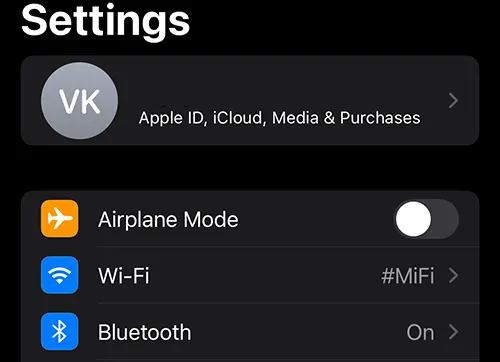
Tap on Wi-Fi
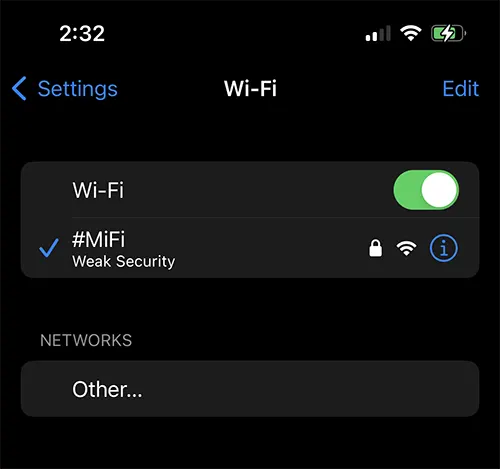
Tap on the Wi-Fi network of which you wish to view the password
On next page the selected Wi-Fi network details and settings will appear, on this page there will be a Password field
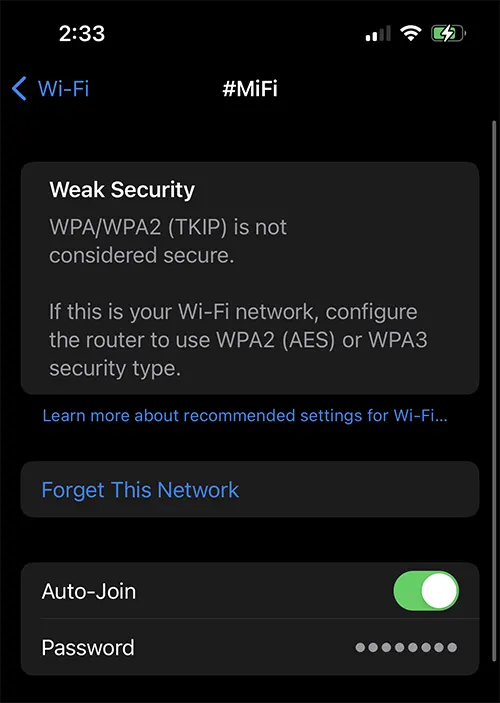
By default in the password field, the password of the WiFi network will be hidden
To view the password, tap on the password
To view the password it your phone will authenticate with Face ID or Touch ID, and once authentication is successful the password of the WiFi network will be displayed
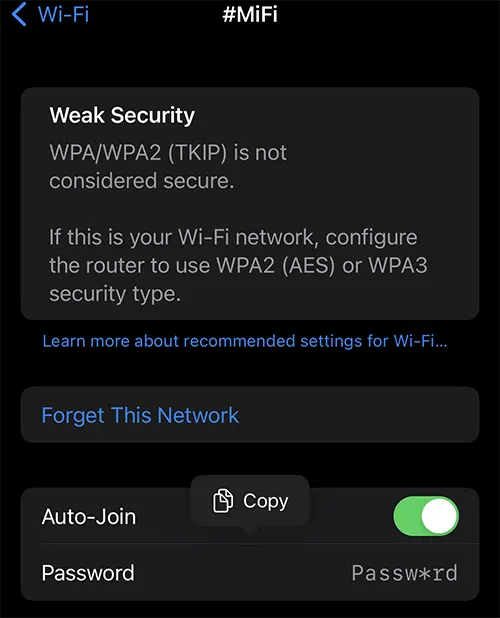
You will even be able to copy the password by tapping on the Copy button displayed
Incase if you want to see the password of inactive Wi-Fi connection which your device was connected before then follow the below procedure.
Find Inactive Saved WiFi Password on iPhone
Open Settings > tap on Wi-Fi
Here all the active WiFi connection will be displayed
To view the password of the inactive Wi-Fi access point to which your device was connected previously, tap on the Edit button
To access the Edit page, Face ID or Touch ID authentication will be required
Once successful authentication the Wi-Fi edit page will be displayed
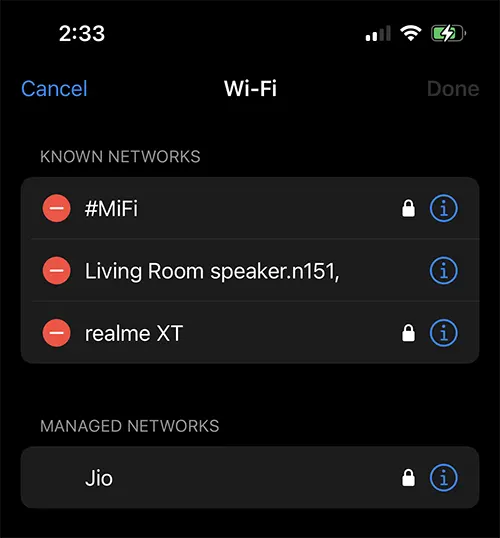
On this page all the known networks will be displayed
Under known networks tap on the WiFi SSID aside i button of which you want to view the password
Once tapping on the i button, it will take you to the selected WiFi access point settings page
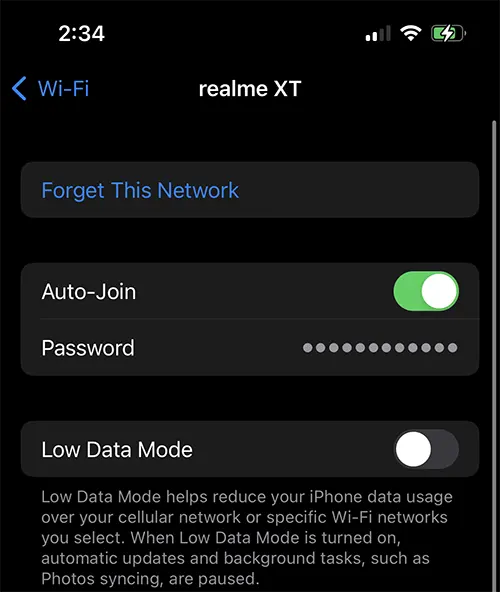
To view the password of the selected saved WiFi network tap on the Password field
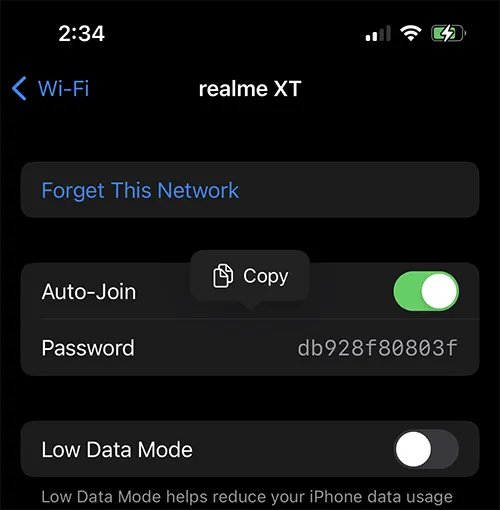
This will unhide the password and view the complete password of the WiFi
Tap on the copy button to copy the password to the clipboard
This is how one can easily figure out WiFi password on iPhone.
How to Share WiFi Password in iPhone
Alternatively, if you want to share a WiFi password within the Apple ecosystem that is, between Apple devices there is a simpler way to do so. You can share the WiFi password with other Apple devices without typing the password manually or trying to remember it. This feature is known as Share WiFi Password, and it allows you to share the WiFi password from a connected Apple device to another Apple device that is not connected. This process uses AirDrop, which is why it works only between Apple devices.
Before You Begin — Requirements
Make sure you meet the following criteria:
- Both Apple devices should be running the latest iOS or macOS.
- Turn ON WiFi and Bluetooth on both devices.
- If Personal Hotspot is enabled on your device, make sure to turn it OFF.
If you fulfill the above criteria, you can proceed with the WiFi password sharing process.
Steps to Share WiFi Password on iPhone
Keep your iPhone unlocked, connected to the WiFi network, and nearby the other Apple device.
On the device that needs WiFi, go to WiFi settings, select the network, and try to connect.
A Share WiFi Password popup will appear on the device already connected to the WiFi.
Tap Share Password, and the password will be sent to the other device automatically.
A confirmation message will display saying “Successfully shared your WiFi password.”
That’s it! This is how simple the process is in the Apple ecosystem. You don’t need to view the password or try to remember it ever again.

Leave a Reply